
How to Expand Images with AI Outpainting
Learn how AI outpainting extends your photos beyond their original borders. Fix tight crops, change aspect ratios, and create wider compositions in seconds.
Product Team
Table of Contents
Every photographer has taken a shot that is framed just a little too tight. Maybe you cropped in too far during editing, or the original composition did not leave enough room for a social media format that requires a different aspect ratio. In the past, your only options were to reshoot or accept the limitations of the original frame.
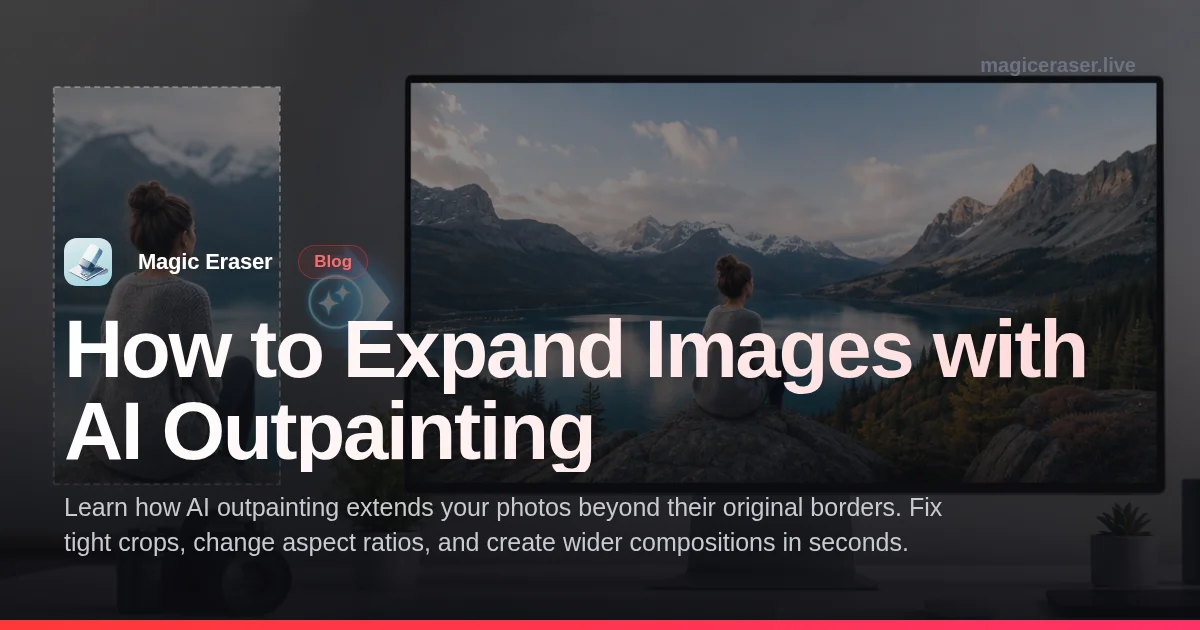
AI outpainting solves this problem by generating new visual content beyond the edges of your existing photo. The AI analyzes the textures, colors, lighting, and context of your image, then extends the scene in any direction you choose. The result looks like the photo was originally taken with a wider lens or from a greater distance.
This guide covers what outpainting is, the most common use cases, step-by-step instructions for expanding images with Magic Eraser AI Expand, and tips for achieving the most natural-looking results.
- Extend photos beyond their original borders in any direction.
- Fix tight crops without reshooting or losing the original composition.
- Convert between aspect ratios for different social media platforms.
- AI matches the existing scene's textures, lighting, and style seamlessly.
- Works on landscapes, portraits, product shots, and creative photography.
What is AI outpainting and how does it work
Outpainting is the process of extending an image beyond its original boundaries by generating new content that blends seamlessly with the existing pixels. Unlike inpainting, which fills in selected areas within an image, outpainting creates fully new visual information around the outside edges. The AI model examines existing content — sky gradients, ground textures, architectural lines, and foliage patterns — then continues those elements naturally into the expanded area.
The technology behind outpainting uses generative AI models trained on vast datasets of images. These models understand spatial relationships, perspective, lighting consistency, and how natural scenes often extend beyond a frame. When you expand a landscape photo to the right, the AI knows that a grassy field should continue with similar texture and that the sky gradient should remain consistent with the existing horizon line.
Quality of results depends heavily on the content at the edges of your original image. Photos with gradual transitions — open skies, water surfaces, grass fields, blurred backgrounds — tend to produce the most convincing expansions. Images with complex, unique objects cut off at the edge present more of a challenge. The AI must guess what lies beyond a partially visible structure. Understanding these strengths and limitations helps you choose which photos will benefit most from outpainting.
- Outpainting generates new content beyond the original image borders.
- AI analyzes existing textures, colors, and perspective to extend the scene.
- Gradual transitions like skies and fields produce the most seamless results.
- Complex objects at edges may require minor touch-ups after expansion.
- The process preserves the original image while adding surrounding content.
Common use cases for AI image expansion
Social media is the leading use case for outpainting. Each platform has its own preferred aspect ratio: Instagram feed posts favor squares or 4:5 portraits, Stories and Reels need 9:16 vertical, YouTube thumbnails work best at 16:9 horizontal. Pinterest pins perform better in tall 2:3 formats. Rather than cropping your best photos to fit each platform and losing important parts of the image, outpainting lets you extend the canvas to match the required dimensions while keeping the original composition intact.
Real estate and product photography also benefit greatly. A property photo that was shot too tight can be expanded to show more of the surrounding landscape or room. Product shots can be extended to create space for text overlays, price tags, or branding elements in marketing materials. This saves the cost and time of reshooting, which is especially valuable when the property or product is no longer available for photography.
Creative and artistic applications push outpainting further. Photographers use it to create panoramic-style images from single shots, extend backgrounds for composite work, or reimagine the space around a subject. Digital artists use outpainting to expand concept art, extend illustration borders for print formatting, or create wider versions of scenes for different display sizes. The tool turns a fixed frame into a flexible canvas.
- Adapt photos to different social media aspect ratios without cropping.
- Expand real estate and product photos to create space for text or branding.
- Create panoramic compositions from single-shot images.
- Extend backgrounds for composite photography and design projects.
- Save reshooting costs when the original scene is no longer accessible.
Step-by-step: expand images with Magic Eraser AI Expand
Open Magic Eraser and select the AI Expand tool. Upload the photo you want to extend. The tool will display your image on a canvas where you can choose which direction to expand. Left, right, top, bottom, or any combination. Drag the canvas borders outward in the direction you need. For aspect ratio conversions, you can select a preset ratio like 16:9 or 9:16 and the tool will calculate how much expansion is needed on each side.
Once you have set the expansion area, tap or click Generate. The AI will analyze the content at each edge and fill the new space with generated imagery that matches the existing scene. This often takes a few seconds. Review the result carefully, paying attention to where the original image meets the generated content. In most cases, mainly with natural scenes and gradual transitions, the boundary will be invisible.
If any area needs adjustment, you can regenerate specific sections or make minor edits. For best results, expand in moderate increments rather than trying to double the image size in one pass. A 20-30 percent expansion in each direction often produces more natural results than an extreme extension. Once you are satisfied, download the expanded image in full resolution. The original portion of the photo retains its full quality — only the newly generated areas are AI-created.
- Upload your photo and choose which direction to expand the canvas.
- Select a preset aspect ratio or drag borders manually for custom sizes.
- Generate the expansion and review where original meets generated content.
- Expand in moderate increments for the most natural-looking results.
- Download the full-resolution expanded image with the original quality preserved.