
How to remove a tattoo from a photo
Need a tattoo-free version of a portrait for professional use, or want to preview what you would look like without ink? Magic Eraser removes tattoos while reconstructing natural skin texture, tone, and lighting.
Last updated
Remove tattoo now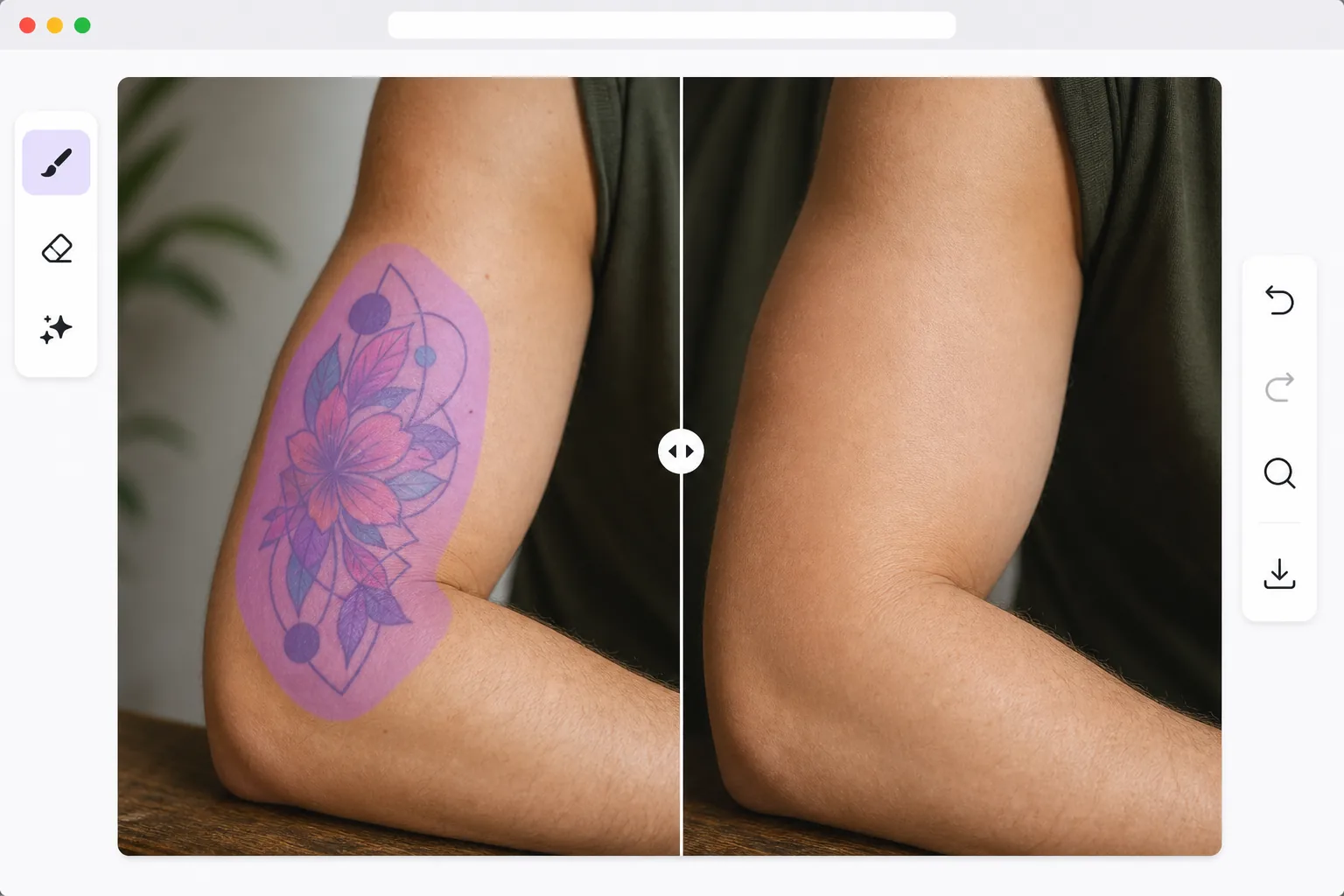
How to remove a tattoo from a photo
To remove a tattoo from a photo, open Magic Eraser on the web, iOS, or Android, upload the image, brush over the whole tattoo plus a small margin of clean skin, and tap Erase. The AI replaces the ink with reconstructed skin that matches the surrounding tone, pores, and lighting, so the area looks like bare skin rather than a painted-over patch. It includes limited free edits after sign-in. This edits the photo only — it doesn't remove a real tattoo from skin — so it's for portfolio shots, formal portraits, or previewing a tattoo-free look. Work large pieces in sections for the most natural result. Tattoo removal in photos is more nuanced than simple object removal. Tattoos follow the contours of skin, and the ink interacts with skin tone, light reflection, and muscle definition. Simply painting over a tattoo with a flat skin color looks obviously artificial. AI-powered removal understands skin as a three-dimensional surface: it reconstructs pores, hair follicles, subtle vein patterns, and natural color variation that would exist if the tattoo were not there. The result matches the surrounding skin's tone, texture, and lighting — producing a result that looks like the person never had the tattoo.
Before you start
Remove a tattoo in three steps
Start with upload the photo. The result preview above and tips below use this guide's existing content; no separate before-and-after proof is assumed.
- 1
Upload the photo
Open Magic Eraser on web, iOS, or Android. Upload the portrait or body shot. The AI works with tattoos of any size, color, and complexity — from small wrist designs to full sleeve tattoos.
- 2
Brush over the tattoo
Use the brush tool to cover the tattoo completely. Follow the tattoo boundaries closely but include a small margin of clean skin so the AI can match the surrounding tone and texture seamlessly.
- 3
Review skin reconstruction and export
The AI replaces the tattoo with natural skin that matches the surrounding area. Check that muscle contours, skin folds, and lighting transitions look continuous. Export the clean portrait at full resolution.
Best for
- Models needing tattoo-free portfolio photos for casting calls and auditions
- Professionals creating formal portraits where tattoos are not appropriate
- People previewing what they would look like before getting a tattoo removed
- Photographers offering tattoo-removal retouching as a service to clients
- Social media users creating alternate versions of photos for different audiences
Tips for best results
Well-lit photos produce the best results because the AI needs to understand the skin's natural color and texture. For large tattoos (full sleeves, back pieces), process in sections rather than selecting the entire area at once — this gives the AI more surrounding context for each section. Dark tattoos on light skin are easiest because the contrast makes boundary detection straightforward. Colorful tattoos on tanned skin require more careful brushing around edges. After removal, zoom in to verify that the reconstructed skin texture matches the surrounding area's pore pattern and hair.
Frequently asked questions
- Can it remove colorful tattoos?
- Yes. The AI handles black ink, color tattoos, watercolor styles, and even UV/blacklight tattoos. Each type is replaced with reconstructed skin that matches the surrounding area.
- Does it work with full sleeve tattoos?
- Yes, though processing in sections produces the best results for large tattoos. Start with the edges and work inward so the AI always has clean skin context nearby.
- Is tattoo removal free?
- Yes. Object removal features are available in the free tier with daily usage limits. Premium removes limits for batch processing.
- How do I remove a tattoo from a photo on Android or iPhone?
- Open Magic Eraser in any mobile browser or the iOS or Android app, load the photo from your camera roll, and pinch to zoom so you can trace the tattoo precisely. Brush over the whole design plus a thin margin of clean skin with your finger, then tap Erase. The AI rebuilds the skin underneath right on your phone and saves the clean image back to your camera roll. It works the same as the desktop version, with no app install required if you use the browser.
- Does this actually remove a real tattoo from skin?
- No. Magic Eraser is a photo editor — it edits the pixels of an image so the tattoo no longer shows in that picture. It has nothing to do with real-world tattoo removal, which is a medical procedure (laser treatment) done by a licensed professional. Use this when you want a tattoo-free version of a photo — for a casting portfolio, a formal headshot, or to preview how a tattoo-free look might appear before booking actual removal.