
How to remove shadows from a photo
Harsh shadows under eyes in midday portraits, product shadows on white backgrounds that look unprofessional, building shadows across landscape shots — unwanted shadows distract and reduce image quality. Magic Eraser's AI removes shadows while preserving natural lighting.
Last updated
Remove shadows now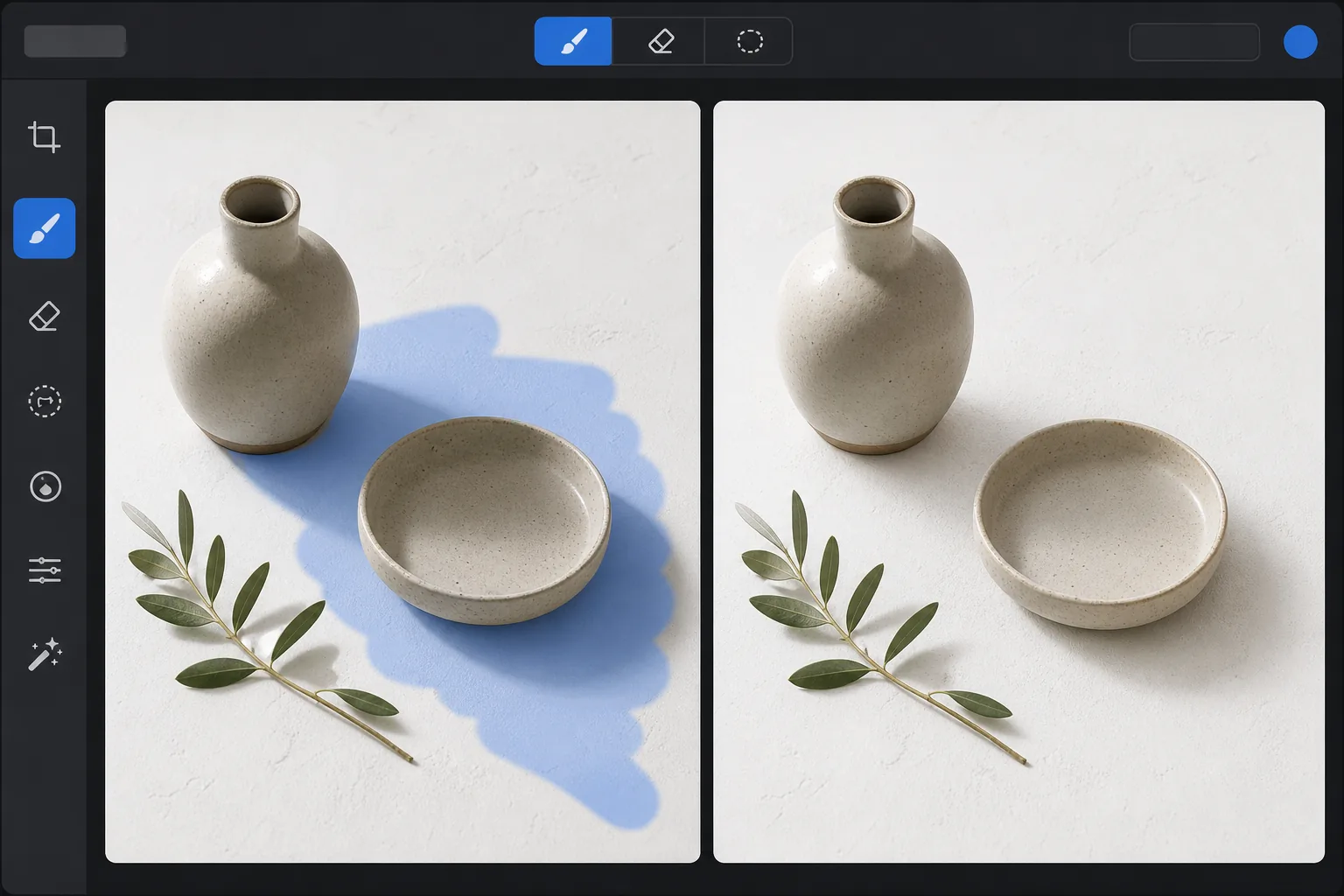
How to remove a shadow from a photo
To remove a shadow from a photo, open Magic Eraser on the web, iOS, or Android, upload the image, brush over the unwanted shadow, and tap Erase. The AI lifts the shadow and rebuilds the surface underneath — skin, wall, or ground — at even brightness in seconds. It includes limited free edits after sign-in. It works on facial shadows from harsh light, your own shadow or phone shadow cast across a shot, and shadows on product or document photos. Brush only the shadows you want gone and leave natural ones that add depth. Shadows aren't simply dark areas — they're areas where light is partially blocked, creating gradients from full shadow through penumbra to fully lit surface. The shadowed area still contains the underlying surface texture, color, and detail, just at reduced brightness with a color shift toward the ambient light color (typically blue outdoors). Manual shadow removal in Photoshop requires carefully lifting the shadow brightness while correcting the color shift, blending the edges where shadow meets lit surface, and preserving the surface texture throughout — a process that takes 5-15 minutes per shadow for professional results. Magic Eraser's AI understands shadow structure and removes the shadow while maintaining the surface detail underneath, producing natural even lighting in seconds.
Before you start
Remove shadows in three steps
Start with upload the photo. The result preview above and tips below use this guide's existing content; no separate before-and-after proof is assumed.
- 1
Upload the photo
Open Magic Eraser on web, iOS, or Android. Upload the photo with unwanted shadows — a portrait with harsh facial shadows, a product shot with distracting cast shadows, or a landscape with building shadows. JPEG, PNG, HEIC, and WebP supported.
- 2
Brush over the shadow
Paint over the entire shadow area including the soft penumbra edges where the shadow gradually transitions to lit surface. For facial shadows, brush the dark areas under the eyes, nose, and chin. For product shadows, brush the cast shadow on the background surface. Include the full gradient from darkest to where it blends with the lit area.
- 3
Tap Erase and review
The AI lifts the shadow while preserving the underlying surface texture and detail. The formerly shadowed area matches the brightness and color of the surrounding lit surface. Check the transition zones for smooth blending and refine with a second pass if needed. Export at full resolution.
Best for
- Portrait photography where harsh overhead lighting creates unflattering shadows under eyes, nose, and chin
- Product photography where cast shadows on white backgrounds look unprofessional or uneven
- Real estate photography where building shadows fall across the property's facade or yard
- Outdoor photography where tree shadows or building shadows cross the main subject
- ID and passport photos requiring even facial lighting without shadow patterns
Tips for best results
For best results, brush the entire shadow including its soft edges — stopping at the darkest center and missing the penumbra creates a visible brightness jump. Facial shadows respond particularly well because the AI has clear reference from the lit side of the face. Product shadows on white backgrounds are the easiest case — the AI knows the target is a clean white surface. For shadows that cover a large portion of the image (a building shadow across half a landscape), the AI may need to infer the lit appearance from a smaller reference area, which works well when the surface is consistent (grass, pavement, sand) but may be less precise on complex or varied surfaces.
Frequently asked questions
- Can it remove shadows from faces?
- Yes. Facial shadows from overhead lighting, side lighting, or flash are one of the most common use cases. The AI lifts the shadow while preserving skin texture, tone, and facial features.
- Does it remove all shadows or just selected ones?
- Only the shadows you brush. Some shadows are natural and desirable — they add depth and dimension. Brush only the shadows that are unwanted or distracting, and the AI removes those specifically.
- Can it fix harsh midday sun shadows?
- Yes. Harsh overhead sun creates strong shadows under features. The AI lifts these shadows to approximate the even lighting of overcast conditions or golden hour.
- Is shadow removal free?
- Yes. Magic Eraser's free tier includes the brush tool for shadow removal with daily usage limits. Premium removes limits and enables high-resolution exports.
- How do I remove a shadow from a photo on Android or iPhone?
- Open Magic Eraser in any mobile browser or the iOS or Android app, load the photo from your camera roll, and pinch to zoom in on the shadow. Brush over it with your finger, including the soft penumbra edge where the shadow fades, and tap Erase. Zooming in helps you follow the shadow's edge without lifting brightness on areas you want to keep. The result matches the desktop version and saves straight back to your photos.
- Can it remove my own shadow or a phone shadow cast across the photo?
- Yes — a self-cast shadow or the shadow of your phone falling across a document, product, or flat surface is a common fix. Brush over the whole shadow shape, including its faded edge, and the AI rebuilds the surface at even brightness. For a shadow lying across detailed texture, brush in sections and check the seam; on a plain surface it lifts almost invisibly.