
How to remove glasses from a photo
Glare on lenses, reflection hiding eyes, or just want to see how you look without glasses? Magic Eraser removes glasses from portraits while naturally reconstructing the eyes, nose bridge, and surrounding facial features.
Last updated
Remove glasses now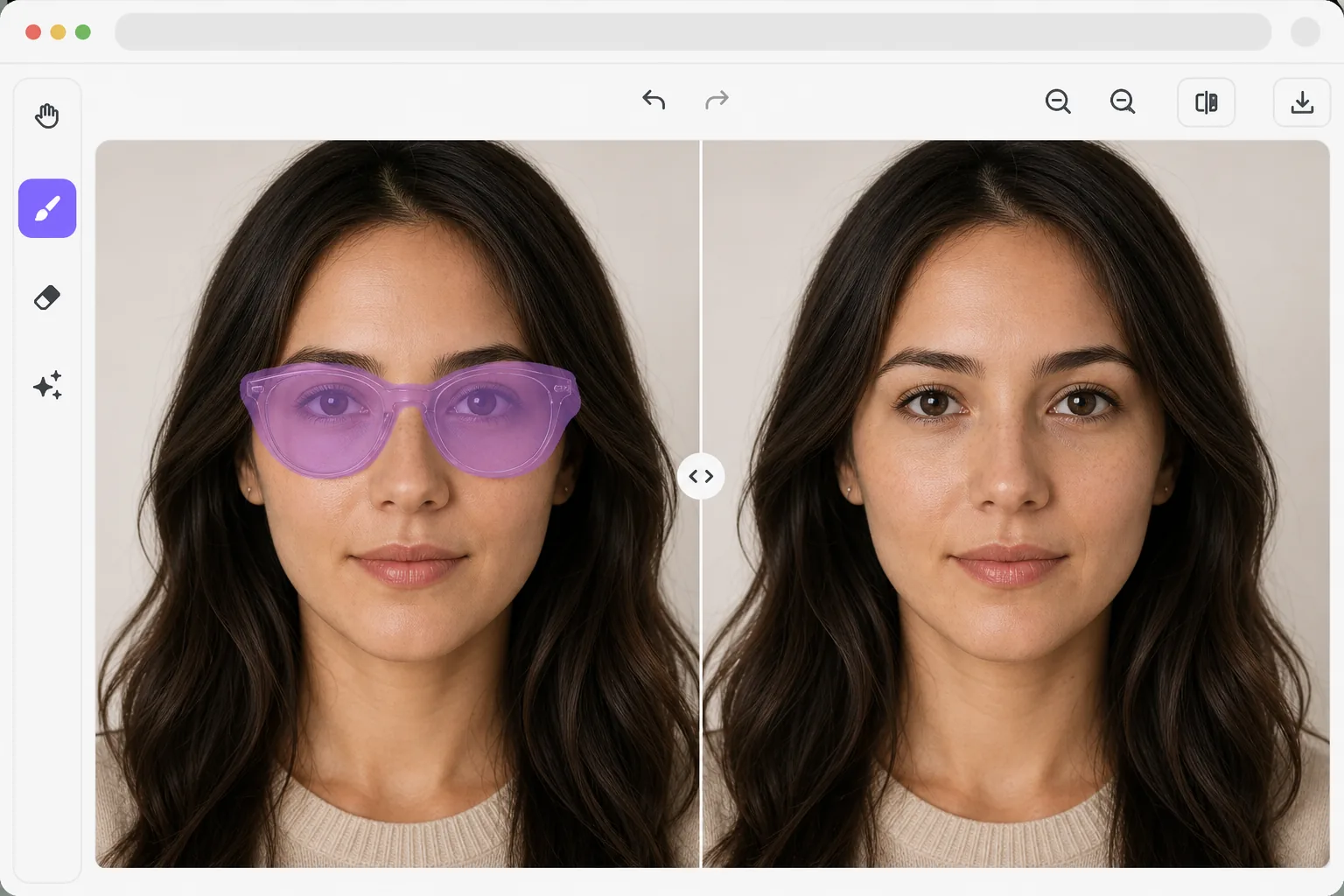
How to remove glasses from a photo
To remove glasses from a photo, open Magic Eraser on the web, iOS, or Android, upload the portrait, brush over the whole pair — frames, lenses, earpieces, and any shadow they cast — and tap Erase. The AI reconstructs the eyes, eyebrows, and nose bridge underneath, so the face looks natural without the glasses. It includes limited free edits after sign-in. It works best on clear prescription glasses where the eyes are partly visible through the lenses; on dark sunglasses the AI generates plausible eyes from the face shape, which may not match your exact eye color, so treat that as a likeness rather than a true record. Glasses are one of the hardest objects to remove from portraits because they interact with the face in multiple ways: frames cast shadows, lenses distort the skin behind them, reflections hide eyes, and earpieces overlap with hair. Simply erasing the glasses leaves obvious gaps where eyes, eyebrows, and the nose bridge should be. AI-powered glasses removal uses facial understanding to reconstruct the complete face behind the frames — generating natural eyes, eyebrows, and nose bridge that match the person's actual features. The model has learned from millions of faces how these features should look when uncovered.
Before you start
Remove glasses in three steps
Start with upload the portrait. The result preview above and tips below use this guide's existing content; no separate before-and-after proof is assumed.
- 1
Upload the portrait
Open Magic Eraser on web, iOS, or Android. Upload a portrait where the subject is wearing glasses. Front-facing and slight-angle portraits work best. The AI handles prescription glasses, sunglasses, and reading glasses.
- 2
Select the glasses
Brush over the entire glasses — frames, lenses, and earpieces. Include any visible shadow cast by the frames on the cheeks and nose. For sunglasses with dark lenses, be thorough in covering the entire lens area.
- 3
Review facial reconstruction and export
The AI reconstructs the eyes, eyebrows, nose bridge, and temple area that were hidden behind the glasses. Check that the reconstructed features match the face's symmetry and skin tone. Export the glasses-free portrait.
Best for
- Portrait photographers removing glare and reflections from glasses that obscure eyes
- People curious about how they would look after LASIK or with contact lenses
- Passport and ID photo requirements where some jurisdictions restrict glasses
- Fashion photography where glasses are not part of the intended styling
- Social media users wanting a glasses-free version of their profile photo
Tips for best results
Results are best when some eye area is visible through the lenses — clear prescription glasses with minimal glare give the AI the most context for accurate eye reconstruction. For dark sunglasses where eyes are completely hidden, the AI generates plausible eyes based on the face structure, but they may not match the exact original eye color or shape. Include frame shadows in your selection for the cleanest result. Front-facing photos produce more accurate results than extreme angles where one eye is significantly occluded by the nose bridge.
Frequently asked questions
- Will the reconstructed eyes match my actual eyes?
- For clear prescription glasses where your eyes are partially visible through the lenses, the AI uses that information for accurate reconstruction. For opaque sunglasses, the AI generates plausible eyes that match your skin tone and facial structure, but may differ from your exact eye color and shape.
- Does it handle lens reflections?
- Yes. Lens reflections are treated as part of the glasses and removed during processing. The AI reconstructs the eye area that was hidden behind the reflection.
- Is glasses removal free?
- Yes. Object removal features are available in the free tier with daily usage limits. Premium removes limits for batch processing.
- How do I remove glasses from a photo on Android or iPhone?
- Open Magic Eraser in any mobile browser or the iOS or Android app, load the portrait from your camera roll, and pinch to zoom so you can trace the frames and lenses precisely. Brush over the whole pair — including the shadow on the cheeks and nose — with your finger and tap Erase. The AI reconstructs the eyes and nose bridge right on your phone and saves the result back to your camera roll. It works the same as the desktop version, with no app install required if you use the browser.
- Can it remove dark sunglasses and show the real eyes?
- It can remove the sunglasses, but it cannot recover eyes it never saw. When the lenses are fully opaque, the AI has no information about the actual eyes underneath, so it generates plausible ones that fit the face's skin tone and structure — they will look natural but may differ from your real eye color and shape. For a result that matches you, start from a photo where at least some of the eye is visible through the lens. Clear prescription glasses give the most accurate reconstruction.