
Remove Glare From Glasses in Photos
That white hotspot bouncing off a lens can hide an eye in a portrait or wreck an ID photo. Magic Eraser paints over the glare on the glasses and reconstructs the eye behind it, so the face reads clearly again.
Last updated
Remove glare now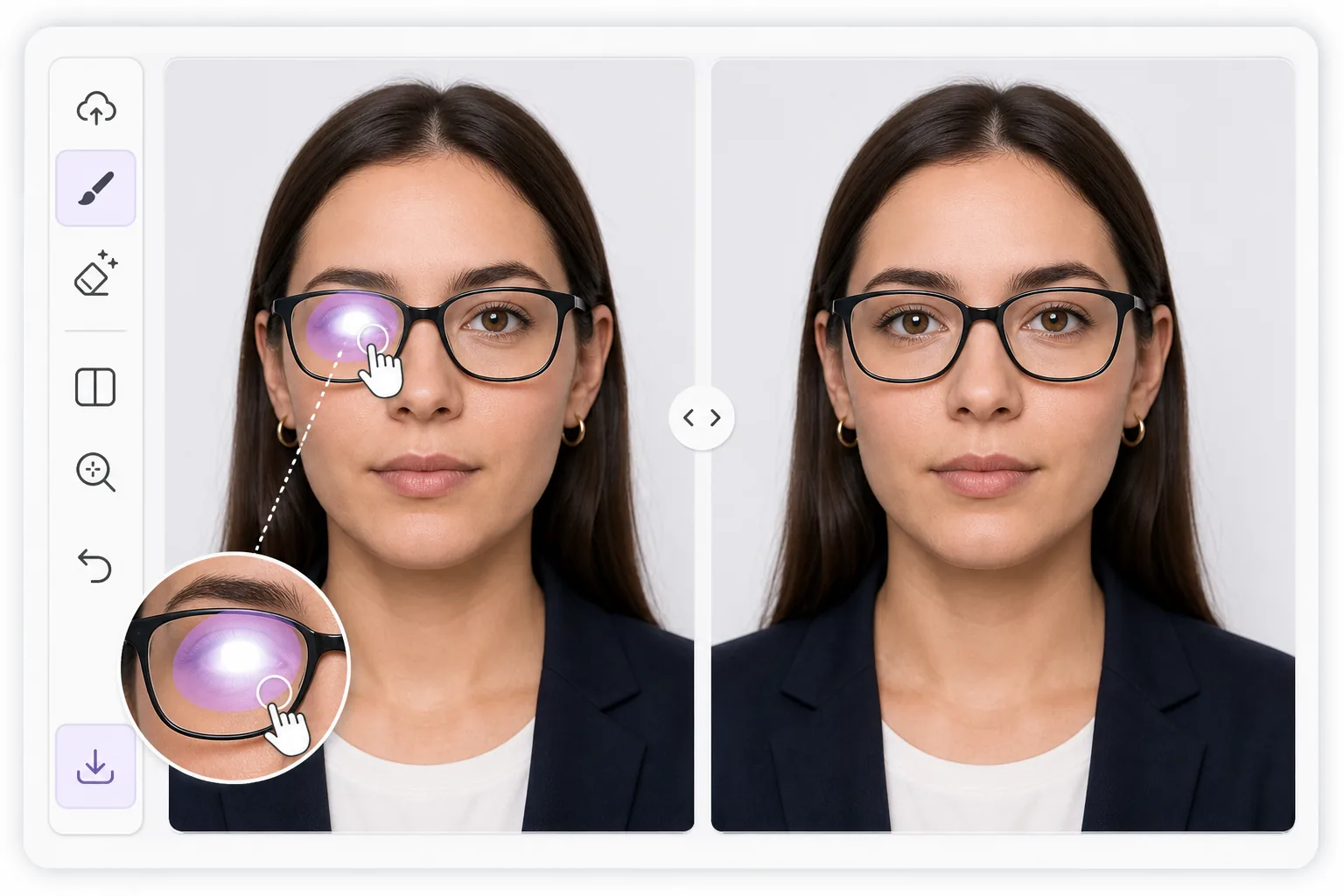
Why lens glare is harder than ordinary glare
Reflections on eyeglasses sit directly over the most important part of a portrait: the eyes. A flash, a window, or a ring light leaves a bright patch on the lens that flattens the eye behind it, sometimes erasing the iris or pupil entirely. Unlike glare on a wall or a table, you cannot just smooth it away, because the eye, eyelid, lashes, and lens frame all need to stay believable underneath. Magic Eraser uses AI inpainting to handle this. You brush over the bright spot, and the tool generates a plausible reconstruction of the eye and surrounding skin based on the rest of the face and the second, clearer eye when one is visible. It is honest to say this is synthesis, not recovery of hidden pixels: the original detail behind a blown-out highlight is gone, so the result is the model's best, natural-looking guess. For passport and ID photos that ban reflections, that reconstruction can be the difference between an accepted and a rejected shot, and it works the same way on a casual portrait you just want to look right.
Before you start
Remove lens glare in three steps
Start with upload the portrait. The result preview above and tips below use this guide's existing content; no separate before-and-after proof is assumed.
- 1
Upload the portrait
Open Magic Eraser on web, iOS, or Android and add the photo with the glare on the glasses. Pinch or scroll to zoom in tight on the lens so you can work precisely around the eye and frame.
- 2
Brush only the glare hotspot
Paint over the bright reflection on the lens, staying inside the eye area. Keep the brush off the frame edge, eyebrow, and the clear eye so the AI has accurate surrounding detail to rebuild from.
- 3
Reconstruct and refine
Let the AI inpaint the eye behind the glare. Check the iris position, eyelid line, and symmetry against the other eye, then re-brush any leftover hotspot and export with no watermark.
Best for
- Passport, visa, and ID photos that reject any lens reflection
- Headshots where a ring light or flash leaves a hotspot on one lens
- Family and group portraits where someone's eye is hidden by glare
- LinkedIn and profile pictures that need clear, glasses-on eye contact
- Indoor event photos shot near windows or bright overhead lighting
Tips for a believable eye
Work one lens at a time and zoom in before brushing. Tight, accurate strokes that cover only the bright patch give the AI more real detail to copy, so the rebuilt eye matches the face. When only one lens has glare, the clear eye acts as a reference and results look most natural. For heavy reflections that wash out the entire lens, expect a fuller synthesized eye and sanity-check iris color, gaze direction, and pupil size against the original. If the first pass looks off, undo and re-brush a slightly smaller area rather than a larger one. For ID shots, confirm the final image still meets the rule of a neutral expression and no visible reflection before you submit it.
Frequently asked questions
- Can it really rebuild the eye hidden behind the glare?
- It reconstructs a plausible eye, not the literal hidden pixels. A bright reflection destroys the detail underneath, so the AI synthesizes a natural-looking eye from the rest of the face and the clearer eye. Results are strongest when only one lens is affected; review iris position and symmetry before saving.
- Is Magic Eraser free to start?
- Yes. Magic Eraser has a free tier on web, iOS, and Android, and exports come without a watermark, so you can clean up lens glare and check the result before deciding on anything more.
- Will it work for a strict passport or ID photo?
- It can remove the reflection many ID rules forbid and rebuild a clear eye, which often makes a borderline photo usable. Because the eye is reconstructed, double-check that the final image still meets your country's requirements for expression and no glare before submitting.