
How to change hair color in a photo
Curious how you would look as a blonde, redhead, or with silver hair? Magic Eraser's AI Fill lets you change hair color in photos realistically — preserving highlights, shadows, and natural texture while transforming the color entirely.
Last updated
Change hair color now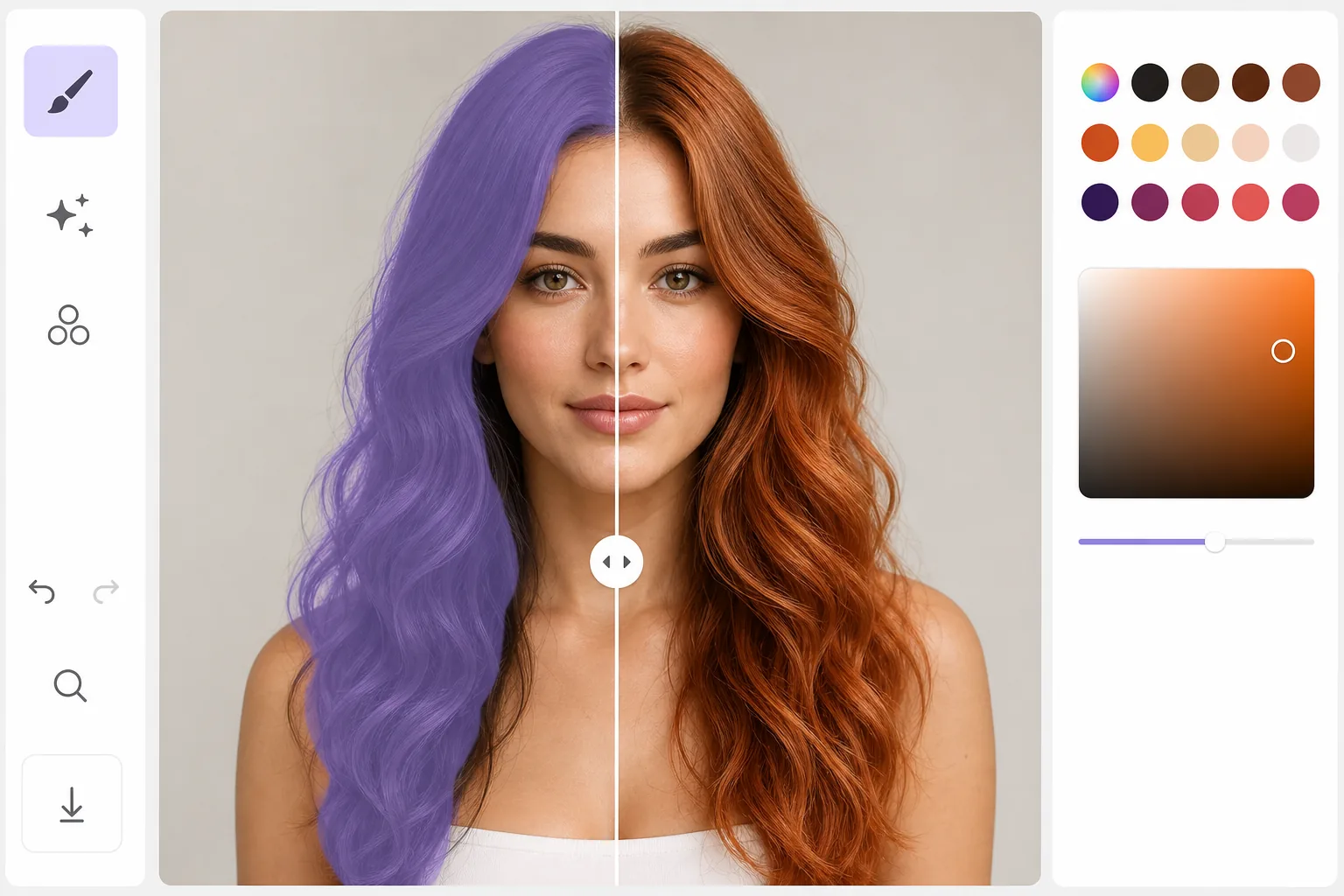
How to change hair color in a photo
To change hair color in a photo, open Magic Eraser on the web, iOS, or Android, select AI Fill, upload a portrait, brush over the hair, and type the color you want — 'platinum blonde', 'deep auburn', 'silver', or a fantasy shade — and the AI repaints it while keeping the strand highlights, shadows, and texture intact, so it looks like real hair rather than a flat color overlay. It includes limited free edits after sign-in. Because the AI follows how light actually behaves, the new color reads as believable, and the original is untouched, so you can try shade after shade. Hair is one of the most challenging elements to recolor in photos. Every strand catches light differently, creating complex patterns of highlights, shadows, and reflections. Simply painting a color overlay destroys this detail and produces flat, unrealistic results. AI-powered hair color change understands the three-dimensional structure of hair: it preserves individual strand highlights, adjusts shadow depth for the new color, and modifies the color of hair-cast shadows on skin and clothing. Blonde hair reflects more light than dark hair, so the AI brightens highlights accordingly. Dark hair absorbs more light, so shadows deepen. The result respects physics rather than just swapping a color channel.
Before you start
Change hair color in three steps
Start with upload a portrait. The result preview above and tips below use this guide's existing content; no separate before-and-after proof is assumed.
- 1
Upload a portrait
Open Magic Eraser on web, iOS, or Android and select AI Fill. Upload a portrait where the hair is clearly visible. Front-facing and three-quarter angles work best. The AI works with any hair type — straight, wavy, curly, coiled, braided, or in an updo.
- 2
Select hair and describe the new color
Brush over the hair area to select it. Type a description of the desired color: 'platinum blonde', 'deep auburn red', 'silver gray', 'pastel pink', or any color you can describe. The AI interprets the description and generates a realistic color change that matches the lighting conditions.
- 3
Review and export
The AI generates the new hair color while preserving the natural texture, volume, and lighting. Use the before/after slider to compare. If the color is not quite right, try a different description or adjust the selection area. Export when satisfied.
Best for
- Anyone curious about how they would look with a different hair color before committing to a salon visit
- Stylists previewing color options with clients before applying chemical treatments
- Content creators experimenting with different looks for photoshoots and social media
- Cosplayers previewing character hair colors on their own photos
- Fashion and beauty content where hair color variations showcase different aesthetics
Tips for best results
Be specific in your color description — 'warm honey blonde with darker roots' produces more realistic results than just 'blonde'. Include the hair area generously in your selection but avoid selecting skin — the AI needs to know where hair ends and face begins. For dramatic color changes (dark brown to platinum blonde), the AI may lighten eyebrows slightly to maintain realism. Fantasy colors (pink, blue, purple) work well and follow the same lighting rules as natural colors. For the most photorealistic results, change to colors within two or three shades of the original — a brunette going strawberry blonde looks more natural than going platinum.
Frequently asked questions
- Does it work with dark hair?
- Yes. Dark hair can be changed to any color, including much lighter shades. The AI adjusts highlight and shadow patterns to match the new color's light-absorbing properties. Going from very dark to very light may require a more specific prompt to get the exact shade you want.
- Can I change just the highlights or roots?
- Yes. Select only the area you want to change — just the roots for a grown-out look, just the ends for an ombré effect, or just the highlights for a balayage preview. The AI respects your selection boundaries.
- Is hair color changing free?
- Yes. AI Fill features including hair color changes are available in the free tier with daily usage limits. Premium removes limits for unlimited experimentation.
- How do I change my hair color in a photo on my phone?
- Open Magic Eraser in any mobile browser or the iOS or Android app, load the portrait from your camera roll, select AI Fill, and brush over the hair with your finger — pinch to zoom for clean edges around the face. Type the color you want and the AI recolors it right on your phone, then saves the result back to your camera roll. It works the same as the desktop version, with no app install required if you use the browser.
- How do I get the exact shade I have in mind?
- The more specific your description, the closer the result. 'Warm honey blonde with darker roots' lands better than just 'blonde', and naming a reference — 'ash brown', 'copper red', 'rose gold' — helps the AI pick the right tone. If the first try is off, re-run with a more detailed prompt or tighten the selection; the original photo is never changed, so you can keep trying shades for free until it's right. Fantasy colors like pink, blue, or purple follow the same lighting rules as natural ones.