
Stockfoto-Vorbereitung
Lassen Sie Ihre Fotos bei der ersten Einreichung von Bildagenturen akzeptieren. Diese Vorlage entfernt Marken, Logos und Markenelemente, die zur Ablehnung führen, beseitigt technische Mängel, die bei der Qualitätsprüfung durchfallen, und exportiert Dateien in den exakten Spezifikationen, die Shutterstock, Adobe Stock, Getty und iStock verlangen – und beseitigt damit die häufigsten Gründe, warum Fotos aus Stock-Bibliotheken abgelehnt werden.
Diese Vorlage kostenlos testenDesign template preview
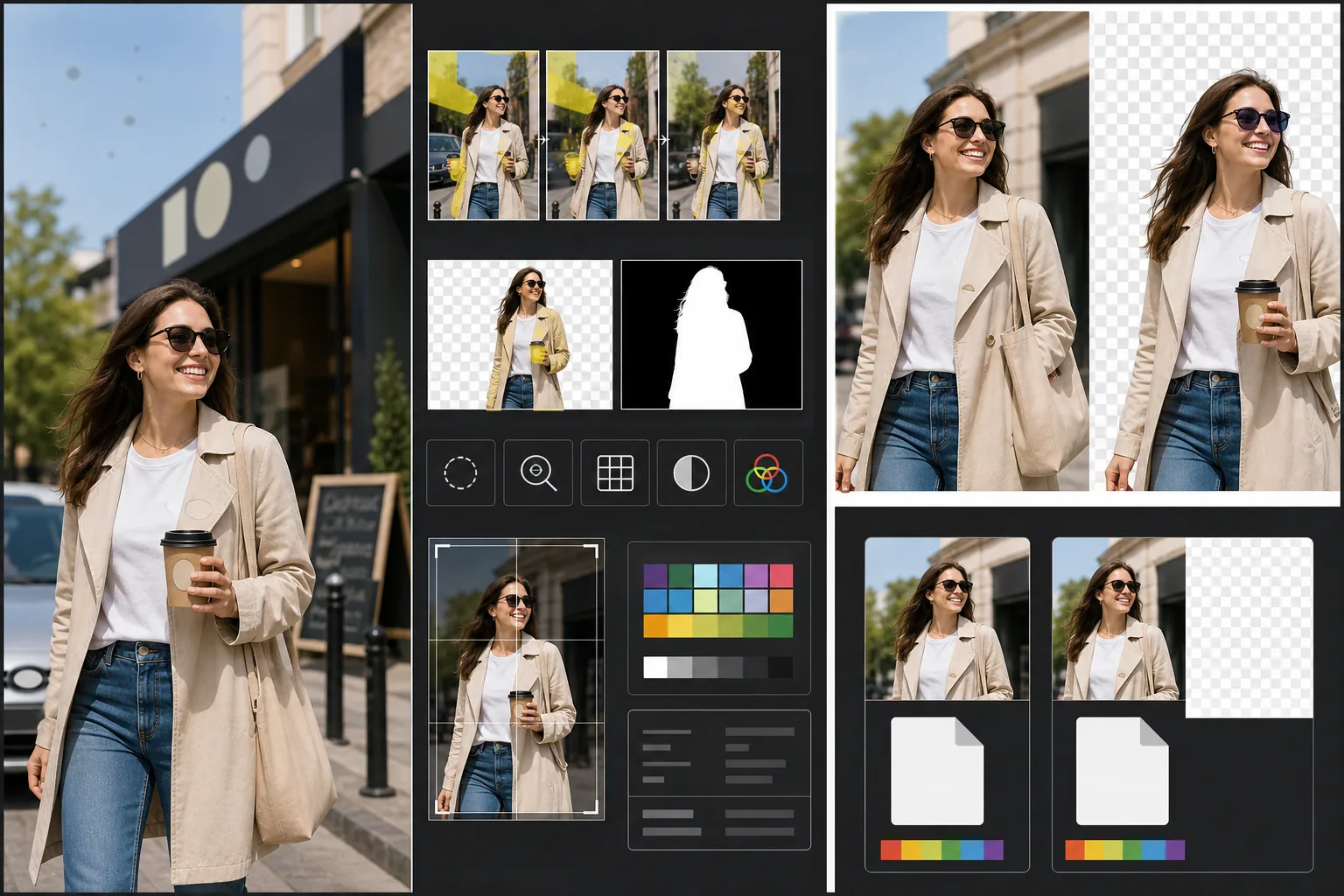
Was diese Vorlage macht
Erfüllt die spezifischen technischen und rechtlichen Anforderungen, die zur Ablehnung von Stockfotos führen. Magic Eraser erkennt und entfernt sichtbare Marken, Markenlogos, Produktetiketten und Markenbeschilderungen, die Eigentumsfreigaben erfordern oder eine direkte Ablehnung verursachen würden. Dazu gehören Logos auf Kleidung, Autoembleme, Ladenbeschilderungen und Markennamen auf Verpackungen. Background Eraser sorgt für eine saubere Freistellung von Bildern, die zum Ausschneiden vorgesehen sind, und erzeugt sowohl das RGB-Bild als auch eine separate Alphamaske, die Bildagenturen verlangen. Technische Qualitätsprüfungen überprüfen Rauschpegel, Schärfe, chromatische Aberration und Sensorstaubflecken – allesamt häufige Ablehnungsgründe – und die KI korrigiert, was sie kann, und markiert Probleme, die eine erneute Aufnahme erfordern. Der finale Export entspricht den Agenturspezifikationen für Dateiformat, Farbprofil, Auflösung und Metadaten-Einbettung.
Vorlageneinstellungen
| Markenerkennung | Sichtbare Logos, Markennamen und Produktetiketten automatisch erkennen und entfernen |
| Technische Qualitätsprüfung | Rauschen, Schärfe, chromatische Aberration und Sensorstaub überprüfen |
| Freistellungsmaske | Alphakanal für ausgeschnittene Bilder erzeugen (PNG mit Transparenz) |
| Farbprofil | sRGB (von den meisten Bildagenturen verlangt) |
| Metadaten | IPTC-Felder für Titel, Beschreibung und Schlagwörter einbetten |
| Ausgabeformat | JPEG in maximaler Qualität (Stufe 12) oder TIFF (verlustfrei, von Getty bevorzugt) |
So verwenden Sie diese Vorlage
Laden Sie Ihr Foto hoch
Laden Sie das Foto hoch, das Sie bei Bildagenturen einreichen möchten. Die Vorlage akzeptiert RAW-, JPEG-, TIFF- und PNG-Dateien. Laden Sie die verfügbare Version mit der höchsten Qualität hoch – Bildagenturen bewerten die technische Qualität in voller Auflösung und lehnen Bilder ab, die Kompressionsartefakte durch wiederholtes Speichern aufweisen.
Marken und Logos entfernen
Magic Eraser durchsucht das Bild nach sichtbaren Marken, Logos, Markennamen und Produktetiketten. Erkannte Elemente werden zur Überprüfung hervorgehoben. Freigegebene Entfernungen werden ausgeführt, wobei die KI die Oberfläche hinter jeder Marke rekonstruiert – die Gewebestruktur unter einem Kleidungslogo, die Karosserie unter einem Emblem, die Wandfläche unter einer Ladenbeschilderung.
Technische Qualitätsprüfung durchführen
Die Vorlage analysiert das Bild auf technische Probleme, die häufig zur Ablehnung durch Bildagenturen führen: Rauschen in Schattenbereichen, unzureichende Schärfe, chromatische Aberration an kontrastreichen Kanten, Sensorstaubflecken und Weißabgleichsfehler. Korrigierbare Probleme werden automatisch behoben. Nicht korrigierbare Probleme (wie starke Bewegungsunschärfe) werden markiert, damit Sie es vor der Einreichung wissen.
Mit Agentur-Metadaten exportieren
Wählen Sie Ihre Zielagentur, und die Vorlage exportiert im bevorzugten Format und in den Spezifikationen dieser Agentur. IPTC-Metadatenfelder für Titel, Beschreibung und Schlagwörter können vor dem Export eingebettet werden. Die Datei ist bereit, direkt in die Contributor-Portale von Shutterstock, Adobe Stock, Getty/iStock oder Alamy hochgeladen zu werden.
Profi-Tipps für beste Ergebnisse
- ✓Denken Sie von Anfang an bei der Aufnahme an Marken. Obwohl die KI Logos effektiv entfernt, erfordern Szenen mit weniger Markenelementen weniger Retusche und wirken natürlicher. Drehen Sie Kleidungsetiketten nach innen, wählen Sie markenlose Requisiten und positionieren Sie die Kamera so, dass Ladenbeschilderungen nach Möglichkeit ausgeschlossen werden.
- ✓Reichen Sie in der höchsten Auflösung ein, die Ihre Kamera erzeugt. Bildagenturen ordnen Suchergebnisse teilweise nach Auflösung – ein Bild mit 50 Megapixeln erscheint bei derselben Suchanfrage über einem Bild mit 12 Megapixeln, weil Käufer größere Dateien für flexibles Zuschneiden und großformatige Nutzung bevorzugen.
- ✓Nehmen Sie nach Möglichkeit Menschen in Ihre Stockfotos auf. Bilder mit erkennbaren menschlichen Motiven (mit Model-Releases) erzielen durchweg mehr Umsatz als ähnliche Szenen ohne Menschen. Die Hautretusche der Vorlage ist auf ein Minimum kalibriert, was Bildagenturen einer stark bearbeiteten Haut vorziehen.
Häufige Fragen
Sieht das Entfernen eines Autoemblems natürlich aus?
+
Ja. Die KI rekonstruiert die Karosserie hinter dem Emblem und passt Lackfarbe, Reflexion und Oberflächenkrümmung an. Bei gängigen Emblempositionen (vorderer Kühlergrill, Kofferraum, Radmitten) ist die Rekonstruktion sehr sauber. Ungewöhnliche Positionen oder sehr große Embleme erfordern möglicherweise eine schnelle manuelle Nachbearbeitung an den Rändern.
Kann das Schlagwörter für meine Einreichung erzeugen?
+
Die Vorlage bettet IPTC-Metadatenfelder ein, in die Sie Titel, Beschreibung und Schlagwörter eingeben können. Sie erzeugt keine Schlagwörter automatisch – die Optimierung von Stock-Schlagwörtern ist eine spezialisierte Fähigkeit, die von Ihrem Verständnis abhängt, wie Käufer suchen, und automatisch erzeugte Schlagwörter verfehlen oft die kommerziellen Konzepte, die Verkäufe ankurbeln.
Welche Agenturen werden unterstützt?
+
Die Export-Voreinstellungen decken Shutterstock, Adobe Stock, Getty Images, iStock, Alamy, Dreamstime und 500px ab. Jede Voreinstellung konfiguriert das korrekte Dateiformat, Farbprofil, die maximale Dateigröße und die Metadaten-Einbettung für die Einreichungsanforderungen der jeweiligen Agentur.
Lassen Sie Ihre Fotos bei der ersten Einreichung akzeptieren
Laden Sie Fotos hoch und erhalten Sie agenturfertige Dateien mit entfernten Marken, geprüfter Qualität und erfüllten Formatanforderungen.
Kostenlos testenRelated templates
More design templates for your workflow.
Erstellen Sie transparente PNG-Logos mit sauberer Kantenverfeinerung und Export in mehreren Größen für Web-, Druck-, soziale Medien- und App-Symbole. Funktioniert mit Fotos von gedruckten Logos und digitalen Dateien.
Erstellen Sie realistische Buchcover-Modelle mit 3D-Perspektive, Schattenwiedergabe und Lifestyle-Hintergründen für Autorenmarketing und Verlagswerbung.
Entwerfen Sie ein Podcast-Cover, das den Apple Podcasts- und Spotify-Spezifikationen entspricht, mit Hintergrundersetzung, Host-Porträt-Isolation und typografietauglichen Layouts.
Bereiten Sie digitale Kunstwerke und Fotos für den Großformatdruck mit KI-Hochskalierung, Leinwanderweiterung, farbgenauem Proofing und druckfertigem Dateiexport vor.