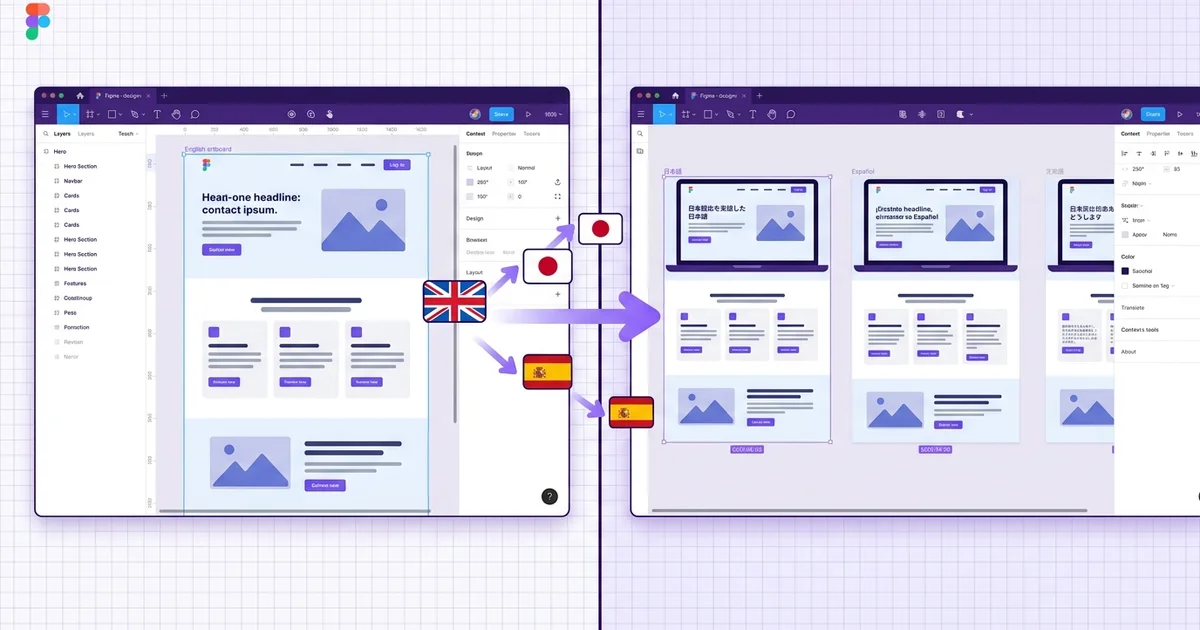
Figma Translate Plugin: A Faster Way to Localize Design
Learn how to use a Figma translate plugin to localize design files faster while keeping layout changes under control.
Product Team

A Figma translate plugin helps teams translate text directly inside design files instead of copying content into external tools and pasting it back later.
The main benefit is speed. When you are preparing multilingual UI, campaign assets, or client previews, keeping translation inside Figma reduces handoff friction.
Even so, every output should still be reviewed. Line breaks, tone of voice, and layout density often need a second pass after translation.
- Install a translation plugin from Figma Community.
- Select the text layers or frames you want to translate.
- Choose the target language and run the plugin.
- Review layout, spacing, and key wording before delivery.
Why in-design translation matters for teams
Localization has traditionally been a handoff-heavy process. A designer exports screens as images or copies strings into a spreadsheet, sends it to a translator, receives the translated file days later, and manually pastes each string back into the design tool. Every round trip introduces the risk of misplaced text, broken spacing, or outdated content that has already changed in the source file.
When translation happens directly inside Figma, several of these problems shrink. The translator or the plugin sees the exact visual context surrounding each string. A button label is not just a cell in a spreadsheet; it sits next to an icon, inside a container with a fixed width, on a screen where vertical space is limited. That context helps translators make better word choices and helps designers catch layout issues immediately.
Context loss is one of the biggest reasons translated interfaces feel unnatural. A word like 'Set' could mean a noun or a verb depending on the screen. When the translator works inside the design file, ambiguity is reduced because they can see which element uses the string and how it relates to the surrounding UI.
Layout drift is another hidden cost of external translation workflows. German strings are often thirty percent longer than their English equivalents. Japanese text may be shorter but requires different line-height settings. If you only discover these differences after importing strings back into the design, you end up doing two rounds of layout work instead of one. A plugin that translates in place lets you spot overflow and alignment issues as soon as the translation lands.
Setting up a Figma translate plugin
Figma Community hosts several translation plugins. Some rely on machine translation APIs such as Google Translate or DeepL, while others connect to professional translation management systems like Crowdin, Lokalise, or Phrase. The right choice depends on your accuracy requirements, budget, and whether you need translation memory or glossary features.
To install a plugin, open Figma, go to the Community tab, and search for the plugin by name. Click Install, and the plugin appears in your right-click menu under Plugins. Most translation plugins require an API key from the underlying translation service. You will usually find a settings panel inside the plugin where you paste the key and configure default source and target languages.
For team-wide consistency, consider adding the plugin to your Figma organization so that every designer uses the same translation engine and glossary. Some plugins support shared glossaries that ensure product terms, brand names, and UI labels are translated the same way across every screen and every project.
- Search Figma Community for translation plugins that match your translation provider.
- Install the plugin and add your API key in the plugin settings panel.
- Set a default source language, usually English, so the plugin knows which text is the original.
- If your organization uses Figma for Teams or Figma for Enterprise, publish the plugin to the shared library so everyone has access.
- Create a shared glossary for product-specific terms that should never be machine-translated, such as feature names and brand terms.
Translation workflow step by step
A typical translation workflow in Figma starts with selecting the layers you want to translate. You can select individual text layers, entire frames, or even a full page. Most plugins will recursively find every text node inside the selection, which saves you from having to click each label one by one.
After selecting the content, open the plugin and choose your target language. Some plugins let you translate into multiple languages at once, creating a separate page or frame for each locale. Others translate the selection in place, overwriting the original text. If you want to keep the source language intact, duplicate the frame before running the plugin.
Batch operations are where plugins truly save time. Imagine a dashboard with forty data labels, twelve menu items, and a handful of tooltips. Translating those one by one in a spreadsheet would take the better part of an afternoon. A plugin can process the entire frame in under a minute. The trade-off is that machine translation will not be perfect, so you still need a review step.
After the plugin finishes, walk through each screen in order. Look for strings that overflowed their containers, buttons where the label wraps to a second line, and any terms that the machine translated incorrectly. Mark issues with a Figma comment or a colored annotation so the translator or copywriter knows exactly which strings need manual correction.
- Select layers, frames, or an entire page depending on how much content you need to translate.
- Duplicate the frame before translating if you want to preserve the original language version side by side.
- Use the batch mode to translate all text nodes inside a selection at once.
- After translation, review every screen for overflow, truncation, and incorrect terminology.
- Use Figma comments to flag strings that need human review or correction.
Managing layout after translation
Text expansion is the most common layout problem after translation. English is a relatively compact language. Translating into German, French, or Portuguese often increases string length by twenty to forty percent. Shorter languages like Japanese or Chinese may reduce character count but introduce wider glyphs or different line-height requirements.
Figma auto-layout is your best friend here. If your components use auto-layout with hug-contents or fill-container settings, many expansion issues resolve themselves automatically. A button with hug-contents will grow to fit a longer German label without manual resizing. A card with fill-container text will push content downward gracefully instead of overlapping neighboring elements.
Right-to-left languages such as Arabic and Hebrew require more than just text translation. The entire layout may need to be mirrored. Navigation that sits on the left moves to the right. Icons with directional meaning, like an arrow pointing forward, need to be flipped. Some Figma plugins handle RTL mirroring automatically, but you should still verify the result manually because not every element should be mirrored. A play button icon, for example, points right in both LTR and RTL contexts.
Line height and font fallbacks also matter. If your design system uses a Latin typeface that does not include CJK characters or Cyrillic glyphs, Figma will fall back to a system font. The fallback font may have different metrics, which can break vertical alignment, badge sizing, or icon-to-text spacing. Test your design with actual translated content rather than placeholder strings like lorem ipsum to catch these issues early.
- Use auto-layout with hug-contents on buttons and tags so they expand with longer translations.
- Set text containers to fill-container width and auto height to prevent horizontal overflow.
- Test with real translations in German and Japanese early, since they represent the extremes of text expansion and contraction.
- For RTL languages, mirror the layout but keep universal icons like play and pause in their original orientation.
- Check font fallback behavior by switching to a CJK or Cyrillic locale and verifying that line height and spacing remain consistent.
Best practices for multilingual design
Building a design system that supports multiple languages from the start is far easier than retrofitting localization onto a system that assumed everything would be in English. The most important principle is to separate content from structure. Your Figma components should define layout, spacing, and visual style, while the text inside them should be treated as a variable that can change length and direction.
Component variants are a powerful way to handle locale-specific differences. You might create a variant for compact languages and another for verbose languages, with different padding or font-size settings. For navigation components, you could have an LTR variant and an RTL variant. This approach keeps your component library organized and makes it easy for designers to switch between locales without manually adjusting dozens of properties.
String externalization is a practice borrowed from software engineering that works well in design too. Instead of hard-coding text inside every component instance, store your strings in a structured format, such as a JSON file or a spreadsheet, and use a plugin to pull them into Figma. This way, when a copywriter updates a string, the change propagates to every screen that uses it. It also makes it easier to hand off strings to a translation management system.
Finally, build a QA checklist that you run after every translation pass. The checklist should cover truncation, overflow, font fallback, RTL mirroring, date and number formatting, placeholder text that was not translated, and any culturally sensitive imagery or iconography. Assign the QA task to someone who speaks the target language or at least understands its typographic conventions.
- Design components with variable-length text in mind from day one.
- Create LTR and RTL variants for navigation, cards, and list items.
- Store UI strings externally in JSON or CSV and sync them into Figma with a content plugin.
- Run a localization QA checklist after every translation pass that covers truncation, fallback fonts, formatting, and cultural sensitivity.
- Document locale-specific spacing and font-size overrides in your design system so developers know what to implement.
When a plugin is not enough
Translation plugins are excellent for speed and convenience, but they have limits. Machine translation works well for short UI strings, button labels, and navigation items. It struggles with marketing copy, legal text, and any content where tone, nuance, or regulatory accuracy matters. If your product operates in regulated industries like healthcare or finance, machine-translated content may create compliance risks.
For complex localization needs, consider integrating Figma with a translation management system. Tools like Crowdin, Lokalise, and Phrase offer Figma plugins that push strings to professional translators and pull the reviewed translations back into the design file. This workflow combines the speed of in-design translation with the quality of human review.
CMS integration is another scenario where a plugin alone falls short. If your website or app pulls content from a headless CMS, the design file and the CMS need to stay in sync. Translating strings in Figma without updating the CMS creates a gap between what the design shows and what the product actually displays. In this case, treat the CMS as the source of truth and use Figma as a preview layer that pulls content from the same translation pipeline.
Finally, know when to hire professional translators. A native speaker will catch cultural nuances, idiomatic expressions, and context-dependent meanings that no machine can reliably handle. The best workflow uses machine translation for the first pass, human review for quality, and a design review for layout. Each step catches a different class of error, and skipping any one of them will show up in the final product.
- Use machine translation for short, context-clear UI strings like button labels and menu items.
- Route marketing copy, legal text, and onboarding flows through professional human translators.
- Connect Figma to a translation management system for projects with more than three target languages.
- Keep the CMS as the single source of truth for content and use Figma as a visual preview layer.
- Budget for a native-speaker review pass on every locale before launch, even when the initial translation is machine-generated.