
Xóa văn bản khỏi ảnh
Xóa văn bản khỏi ảnh của bạn chỉ trong vài giây với Magic Eraser. AI tự động tái tạo nền phía sau. Miễn phí trên iOS, Android và web.
Cập nhật lần cuối
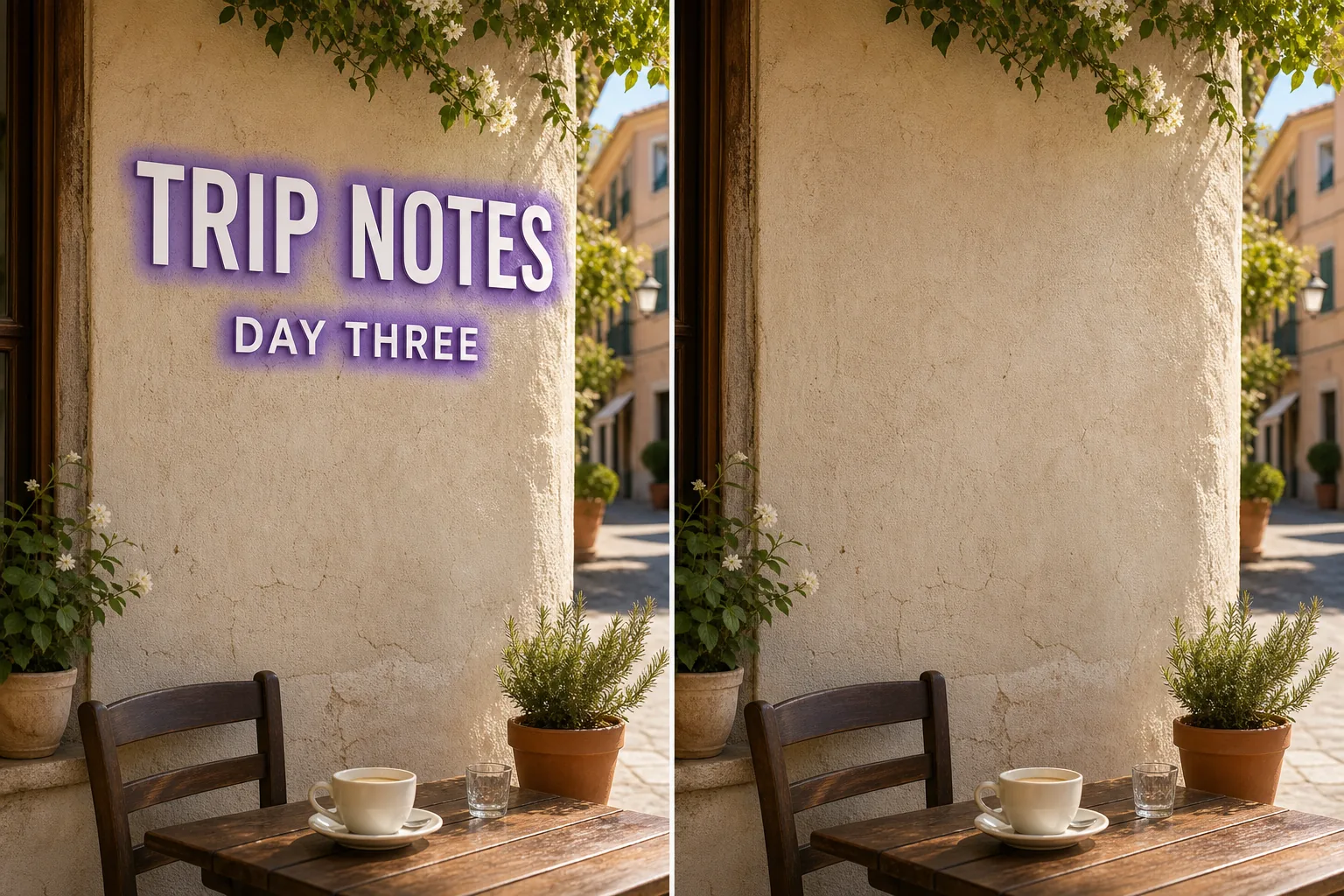
Cách AI xóa văn bản hoạt động
Xóa văn bản khỏi ảnh của bạn chỉ trong vài giây với Magic Eraser. AI tự động tái tạo nền phía sau. Miễn phí trên iOS, Android và web. Mở Magic Eraser trên web, iOS hoặc Android và chọn ảnh có văn bản bạn muốn xóa. Hỗ trợ JPEG, PNG và WebP. Dùng cọ tô lên văn bản bạn muốn xóa. Tô rộng hơn một chút so với đối tượng để AI xử lý rìa sạch hơn. AI tái tạo nền phía sau trong vài giây. Kiểm tra kết quả, chỉnh sửa thêm nếu cần, rồi xuất ảnh ở độ phân giải đầy đủ.
Hướng dẫn từng bước
- 1
Tải ảnh lên
Mở Magic Eraser trên web, iOS hoặc Android và chọn ảnh có văn bản bạn muốn xóa. Hỗ trợ JPEG, PNG và WebP.
- 2
Tô lên vùng cần xóa
Dùng cọ tô lên văn bản bạn muốn xóa. Tô rộng hơn một chút so với đối tượng để AI xử lý rìa sạch hơn.
- 3
Nhấn Xóa và tải về
AI tái tạo nền phía sau trong vài giây. Kiểm tra kết quả, chỉnh sửa thêm nếu cần, rồi xuất ảnh ở độ phân giải đầy đủ.
Phù hợp nhất cho
- Mở Magic Eraser trên web, iOS hoặc Android và chọn ảnh có văn bản bạn muốn xóa. Hỗ trợ JPEG, PNG và WebP.
- Dùng cọ tô lên văn bản bạn muốn xóa. Tô rộng hơn một chút so với đối tượng để AI xử lý rìa sạch hơn.
- AI tái tạo nền phía sau trong vài giây. Kiểm tra kết quả, chỉnh sửa thêm nếu cần, rồi xuất ảnh ở độ phân giải đầy đủ.
- Xóa văn bản khỏi ảnh có miễn phí không?
- Mất bao lâu để xóa văn bản?
- Có hoạt động trên điện thoại không?
- Chất lượng ảnh có bị giảm không?
Lưu ý quan trọng
Thường chỉ mất vài giây. AI xử lý vùng bạn tô và tái tạo nền phía sau gần như tức thì. Không. AI bảo toàn độ phân giải và chất lượng gốc của ảnh. Vùng được tái tạo khớp với ánh sáng, màu sắc và kết cấu xung quanh.
Câu hỏi thường gặp
- Xóa văn bản khỏi ảnh có miễn phí không?
- Có. Gói miễn phí của Magic Eraser bao gồm tính năng xóa văn bản với giới hạn sử dụng hàng ngày. Nâng cấp Premium ($29.99/năm) để bỏ giới hạn và xuất ảnh độ phân giải cao hơn.
- Mất bao lâu để xóa văn bản?
- Thường chỉ mất vài giây. AI xử lý vùng bạn tô và tái tạo nền phía sau gần như tức thì.
- Có hoạt động trên điện thoại không?
- Có. Magic Eraser hoạt động trên iOS, Android và trình duyệt web. Bạn có thể xóa văn bản từ bất kỳ thiết bị nào.
- Chất lượng ảnh có bị giảm không?
- Không. AI bảo toàn độ phân giải và chất lượng gốc của ảnh. Vùng được tái tạo khớp với ánh sáng, màu sắc và kết cấu xung quanh.