
Loại bỏ gờ giảm tốc khỏi ảnh
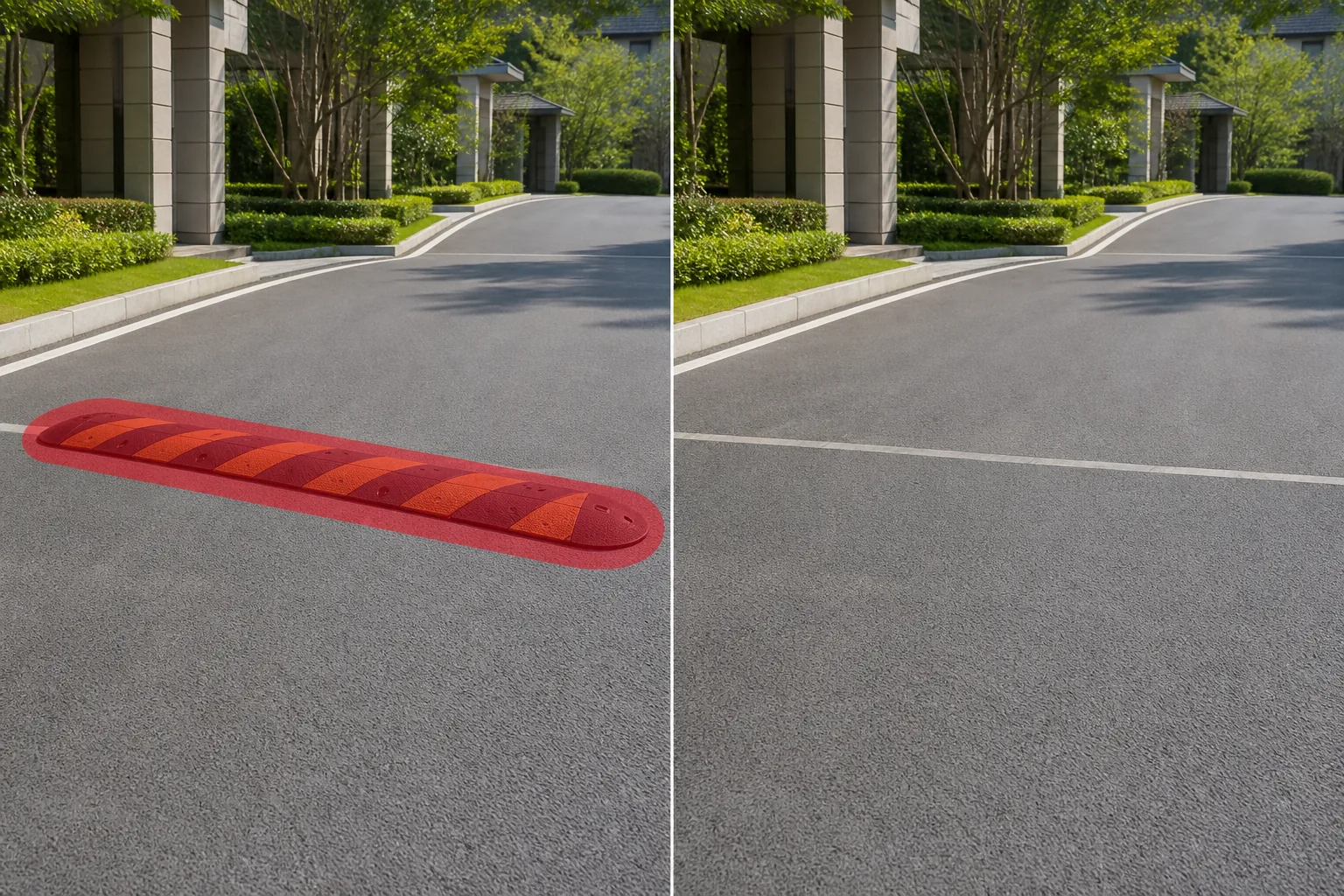
Xóa các gờ giảm tốc, gờ giảm tốc, lối băng qua đường được nâng cao và các dải cao su điều tiết giao thông khỏi ảnh đường lái xe, đường bộ và ảnh tài sản. Magic Eraser loại bỏ bề mặt được nâng lên và tái tạo lại mặt đường bằng phẳng, hạt nhựa đường, vạch kẻ đường hoặc kết cấu bê tông bên dưới — mang lại cho bạn một con đường sạch sẽ, không bị gián đoạn trong vài giây.
Cập nhật lần cuối
Tại sao gờ giảm tốc làm mất tập trung vào ảnh chụp tài sản và phong cảnh đường phố
Để xóa gờ giảm tốc khỏi ảnh, hãy mở Magic Eraser trên web, iOS hoặc Android, tải ảnh lên, tô lên gờ giảm tốc — phần gờ nổi đã sơn cùng các vạch chevron của nó — rồi để AI dựng lại mặt đường hoặc lối đi phía sau. Hoàn toàn miễn phí, không cần đăng ký. Kết quả đẹp nhất trên mặt nhựa đường hay bê tông phẳng, nơi AI nối tiếp kết cấu xung quanh một cách thuyết phục; nếu gờ cắt ngang vạch kẻ làn, vùng bóng đổ hay đường viền nhiều chi tiết, AI sẽ tái tạo sao cho khớp một cách hợp lý. Tô vùng đã sơn trong một lượt, sau đó phóng to và chạy lại ở những chỗ vạch kẻ đường chưa thật khớp. Gờ giảm tốc được thiết kế nổi bật — sơn màu vàng sáng, sọc chữ V đậm, vạch phản quang — để người lái xe không thể bỏ lỡ chúng. Thiết kế có khả năng hiển thị cao đó là một vấn đề trong nhiếp ảnh. Gờ giảm tốc độ nổi bật trong ảnh danh sách đường lái xe thu hút sự chú ý của người xem khỏi lối vào và cảnh quan của ngôi nhà. Trong chụp ảnh bất động sản thương mại, những gờ giảm tốc ở bãi đậu xe báo hiệu mối lo ngại về quản lý giao thông hơn là sự hấp dẫn của lề đường. Các nhiếp ảnh gia đường phố và người tìm kiếm địa điểm phải đối mặt với cùng một vấn đề: cảnh quan đường phố dân cư được bố trí cẩn thận sẽ mất đi sức hấp dẫn khi gờ giảm tốc cao su chiếm ưu thế ở tiền cảnh. Việc chỉnh sửa thủ công khó khăn một cách đáng ngạc nhiên vì các gờ giảm tốc trải dài trên toàn bộ chiều rộng của đường, cắt ngang các làn đường, đường nối rãnh và độ dốc của bóng. Mỗi chuyển đổi đó cần một kết cấu tô màu khác nhau. AI của Magic Eraser xử lý toàn bộ chiều rộng trong một lần di chuyển, phát hiện các ranh giới gồ ghề và tái tạo lại bề mặt nhựa đường, bê tông hoặc máy trải nhựa phẳng với hướng thớ chính xác, sự thay đổi màu sắc và tính liên tục của bóng. Kết quả là mặt đường trông bằng phẳng một cách tự nhiên — như thể gờ giảm tốc chưa từng được lắp đặt.
Loại bỏ gờ giảm tốc trong ba bước
- 1
Tải ảnh của bạn lên
Mở Magic Eraser trên web, iOS hoặc Android và tải lên đường lái xe, bãi đậu xe hoặc ảnh đường phố có gờ giảm tốc. Các định dạng JPEG, PNG, HEIC và WebP được hỗ trợ. Hình ảnh có độ phân giải cao hơn cung cấp cho AI nhiều chi tiết mặt đường hơn để xử lý trong quá trình tái thiết.
- 2
Quét qua gờ giảm tốc
Sơn một vùng lựa chọn trên toàn bộ gờ giảm tốc từ lề đường này sang lề đường khác, bao gồm sơn màu vàng, vạch phản chiếu và bất kỳ dòng chữ cảnh báo nào được sơn như 'CHẬM' hoặc mũi tên chữ V. Mở rộng bàn chải một chút lên mặt đường bằng phẳng ở cả hai bên để AI có kết cấu nhựa đường sạch để tham khảo cho quá trình lấp đầy.
- 3
Xóa và xem lại
Nhấn vào Xóa và Magic Eraser loại bỏ gờ giảm tốc trong khi tái tạo lại mặt đường bằng phẳng, vạch kẻ làn đường và mép rãnh nước. Kiểm tra xem độ dốc của bóng có vẻ liên tục và mọi đoạn đường của làn đường có kết nối lại một cách tự nhiên hay không. Chạy lần thứ hai trên các vết sơn còn sót lại hoặc lỗ bu lông nếu cần, sau đó xuất ở độ phân giải đầy đủ.
Tốt nhất cho
- Danh sách bất động sản dân cư nơi va chạm tốc độ trên đường lái xe làm giảm sức hấp dẫn của lề đường
- Hình ảnh tiếp thị bất động sản thương mại có bãi đậu xe có nhiều gờ giảm tốc
- Hình ảnh trinh sát vị trí cho phim và truyền hình cần có mặt đường sạch sẽ
- Chụp ảnh đường phố khu phố nơi các thiết bị điều tiết giao thông phá vỡ luồng thị giác
- HOA và tài liệu tiếp thị cộng đồng giới thiệu những con đường thông suốt, được bảo trì tốt
Mẹo để loại bỏ vết sưng tốc độ sạch
Gờ giảm tốc thường mang nhiều yếu tố trực quan — sơn màu vàng, cao su đen, tấm phản quang nhúng, đầu bu lông và văn bản được sơn — vì vậy, hãy che toàn bộ tổ hợp trong một nét rộng thay vì nhắm mục tiêu vào từng phần tử riêng lẻ. Hãy chú ý đến lề đường: các gờ giảm tốc thường thuôn nhọn ở lề đường và vùng giảm dần đó cần được đưa vào lựa chọn của bạn. Nếu gờ giảm tốc tạo ra một cái bóng có thể nhìn thấy được (thường gặp trong ánh sáng buổi chiều ở góc thấp), hãy mở rộng cọ của bạn để che cả cái bóng đó - một cái bóng mồ côi trên mặt đường bằng phẳng là một tạo tác rõ ràng. Đối với ảnh bãi đậu xe có nhiều gờ giảm tốc, hãy làm việc từ vị trí gần nhất đến vị trí xa nhất để cung cấp cho AI bối cảnh xung quanh tốt nhất. Nếu vạch kẻ làn đường hoặc mũi tên sơn vượt qua gờ giảm tốc, AI sẽ cố gắng kết nối lại chúng; xác minh độ dày của dòng và khoảng cách khớp với các dấu ban đầu bằng cách phóng to lên 100% sau khi xóa.
Câu hỏi thường gặp
- Magic Eraser có thể loại bỏ cả gờ giảm tốc bằng cao su sơn màu vàng và đen không?
- Đúng. AI xử lý tất cả các loại - gờ giảm tốc bằng cao su đúc, gờ giảm tốc bằng nhựa đường, gờ bê tông sơn màu vàng và đệm tốc độ mô-đun bắt vít. Mỗi loại có cấu hình màu sắc và kết cấu khác nhau nhưng quá trình xóa đều giống nhau: quét qua toàn bộ cấu trúc và nhấn vào Xóa. AI phát hiện các cạnh lồi lõm và lấp đầy kết cấu mặt đường xung quanh.
- Vạch kẻ làn đường và văn bản đường có được giữ nguyên sau khi xóa không?
- AI cố gắng kết nối lại các làn đường và vạch kẻ đường bị gián đoạn do giảm tốc độ. Trong hầu hết các trường hợp, kết quả là liền mạch. Đối với các dấu hiệu phức tạp như sọc dành cho người đi bộ hoặc mũi tên chỉ hướng chồng lên chỗ lồi lõm, bạn có thể cần thực hiện nhanh lần thứ hai để tinh chỉnh căn chỉnh đường. Thu phóng tới 100% để xác minh tính liên tục.
- Có miễn phí để loại bỏ các va chạm tốc độ khỏi ảnh không?
- Đúng. Cấp miễn phí của Magic Eraser hỗ trợ loại bỏ tốc độ nhanh với giới hạn sử dụng hàng ngày. Premium ($29,99/năm) loại bỏ những giới hạn đó và cho phép xuất độ phân giải cao hơn phù hợp với tài liệu tiếp thị in ấn và màn hình khổ lớn.
- Tôi có thể loại bỏ nhiều gờ giảm tốc trong một ảnh không?
- Tuyệt đối. Đối với các bãi đỗ xe hoặc đường lái xe dài có nhiều gờ giảm tốc, hãy xử lý từng gờ giảm tốc một, bắt đầu từ gờ gần camera nhất. Điều này mang lại cho AI bối cảnh phối cảnh chính xác nhất cho mỗi lần xóa. Mỗi thao tác xóa chỉ mất vài giây.