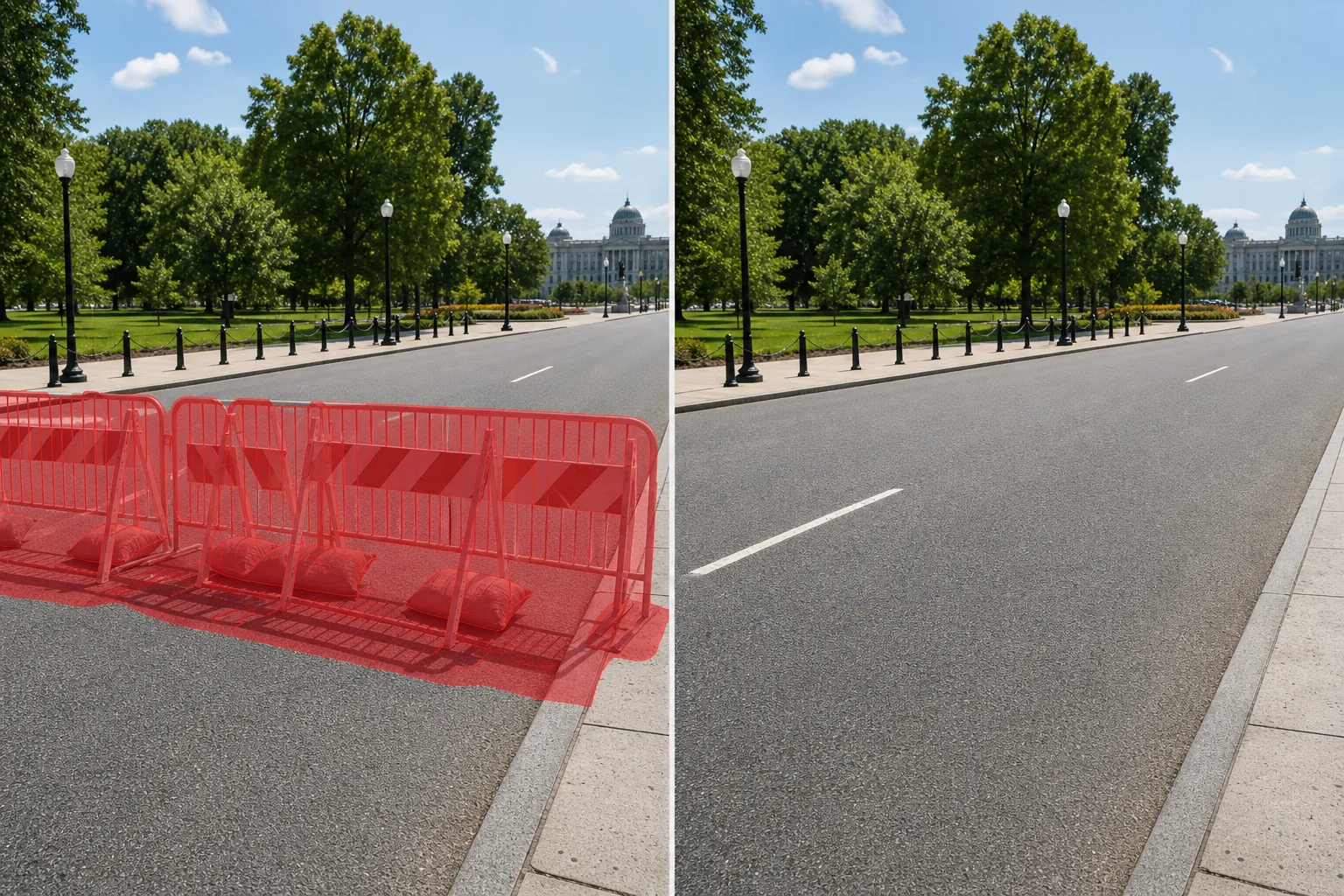
Remove barricades from photos
Erase metal crowd barriers, plastic road barricades, jersey walls, A-frame barricades, and temporary event fencing from event coverage, street photography, and commercial shoots. Magic Eraser removes the barrier and reconstructs the pavement, grass, or venue surface behind it — delivering a clean, unobstructed scene.
Last updated
今すぐ試すWhy barricades and barriers ruin event and street photography — Magic Eraser
Barricades are the visual tax of any public event. Marathons, parades, festivals, protests, and construction zones all deploy them — orange-and-white A-frame road barricades, interlocking steel crowd barriers, water-filled jersey walls, and chain-link temporary fencing. While essential for safety and crowd control, these barriers dominate photographs with their industrial shapes, bright warning colors, and repetitive patterns. A row of steel crowd barriers in front of a parade route turns a festive scene into what looks like a crowd-control exercise. Plastic road barricades with reflective striping signal construction rather than celebration. Jersey walls along a detour route make an urban street look like a highway work zone. For professional event photographers, photojournalists, and marketing teams creating promotional imagery from live events, barricades are the single most common unwanted element in their shots. Manual removal is difficult because barriers are long, linear structures that cross multiple background surfaces — asphalt, concrete, grass, cobblestone — and often have complex shadow patterns from their latticed or water-filled shapes. Magic Eraser understands the linear geometry of barricades. It removes the entire barrier run — uprights, horizontal bars, base plates, sand bags, and reflective panels — and fills the road or sidewalk surface with continuous, matching texture. Lane markings reconnect, curb lines extend, and grass fields fill in naturally where the barrier stood.
ステップバイステップ手順
- 1
Upload your photo
Open Magic Eraser on the web, iOS, or Android and upload the event photo, street scene, or venue shot containing the unwanted barricade. JPEG, PNG, HEIC, and WebP are accepted. For wide-angle event shots, the highest resolution gives the AI the most pavement and background detail for reconstruction.
- 2
Brush over the barricade
Paint over the full barricade structure — uprights, cross bars, base weights, sandbags, and any attached signage or reflective panels. Include the shadow the barricade casts on the ground. For a row of interlocking crowd barriers, brush across the entire run rather than selecting each section individually. If caution tape or banner material is strung between barricades, include it in the selection.
- 3
Erase and finalize
Tap Erase and the barricade disappears. Magic Eraser fills the area with matching road, sidewalk, grass, or venue surface — lane markings extend through, curb edges reconnect, and grass coverage continues where the barrier sat. Zoom in to check the fill, then export at full resolution for your event recap, editorial piece, or marketing material.
こんな方におすすめ
- Event photography where crowd barriers and road barricades dominate the foreground
- Marathon and race photography where course barricades obscure runner shots
- Street-festival and parade imagery being repurposed for next year's promotional materials
- Construction-zone street photography where orange barricades signal temporary disruption
- Venue and concert photography where metal barriers separate the stage from the crowd
注意事項
Barricades often have sandbags, water weights, or rubber base plates that sit on the ground and leave marks or discoloration. Include these ground-level elements in your brush stroke to avoid leaving an obvious base outline after erasing. For interlocking steel crowd barriers, the feet interleave — brush over the entire footprint area rather than just the visible vertical bars. If a barricade has reflective tape or hi-vis striping, include a generous margin around the bright areas to prevent leaving glow or color-bleed artifacts. When removing jersey walls (the large concrete or water-filled barriers), these are substantial objects that block a significant background area, so the AI may need a second pass to refine the road or sidewalk fill behind them. For event-specific barricades with sponsor banners attached, cover the entire banner in your brush area — partial removal leaves disembodied text floating in the scene.
よくある質問
- Can it remove both metal crowd barriers and plastic road barricades?
- Yes. Magic Eraser handles all barricade types — interlocking steel crowd-control barriers, orange-and-white A-frame road barricades, water-filled jersey walls, chain-link temporary fencing, and wooden police sawhorses. Brush over the full structure and its shadow.
- What about caution tape or banners strung between barricades?
- Include the tape or banner in your brush stroke along with the barricade uprights on each end. The AI removes the entire assembly — posts, connecting material, and base weights — and fills with the background surface. If a banner has large text, make sure to cover all lettering so no partial words remain.
- Will lane markings be reconstructed under the barricade?
- Yes. The AI detects lane markings, crosswalk stripes, and road text on either side of the barricade and extends them through the fill area. For complex intersections, zoom to 100% after erasing to verify that turn arrows and dashed center lines reconnect correctly.
- Is it free?
- Yes. Magic Eraser's free tier includes barricade removal with daily limits. Premium ($29.99/year) unlocks unlimited edits and full-resolution exports for professional event and editorial photography.