
Rimuovere un oggetto di sfondo da una foto
Rimuovi un oggetto di sfondo dalle tue foto in pochi secondi con Magic Eraser. L'IA ricostruisce automaticamente lo sfondo. Gratuito su iOS, Android e web.
Ultimo aggiornamento
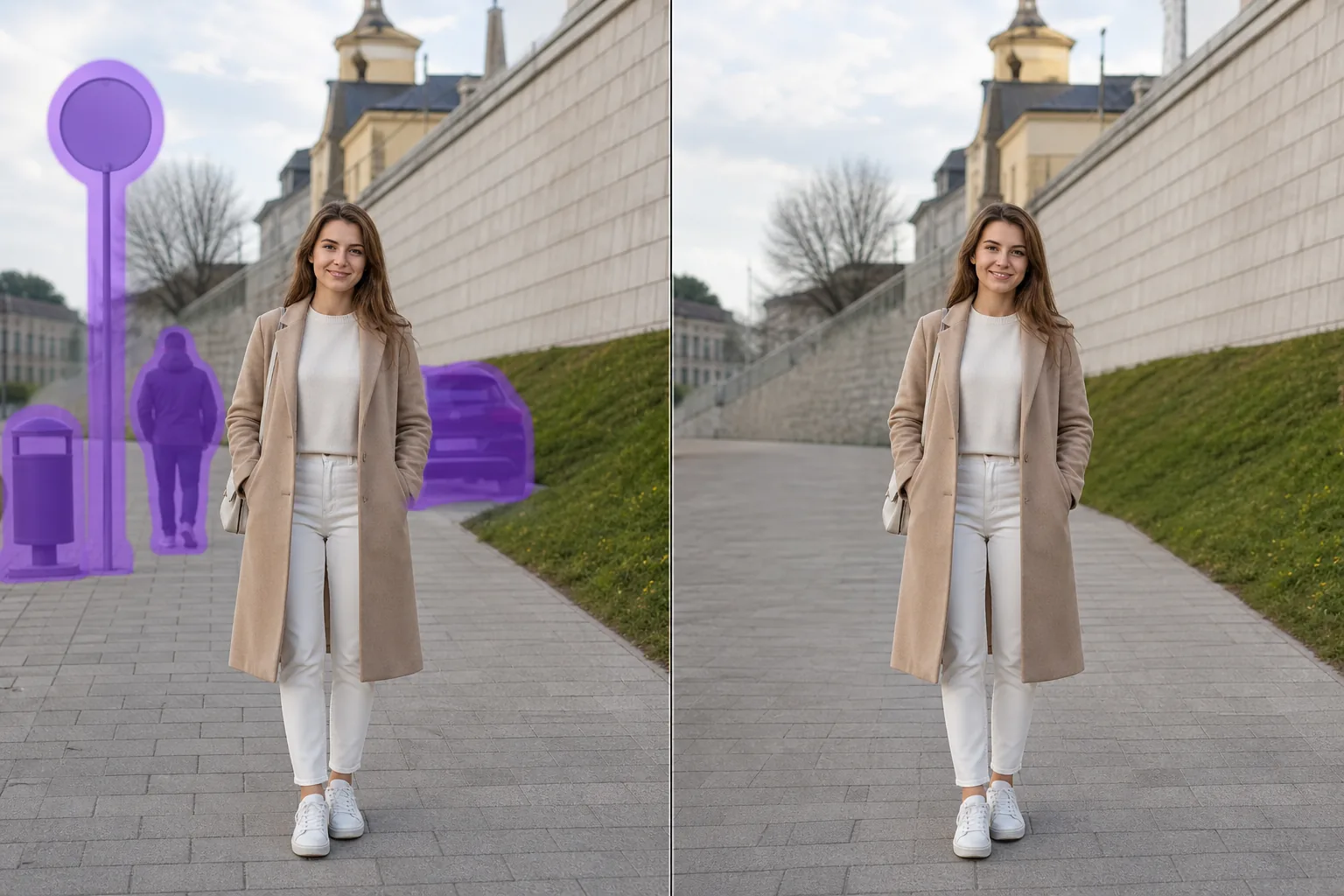
Come funziona la rimozione di un oggetto di sfondo con l'IA
Rimuovi un oggetto di sfondo dalle tue foto in pochi secondi con Magic Eraser. L'IA ricostruisce automaticamente lo sfondo. Gratuito su iOS, Android e web. Apri Magic Eraser su web, iOS o Android e carica la foto con un oggetto di sfondo da rimuovere. Supporta JPEG, PNG e WebP. Dipingi sopra un oggetto di sfondo che vuoi rimuovere. Usa un pennello leggermente più grande dell'oggetto per bordi più puliti. L'IA ricostruisce lo sfondo in pochi secondi. Controlla il risultato, ritocca se necessario, poi esporta a piena risoluzione.
Istruzioni passo passo
- 1
Carica la tua foto
Apri Magic Eraser su web, iOS o Android e carica la foto con un oggetto di sfondo da rimuovere. Supporta JPEG, PNG e WebP.
- 2
Dipingi sull'area
Dipingi sopra un oggetto di sfondo che vuoi rimuovere. Usa un pennello leggermente più grande dell'oggetto per bordi più puliti.
- 3
Cancella e scarica
L'IA ricostruisce lo sfondo in pochi secondi. Controlla il risultato, ritocca se necessario, poi esporta a piena risoluzione.
Ideale per
- Apri Magic Eraser su web, iOS o Android e carica la foto con un oggetto di sfondo da rimuovere. Supporta JPEG, PNG e WebP.
- Dipingi sopra un oggetto di sfondo che vuoi rimuovere. Usa un pennello leggermente più grande dell'oggetto per bordi più puliti.
- L'IA ricostruisce lo sfondo in pochi secondi. Controlla il risultato, ritocca se necessario, poi esporta a piena risoluzione.
- È gratuito rimuovere un oggetto di sfondo da una foto?
- Quanto tempo ci vuole per rimuovere un oggetto di sfondo?
- Funziona su smartphone?
- La qualità dell'immagine viene preservata?
Note importanti
Di solito pochi secondi. L'IA elabora l'area dipinta e ricostruisce lo sfondo quasi istantaneamente. No. L'IA preserva la risoluzione e la qualità originali della foto. L'area ricostruita si adatta alla luce, al colore e alla texture circostanti.
Domande frequenti
- È gratuito rimuovere un oggetto di sfondo da una foto?
- Sì. Il piano gratuito di Magic Eraser include la rimozione di un oggetto di sfondo con limiti di utilizzo giornalieri. Premium ($29,99/anno) rimuove i limiti e sblocca le esportazioni ad alta risoluzione.
- Quanto tempo ci vuole per rimuovere un oggetto di sfondo?
- Di solito pochi secondi. L'IA elabora l'area dipinta e ricostruisce lo sfondo quasi istantaneamente.
- Funziona su smartphone?
- Sì. Magic Eraser funziona su iOS, Android e browser web. Puoi rimuovere un oggetto di sfondo da qualsiasi dispositivo.
- La qualità dell'immagine viene preservata?
- No. L'IA preserva la risoluzione e la qualità originali della foto. L'area ricostruita si adatta alla luce, al colore e alla texture circostanti.