
Magic Eraser + Figma: Activos limpios para cada diseño
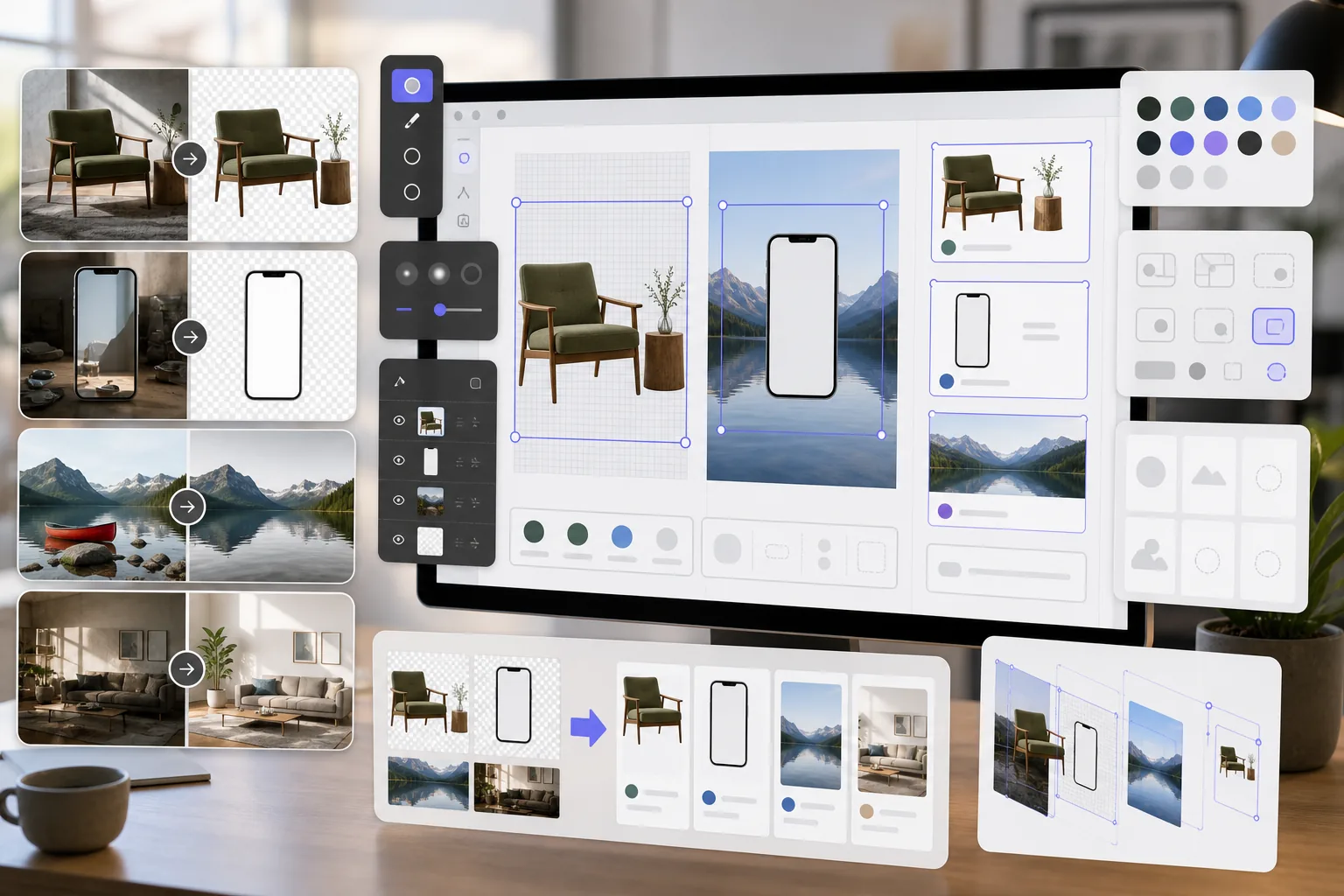
Los diseñadores de Figma necesitan recursos de imagen limpios para maquetas, prototipos y diseños de producción. Magic Eraser elimina fondos de archivos PNG transparentes, limpia imágenes de referencia y prepara recursos fotográficos para que sus proyectos de Figma luzcan pulidos desde el principio.
Acerca de Figma
Figma es una herramienta de diseño colaborativo basada en navegador utilizada por equipos de productos, diseñadores de UI/UX y agencias para el diseño de interfaces, la creación de prototipos y la gestión de sistemas de diseño. Admite colaboración en tiempo real e integraciones de complementos.
Beneficios
PNG transparentes para maquetas y prototipos
Elimine fondos de fotografías de productos, pantallas de dispositivos y elementos de la interfaz de usuario para crear archivos PNG transparentes que se superpongan limpiamente en marcos y componentes de Figma.
Imágenes de referencia limpias
Borre marcas de agua, anotaciones y elementos que distraigan de imágenes de referencia y capturas de pantalla antes de colocarlos en archivos de diseño de Figma.
Activos fotográficos listos para producción
Mejore la calidad de la imagen y elimine los objetos no deseados de las fotografías antes de importarlas como activos en los diseños de Figma, reduciendo los ciclos de revisión con las partes interesadas.
Preparación de activos más rápida
Prepare recursos de imágenes en segundos con herramientas impulsadas por IA en lugar de enmascararlos y retocarlos manualmente en un software separado antes de importarlos a Figma.
Cómo utilizar Magic Eraser con Figma
Sube tu imagen
Abra Magic Eraser y cargue la foto o el recurso que desea preparar para su proyecto de diseño Figma.
Procesar la imagen
Elimine fondos de recursos transparentes, borre elementos no deseados o mejore la calidad según sus necesidades de diseño.
Descargar como PNG
Exporte la imagen procesada como PNG para preservar la transparencia o como JPEG para imágenes de fondo completas.
Importar a Figma
Arrastre la imagen procesada a su archivo Figma o use la función Colocar imagen para agregarla a marcos y componentes.
Herramientas
Preguntas frecuentes
¿Magic Eraser se integra directamente con Figma?
+
Magic Eraser y Figma trabajan juntos a través de un flujo de trabajo de exportación-importación. Prepare sus imágenes en Magic Eraser, descárguelas e impórtelas a Figma arrastrando archivos al lienzo.
¿Puedo crear PNG transparentes para componentes de Figma?
+
Sí. La eliminación de fondo de Magic Eraser crea archivos PNG transparentes que se importan a Figma con soporte completo para canales alfa, ideales para componentes, maquetas y diseños en capas.
¿Qué resolución debo exportar para Figma?
+
Magic Eraser conserva la resolución de imagen original. Para los diseños de Figma, esto suele ser suficiente. Utilice AI Enhancement para mejorar si necesita recursos de mayor resolución para presentaciones o transferencias.
¿Puedo eliminar marcas de agua de fotografías de archivo para maquetas?
+
Magic Eraser puede eliminar elementos visuales de las imágenes. Sin embargo, asegúrese siempre de tener la licencia adecuada para cualquier fotografía de archivo antes de usarla en diseños.
¿Es esto más rápido que usar las herramientas de imagen integradas de Figma?
+
Sí. Las herramientas de imagen de Figma se limitan a ajustes básicos de color y recorte. Magic Eraser maneja la eliminación de fondo, el borrado de objetos y AI Enhancement que Figma no puede hacer de forma nativa.
Prepare mejores recursos para sus diseños de Figma
Pruebe Magic Eraser gratis para crear archivos PNG transparentes, limpiar imágenes de referencia y mejorar los recursos fotográficos para sus proyectos Figma.
Prueba Magic Eraser gratisCasos de uso relacionados
Descubre cómo los profesionales utilizan estas herramientas en flujos de trabajo reales.
Las fotos de anuncios llenas de objetos personales, coches aparcados o material de obra espantan a los compradores. Magic Eraser usa IA para limpiar tus fotos de propiedades al instante — sin necesidad de Photoshop.
Los fondos desordenados y las fotos de producto descuidadas te cuestan ventas todos los días. Magic Eraser te ayuda a crear imágenes de producto profesionales en segundos — sin necesidad de saber Photoshop. Sube la foto, borra las distracciones y publica con confianza.
Las oficinas de pasaportes rechazan miles de fotos cada día por fondos incorrectos. Magic Eraser elimina cualquier fondo y lo reemplaza con el color exacto que necesitas — blanco, gris claro o azul — en segundos.
Comparaciones relacionadas
Mira cómo Magic Eraser se compara con herramientas similares.
TouchRetouch es una popular app móvil de pago para eliminar objetos e imperfecciones. Magic Eraser ofrece edición IA gratuita en cualquier dispositivo sin instalación. Compara funciones, precios y facilidad de uso.
remove.bg es el líder del mercado en eliminación de fondos, con una potente API e integraciones con Photoshop y Figma. Magic Eraser ofrece ocho herramientas IA — desde eliminación de objetos y relleno generativo hasta mejora IA y diseño — todo en un editor.
Dos potentes editores de fotos con IA y fortalezas diferentes. Magic Eraser ofrece un conjunto más amplio de herramientas de IA generativa, mientras que Photoroom destaca en fotografía de productos para e-commerce y procesamiento por lotes.
Probamos y comparamos las mejores herramientas de edición de fotos con IA para que no tengas que hacerlo. Desde la eliminación de objetos hasta el reemplazo de fondos, descubre cuál editor ofrece los mejores resultados.
Artículos relacionados
Consejos, guías y tutoriales sobre este tema.
Descubre cómo la IA está transformando las operaciones, desde la automatización hasta el análisis de datos y experiencias de cliente más personalizadas.
Aprende a usar Magic Eraser para quitar objetos, personas, texto y distracciones de fotos con resultados de IA más limpios.
Aprende a usar un plugin de traducción para Figma y localizar archivos de diseño más rápido sin perder el control del layout.
Otras integraciones
Explora más plataformas que funcionan con Magic Eraser.