
Remove piercings from photos
Erase nose rings, lip rings, eyebrow piercings, ear gauges, and other visible piercings from headshots and portraits. Magic Eraser removes the jewelry and reconstructs natural skin and cartilage — producing a clean-appearance version for professional contexts.
Last updated
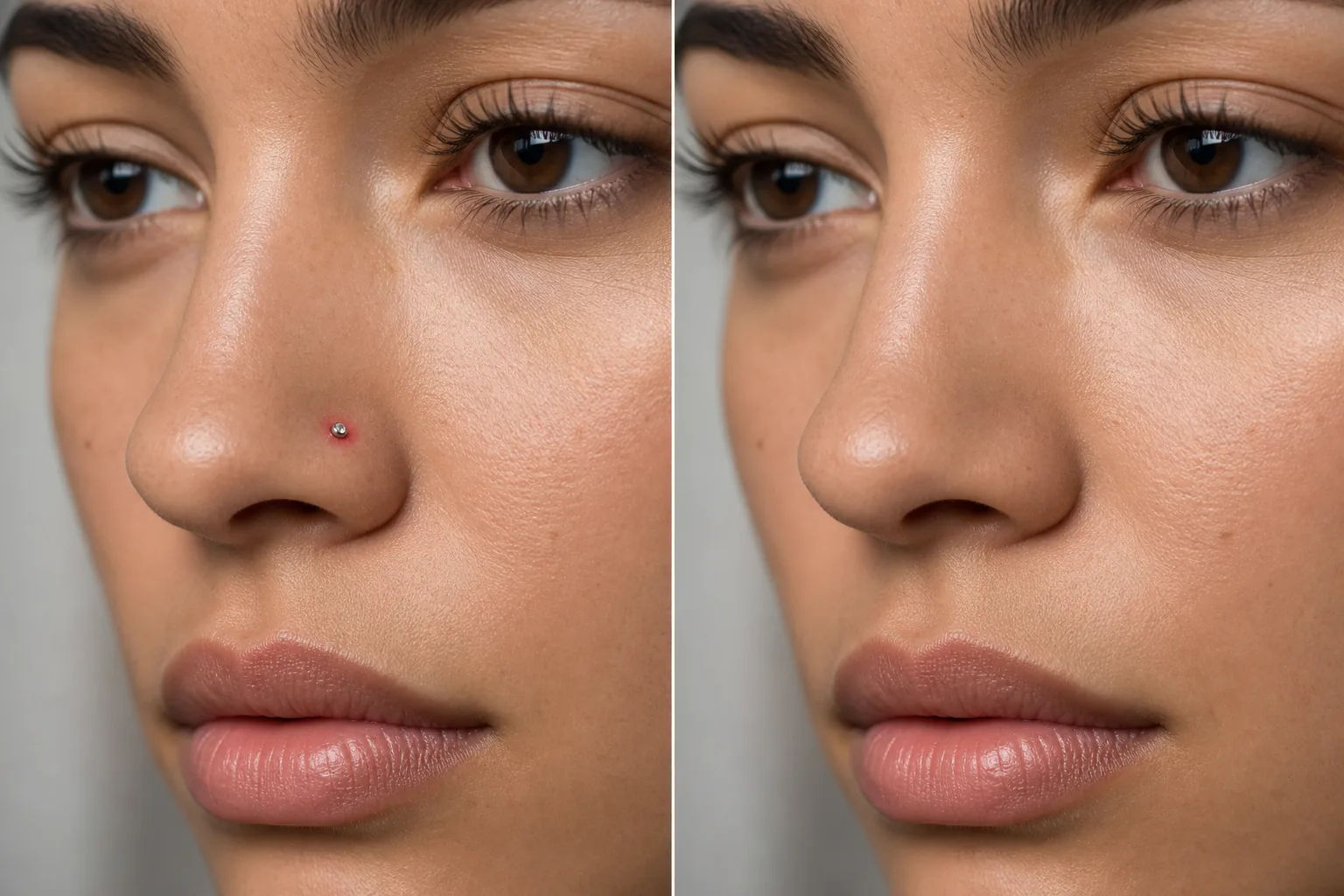
How to remove a piercing from a photo
To remove a piercing from a photo, open Magic Eraser on the web, iOS, or Android, upload the headshot, brush over the jewelry — the stud, ring, or gauge, plus any shadow it casts — and tap Erase. The AI fills the piercing mark and rebuilds the natural skin, nostril curve, or ear cartilage underneath. It includes limited free edits after sign-in. It's a common step for ID and passport photos, corporate badges, and conservative headshots where a clean-appearance version is required, and you can make that version from the same shoot rather than re-shooting. Piercings are personal style choices, but professional contexts sometimes require a clean-appearance version of a headshot. Corporate ID badges, conservative industry headshots, military and government photos, certain casting calls, and family portraits for grandparents all generate requests to produce a piercing-free version. Rather than removing and reinserting piercings for separate photo sessions, digital removal creates both versions from a single shoot. The challenge is that piercings are small, detailed objects on highly visible facial areas — a nose stud sits right where light catches the nose, a lip ring sits where every smile draws attention. Unconvincing removal is immediately obvious. Magic Eraser's AI handles the specific challenges: it removes the jewelry and any shadow it casts, fills the piercing hole or mark, and reconstructs the natural skin, nostril curve, or ear cartilage that the jewelry covered.
Remove a piercing in three steps
- 1
Upload your photo
Open Magic Eraser on the web, iOS, or Android and upload the headshot or portrait containing the piercing you want to remove.
- 2
Brush over the piercing
Paint over the jewelry and any visible piercing hole. Include the shadow cast by the jewelry for a complete removal. For small studs, a tight brush covering just the stud and hole works best. For rings and hoops, cover the entire visible jewelry area.
- 3
Erase and verify
Tap Erase and the AI removes the piercing, reconstructing the natural skin, nostril shape, or ear contour. Zoom in to verify the area looks natural and there are no residual marks or artifacts. Export the clean-appearance version.
Best for
- Corporate headshots for conservative industries
- Government and military ID photos
- Casting submissions that specify clean appearance
- School photos with dress code policies
- Creating both pierced and unpierced versions from one session
- Job application photos for traditional employers
- Family formal portraits at a relative's request
- Passport and visa photos where jewelry may cause issues
Tips for natural piercing removal
Nose studs and small piercings are the easiest to remove — the jewelry is small and the surrounding skin provides clear reference. For nose rings and septum piercings, the AI reconstructs the nostril curve and cartilage shape; include the full ring and any shadow in your selection. Lip rings require reconstructing the lip surface and color — the AI matches the surrounding lip tone. Eyebrow piercings leave the AI to reconstruct the brow hair and skin; the result is most natural when the surrounding brow is well-defined. Ear piercings (standard lobe studs) are simple removals; ear gauges and stretched piercings need more reconstruction of the earlobe shape. For multiple piercings on the same person, brush over all of them before tapping Erase — the AI processes them simultaneously for consistent results. If a piercing hole is visible even without jewelry (a dark dot on the nose or ear), brush over it the same way.
Frequently asked questions
- Can it remove a nose ring convincingly?
- Yes. The AI removes the ring and reconstructs the natural nostril shape and skin. The result looks natural when the surrounding nose area provides good reference for the reconstruction.
- Does it work on stretched ear piercings?
- For small to moderate stretched piercings, the AI reconstructs a natural earlobe shape. Very large gauges require more reconstruction and may show slight smoothing in the reconstructed area.
- Can I keep some piercings and remove others?
- Yes. Only brush over the specific piercings you want removed. Earrings you want to keep, for example, remain untouched while a nose ring is removed.
- Is piercing removal free?
- Yes. Magic Eraser's free tier covers piercing removal from headshots and portraits. Upload your photo, brush over the jewelry, and export the clean result.
- Can I remove a piercing for an ID or passport photo?
- Yes — it's one of the most common reasons people use it. Brush over the stud or ring and tap Erase to get a clean-appearance version from the same shot. One caveat: some ID and passport authorities require the photo to match your everyday appearance and may have their own rules, so check the specific requirements before submitting an edited photo.
- How do I remove a piercing from a photo on my phone?
- Open Magic Eraser in any mobile browser or the iOS or Android app, load the headshot from your camera roll, and pinch to zoom in on the piercing. Brush over just the jewelry with your finger and tap Erase. Zooming in matters here — a nose stud or lip ring is small and sits next to skin you want to keep, so getting close lets you cover the jewelry without touching the lip or nostril edge.
- Can it remove several piercings without leaving a visible mark?
- Yes. Brush each piece of jewelry — a row of ear piercings, a nose and lip combination — and the AI rebuilds the skin or cartilage under each one. The cleanest results come from brushing the jewelry plus the tiny hole or indentation it leaves; if a faint mark remains, zoom in and brush just that spot. A larger stretched gauge is harder than a small stud and may need a second pass to fully rebuild the earlobe.