
Remove stray hair from photos
Clean up visible flyaway hairs, loose strands across the face, and wispy hair catching the light in portraits and headshots. Brush only the distracting strands so Magic Eraser can remove them while preserving the main hairline where possible.
Last updated
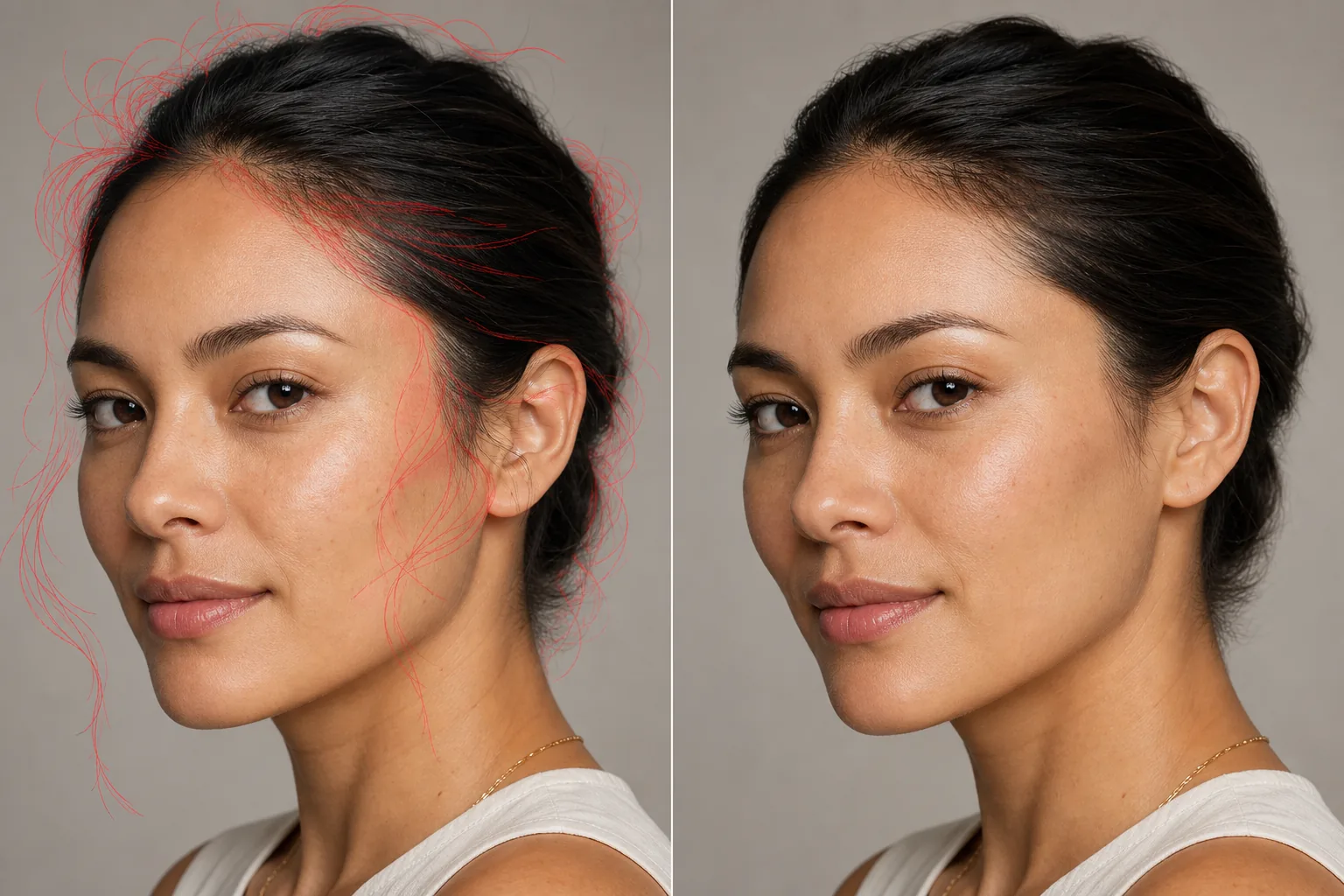
How to remove stray hairs and flyaways from a photo
To remove visible stray hairs from a photo, open Magic Eraser on the web, iOS, or Android, upload your portrait, brush along the flyaway strands you want to clean up, and tap Erase. The AI uses surrounding pixels to rebuild plausible skin, background, or clothing where the brushed hair crossed the image. Work carefully around the main hairline and hairstyle edge so the areas you want to keep stay outside the selection. Stray hair cleanup works best when you focus on visible distractions: a single strand crossing a cheek, wisps over the forehead, backlit flyaways above the head, or loose hairs over clothing. Start with the strands that draw the most attention, erase in small passes, and review the image at normal size and zoomed in before saving or exporting if the result meets your needs. Some images need a second pass or a smaller brush, especially when stray hair overlaps the main hairstyle, detailed fabric, or a busy background.
Remove stray hair in three steps
- 1
Upload your portrait
Open Magic Eraser on the web, iOS, or Android and upload the headshot or portrait with visible flyaway hairs or stray strands you want to clean up.
- 2
Brush over the visible strands
Paint along each stray hair or small group of flyaways. Use a thin brush for single strands across skin and a slightly wider brush for loose clusters above the head. Keep the brush off the main hairline and hairstyle edge where you want hair to remain.
- 3
Erase, review, and export
Tap Erase so the AI removes the brushed strands and fills the area with plausible nearby skin, background, or clothing texture. Zoom in to check the hairline and rebuilt areas, make another careful pass if needed, then export when the edit meets your needs.
Best for
- Portraits with visible flyaway hairs around the face
- Headshots with a few loose strands crossing skin or clothing
- Outdoor photos where wind pushed strands away from the hairstyle
- Studio portraits with backlit flyaways against the background
- Wedding and event portraits that need minor hair cleanup
- Product or fashion photos where a stray strand crosses the subject
- School or team portraits with small distracting hairs
- Images where the main hairline can be left outside the brushed area
Tips for clean stray hair removal
Zoom in before brushing thin strands, and follow the length of the hair instead of swiping across the main hairstyle. Use smaller passes near the hairline, eyebrows, lashes, fabric edges, and detailed backgrounds. Magic Eraser can reconstruct plausible skin, background, or clothing from surrounding pixels, but it cannot recover hidden detail exactly. If a strand crosses other hair, brush only the loose strand and review the edge after erasing. Leaving a few soft flyaways can look more natural than removing every hair.
Frequently asked questions
- Will it affect the main hairstyle?
- Only the brushed area is edited. Keep the brush on the visible stray strands and away from the main hairline or hairstyle edge. Review the result after erasing, especially where loose hair overlaps the hair you want to keep.
- Can it handle backlit flyaways?
- Yes, it can help with visible backlit flyaways when they are brushed clearly. High-contrast strands are often easier to select, but busy backgrounds or overlapping hair may need smaller passes and review.
- How precise does the brush need to be?
- Use a brush slightly wider than the strand and keep it off nearby hair you want to preserve. You do not need to trace every pixel, but careful brushing gives the AI a cleaner area to replace.
- Is stray hair removal free?
- Availability and export options can vary by platform or plan. Open Magic Eraser, upload your photo, and review the current options before saving or exporting your edit.
- How do I remove flyaway hairs from a photo on my phone?
- Open Magic Eraser in a mobile browser or the iOS or Android app, load the portrait, and pinch to zoom in on the flyaways. Brush along each loose strand with your finger, tap Erase, then review the result before exporting if it meets your needs.
- Can it remove frizz and a halo of flyaways around the whole head?
- It can reduce visible flyaways around the head, but dense frizz needs careful section-by-section brushing. Work along the outside of the hairstyle, avoid the main hairline, and check the edge after each pass.
- Will removing stray hairs leave a blurry or smudged edge on the hair?
- A careful selection helps avoid soft edges, but results depend on the image and brush placement. If the hairline looks softened, undo or make a smaller pass that covers only the loose strand, then review again.