
Remove signs from photos
Erase street signs, for-sale signs, business signage, posted notices, and banners from real estate photos, travel shots, and outdoor photography. Magic Eraser removes the sign and reconstructs the wall, sky, landscape, or building facade behind it.
Last updated
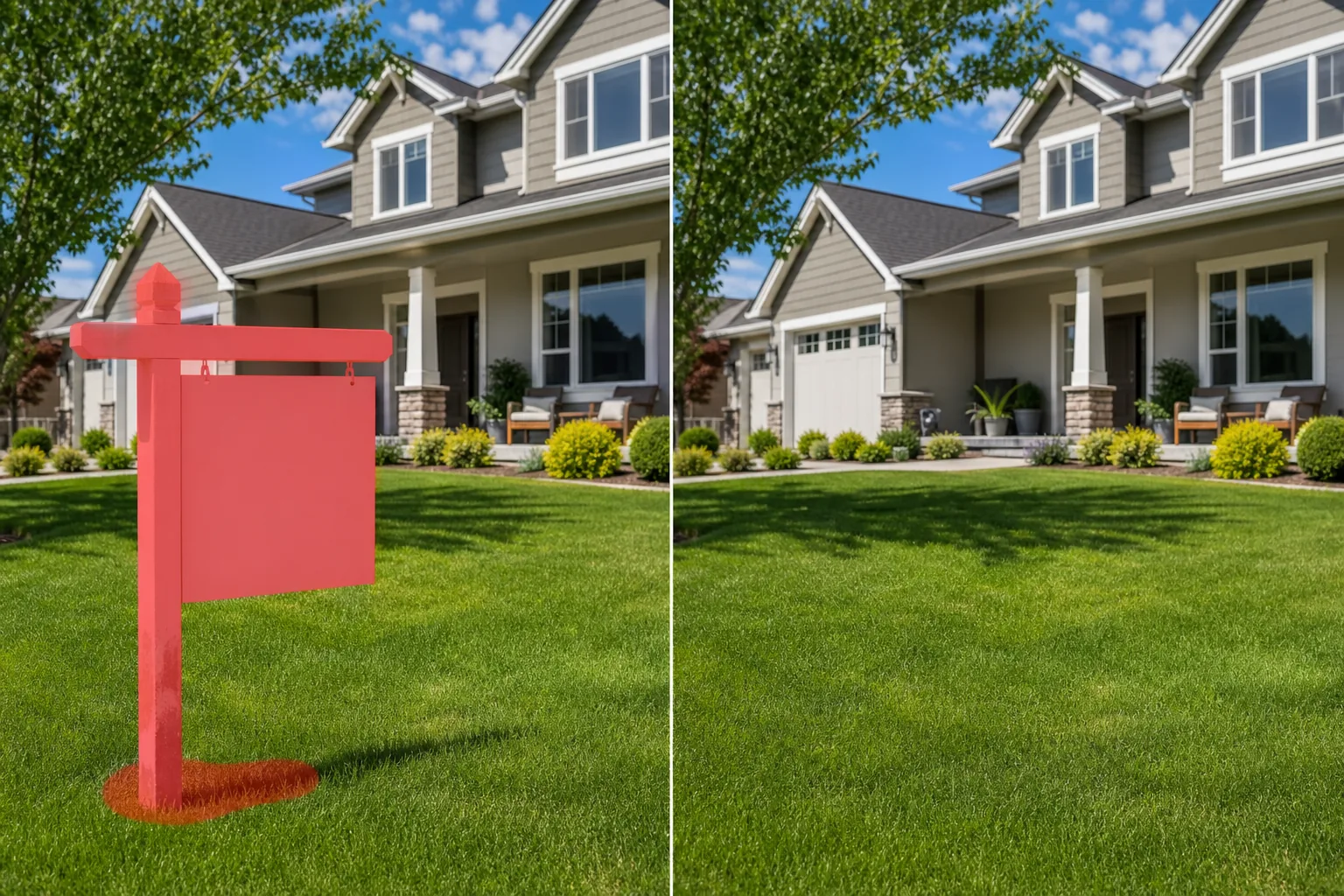
How to remove a sign from a photo
To remove a sign from a photo, open Magic Eraser on the web, iOS, or Android, upload the image, brush over the sign — post, frame, and any cast shadow included — and tap Erase. The AI rebuilds whatever sits behind it: a brick wall, a fence, open sky, grass, or a building facade. It includes limited free edits after sign-in. For a busy shot with several signs, brush each one; against plain backgrounds like sky or a clean wall the fill is near-seamless, while detailed backgrounds may want a quick second pass. Signs are everywhere in outdoor photography — and rarely where you want them. A 'For Sale' sign on the lawn of a beautifully staged listing. A 'No Trespassing' notice on a fence at a scenic location. Street signs and parking signs cluttering an architectural shot. Business signage from a neighboring store intruding into a storefront photo. Posted notices on walls during event venue photography. Each sign adds visual noise that distracts from the subject and can date or locate a photo in unwanted ways. Real estate photographers remove competing signage from listing photos. Travel photographers clean up signs that break the timeless feel of a destination shot. Event venue photographers erase posted regulations and fire exit signs that mar the elegance of a reception space. Magic Eraser handles the variety of surfaces signs sit against — walls, fences, sky, grass, building facades — reconstructing the clean background behind each sign.
Remove a sign in three steps
- 1
Upload your photo
Open Magic Eraser on the web, iOS, or Android and upload the outdoor, real estate, or event photo with the sign you want to remove.
- 2
Brush over the sign
Paint over the entire sign including any post, bracket, or mounting hardware. Include the shadow the sign casts on the wall or ground. For signs on poles, brush over the pole as well if you want the full structure removed.
- 3
Erase and inspect
Tap Erase and the AI removes the sign and reconstructs the wall, fence, sky, or landscape that was behind it. Check that the reconstructed surface texture and color match the surrounding area. Export the clean photo.
Best for
- Real estate listing photos with competing or distracting signage
- Travel and destination photography with unwanted posted signs
- Architectural photography where signs break the facade design
- Event venue photos with fire exit and regulation notices
- Storefront photography with neighboring business signs visible
- Outdoor portrait locations with posted rules or warnings
- Stock photography where signs add unwanted text or localization
- Historical building documentation where modern signs are anachronistic
Tips for clean sign removal
Sign removal works best when the background surface has a consistent texture — brick walls, painted surfaces, clear sky, and uniform fences all reconstruct cleanly. For signs on complex backgrounds (a sign partially overlapping a window and a wall), the AI handles both surfaces but may need a second pass at the transition point. Include the sign's shadow in your selection — a lingering shadow without a sign looks unnatural. For 'For Sale' signs on lawns, brush over the sign, the post, and any shadow on the grass. The AI reconstructs the lawn surface. For street signs on poles, decide whether to remove just the sign face or the entire pole — removing the pole too produces a cleaner result but requires reconstructing more sky or background. For text on walls (graffiti-style or posted notices pasted flat), the AI removes the text and reconstructs the wall texture and color underneath.
Frequently asked questions
- Can it remove a For Sale sign from a listing photo?
- Yes. Brush over the sign, post, and shadow on the lawn. The AI removes the entire sign structure and reconstructs the clean lawn and any background behind the sign.
- Does it work on signs attached to buildings?
- Yes. Brush over the sign and any mounting brackets. The AI reconstructs the wall surface — matching brick, paint, stucco, or whatever material the sign was attached to.
- Can it remove text painted directly on a wall?
- Yes. Painted text, posted notices, and pasted signs all respond to the same brush-and-erase workflow. The AI reconstructs the clean wall surface under the text.
- Is sign removal free?
- Yes. Magic Eraser's free tier covers sign removal. Upload your photo, brush over the unwanted signage, and export the clean version.
- How do I remove a sign from a photo on my phone?
- Open Magic Eraser in any mobile browser or the iOS or Android app, load the photo from your camera roll, and pinch to zoom in on the sign. Brush over the whole sign — including its post and frame — with your finger and tap Erase. Zooming in helps you trace the edges cleanly against the wall, fence, or sky behind it. The result matches the desktop version and saves straight back to your photos.
- Can it remove several signs from one photo at once?
- Yes. Brush over every sign you want gone in the same pass — a cluster of street signs, a row of posted notices, or a for-sale sign plus a neighbor's signage — and tap Erase once. The AI rebuilds each background area independently. If two signs sit against very different surfaces, it can help to brush and review them one at a time so each fill matches its own backdrop.
- Will the wall or sky behind the sign look obviously patched?
- Against simple backgrounds — open sky, a flat painted wall, an even fence — the fill is usually seamless. Detailed backdrops like brickwork, foliage, or a textured facade are harder; brush a little past the sign's edge and any shadow it casts, then zoom to 100% and check the seam. A short second pass over any repeating-pattern break evens it out.