
Remove a road sign from photos
Declutter street scenes, listing shots, and travel photos by erasing road signs, street signs, and traffic signs along with their posts. Magic Eraser reconstructs the sky, road, pavement, or building behind the sign so the view reads as if the sign was never there.
Last updated
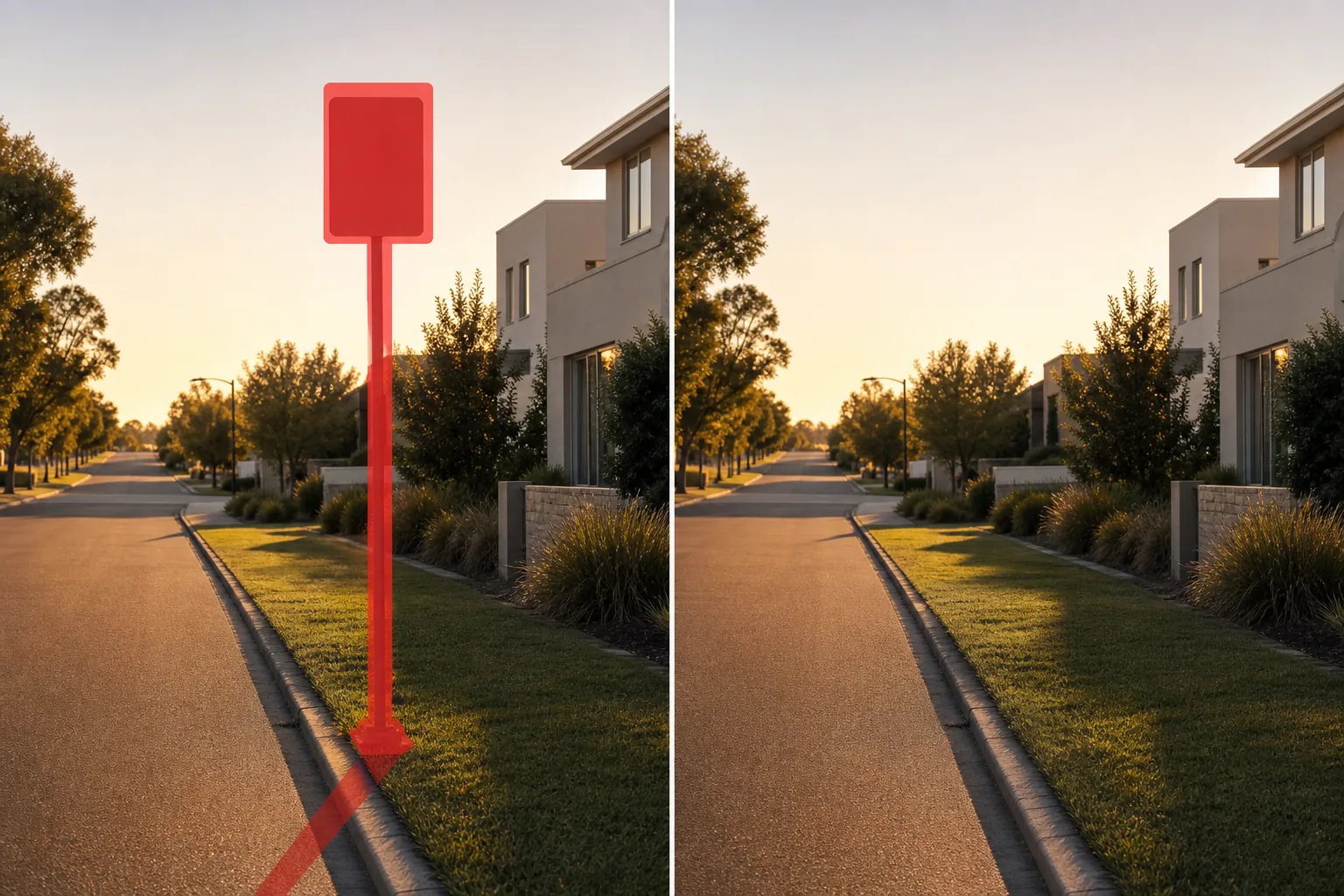
Why road signs clutter a photo
Road signs are everywhere a camera points outdoors — a stop sign cutting across a quiet street, a speed-limit post in the corner of a real-estate listing, a parking restriction blocking the facade of a shop, or a cluster of directional signs distracting from a travel landmark. They are designed to grab attention, so even a small sign in the frame pulls the eye away from the subject and makes a clean composition look busy. For a property listing, a sign mounted at the curb can date the photo or clash with the look you want to sell; for a street or architecture shot, signage breaks the lines of the building behind it. Magic Eraser lets you brush out the sign and its post in one pass and rebuilds whatever sat behind it — open sky, road surface, sidewalk, hedge, or wall — so the gap closes with matching texture and perspective instead of a blur. Because road signs usually stand against large, fairly uniform backgrounds like sky or asphalt, they are often one of the cleaner objects to remove, and the reconstructed result reads as a naturally uncluttered scene.
Remove a road sign in three steps
- 1
Upload your photo
Open Magic Eraser on the web, iOS, or Android and upload the street, real-estate, or travel shot. It works on wide street scenes, listing exteriors, and zoomed travel photos alike.
- 2
Brush the sign and its post
Paint over the sign panel and follow the post all the way down to the ground. Include the shadow it casts on the road or wall — leaving the post or shadow behind is the most common giveaway that a sign was removed.
- 3
Erase and review
Tap Erase and the AI fills the area with matching sky, road, or building behind it. Check that road markings, kerb lines, and brickwork line up across the gap, refine any seam, and export the cleaned-up photo.
Best for
- Decluttering real-estate listing exteriors with curbside signs
- Cleaning stop signs and traffic signs from street photography
- Removing directional and tourist signs from travel landmarks
- Erasing parking and no-parking posts in front of storefronts
- Tidying architecture shots where signage breaks building lines
- Clearing speed-limit and warning signs from roadside scenes
- Taking out a sign and its post in a single brushed pass
- Restoring an open sky or clean road behind roadside signage
What to expect from road-sign removal
Road signs against open sky, a plain wall, or an even stretch of road reconstruct cleanly, because the AI only needs to extend one simple texture into the gap. Always brush the whole object — the panel, the full length of the post, any bolts or base plate, and the shadow on the ground — since a forgotten post stub or floating shadow is what makes an edit look fake. The harder cases are signs that overlap detailed background: a sign crossing a row of windows, lettering on a building, lane markings, or a complex tree line. There the AI has to invent structured detail and may bend a window frame, smear text, or break a straight kerb line, so zoom in and check those seams. Reflections of the sign in nearby glass or water, and the way it interrupts a continuous railing or fence, also need a second look. As with all generative cleanup, the tool produces a plausible reconstruction of what was likely behind the sign, not a verified record of the real scene — keep that in mind for any listing or documentary use where accuracy matters.
Frequently asked questions
- Does it remove the post as well as the sign?
- Yes, if you brush it. The sign panel and its post are one object to the AI, so paint over both — the panel and the full post down to the ground — plus the shadow it casts. Leaving the post or shadow behind is the most common reason an edit looks unfinished.
- Will the road or sky behind it look natural?
- Usually, yes. Signs typically stand against open sky or plain road, which the AI extends cleanly. It gets harder when the sign overlaps windows, brickwork, or lane markings, so zoom in and check that those lines stay straight across the gap.
- Can I remove just one sign from a cluster?
- Yes. Brush only the sign and post you want gone and the AI rebuilds that spot while leaving the rest of the signage and scene untouched. Work one sign at a time for the cleanest result on a busy pole.
- Is road-sign removal free?
- Yes. Magic Eraser's free tier handles road-sign removal on web, iOS, and Android. Upload your photo, brush the sign and its post, and export the decluttered shot at no cost.