
Remove a drone from your photos
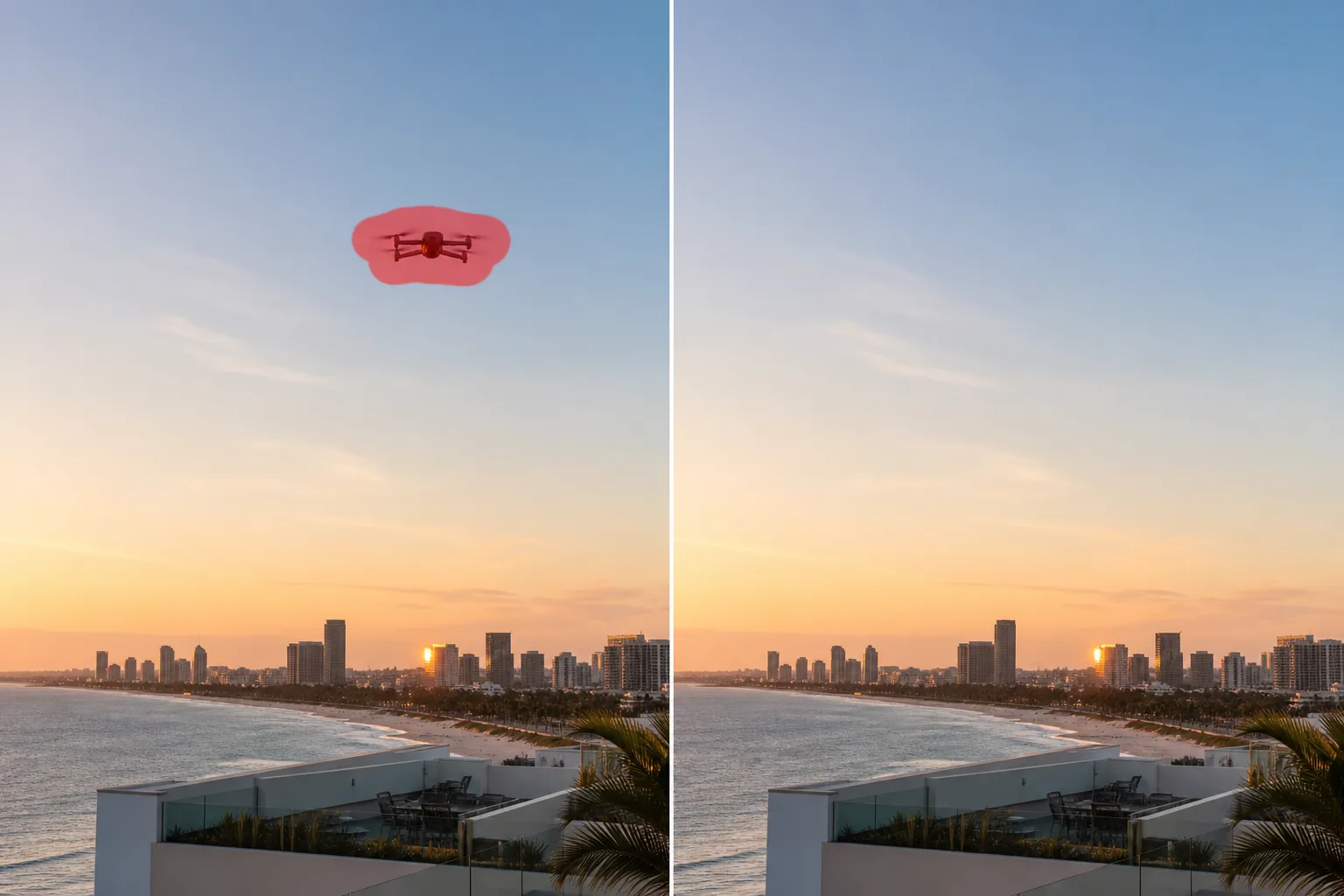
A drone hovering in the corner of a sunset, a delivery quadcopter crossing a skyline, or a far-off dot you can't even identify — Magic Eraser wipes the object out and reconstructs the open sky behind it so the frame looks like nothing was ever there.
Last updated
Why a drone ends up in the shot
Drones have a way of sneaking into photos you didn't plan around them. You frame a clean landscape, a beach panorama, or a rooftop golden-hour shot, and a small dark quadcopter parks itself right in the open sky — yours or a stranger's. Sometimes it isn't even a drone: a distant airliner, a helicopter, or a bird so far away it reads as an ambiguous speck against the blue. Whatever it is, it's a discrete, hard-edged object sitting on the simplest backdrop in the frame, and that combination makes it both annoying and easy to fix. Magic Eraser treats the drone as a single foreign element: you mark it, the AI removes it, and it extends the surrounding sky — the gradient from horizon to zenith, the subtle cloud texture, the haze — straight through the gap. Because open sky is smooth and predictable, the reconstruction is one of the most reliable edits the tool does. Unlike a contrail, which is a long diffuse vapor trail smeared across the frame, a drone is compact and self-contained, so there's far less area to rebuild and the result almost always reads as a naturally empty sky.
Remove a drone in three steps
- 1
Upload your sky shot
Open Magic Eraser on the web, iOS, or Android and load the photo. It works on landscapes, cityscapes, event and wedding shots, and any frame where the drone sits against open sky.
- 2
Brush over the drone
Paint across the drone and its rotor blur. Include the faint propeller haze and any thin shadow line — covering a little extra clean sky around the object helps the AI blend the patch seamlessly.
- 3
Erase and check the sky
Tap Erase and the AI deletes the object and rebuilds the sky behind it. Scan the patched area at full zoom for any banding in the gradient, then export the clean shot.
Best for
- Erasing a hobby or delivery drone from landscape and travel photos
- Removing a distant airplane or helicopter from a clear-sky shot
- Cleaning a far-off bird or ambiguous speck out of open blue
- Tidying sunset, beach, and golden-hour frames with a stray object
- Clearing drones from rooftop, skyline, and architecture shots
- Removing a wedding or event drone hovering in the background
- Wiping a single dot of glare or sensor dust against plain sky
- Decluttering aerial-style photos before posting or printing
What to expect from drone removal
Drone removal is at its most reliable when the object sits on open, evenly-toned sky, because the AI only has to continue a smooth gradient and any soft cloud texture across the gap — there's no complex structure to invent. A drone over plain blue or a clean sunset disappears almost perfectly. The job gets harder when the drone overlaps a busy background: tree branches, a building edge, power lines, or a person below it. In those cases the AI has to guess at the structure it can't see, and you may notice a smudge or a misaligned edge where the patch meets detail — brush more tightly and touch up in a second pass if needed. Skies with strong banding or heavy gradient can occasionally show a faint seam in the reconstructed patch; checking at full zoom catches it before export. Very large drones close to the camera leave a bigger hole to fill and are less forgiving than a distant speck. And to be straight about it: the tool is reconstructing a plausible patch of sky, not revealing what was actually behind the drone — on a clean backdrop that distinction never matters, but over intricate detail it's worth a careful look.
Frequently asked questions
- Can it remove a drone from a clear blue sky?
- Yes — that's the ideal case. Open sky is smooth and predictable, so the AI extends the gradient and any haze straight through where the drone was. On plain blue or a clean sunset the result is usually flawless.
- What if I'm not sure it's a drone — could be a plane or bird?
- It doesn't matter. Magic Eraser treats any small distant object the same way: brush over the speck and the AI removes it and rebuilds the sky. Drone, airliner, helicopter, or far-off bird all clean up identically against open sky.
- Will it work if the drone is in front of trees or a building?
- It can, but it's harder. When the drone overlaps detailed structure the AI has to reconstruct what it can't see, so you may notice a soft or misaligned edge. Brush tightly, work in a second pass, and check the patch at full zoom.
- Is drone removal free?
- Yes. Magic Eraser's free tier covers drone and sky-object removal on web, iOS, and Android. Upload your shot, brush the object, and export the clean sky at no cost.