
Uncover the Image Behind an Emoji
Curious what's hiding under that emoji slapped on a photo? Magic Eraser removes the emoji and uses AI inpainting to reconstruct a believable version of what was likely there. Here's the honest version: it paints a plausible background, it does not magically restore the exact original pixels or reveal a hidden face.
Last updated
Remove emoji now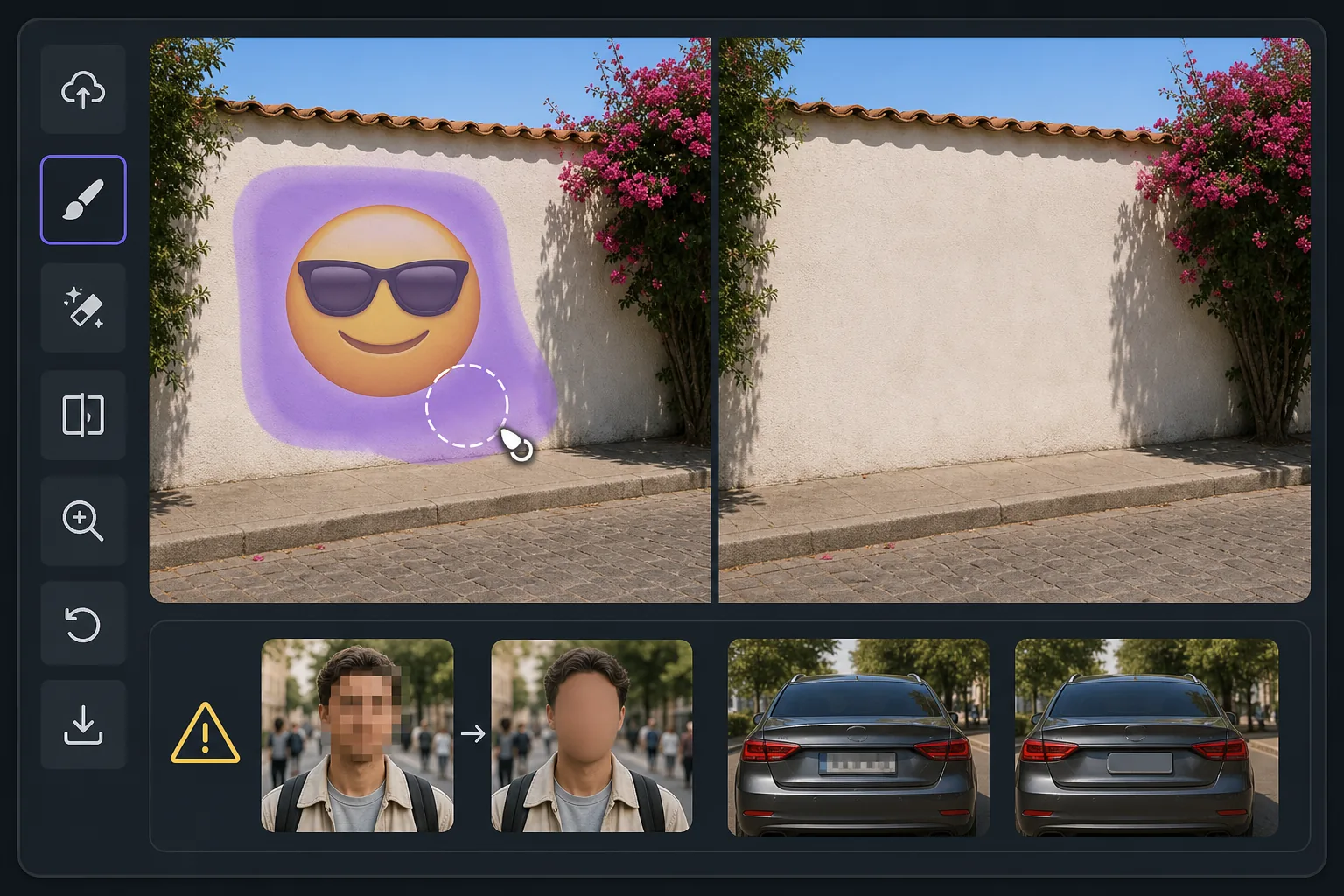
What "uncovering" an emoji really means
When someone covers part of a photo with an emoji, sticker, or smiley, the pixels underneath are gone — they were never saved in that file. So no tool, Magic Eraser included, can recover the true original content beneath the emoji. What Magic Eraser can do is far more useful than it sounds: its AI inpainting analyzes the surrounding image — colors, textures, lighting, and patterns — and synthesizes a clean, plausible reconstruction to fill the space the emoji occupied. The result is a seamless, emoji-free photo where the covered area blends naturally with everything around it. If the emoji was hiding a plain wall, a sky, grass, or fabric, the reconstruction is usually convincing because the AI has plenty of context to extend. If the emoji was covering a person's face, license plate, or specific text, the AI will invent something that fits the scene — it cannot reveal who or what was actually there. Going in with that expectation is the difference between being delighted and being disappointed. Magic Eraser works on the web and as a free iOS and Android app, with no watermark on the free tier, so you can try uncovering the area behind an emoji in seconds.
Before you start
How to uncover what's behind an emoji
Start with open the photo in magic eraser. The result preview above and tips below use this guide's existing content; no separate before-and-after proof is assumed.
- 1
Open the photo in Magic Eraser
Upload the image with the emoji on web, or open it in the free iOS or Android app. Pinch to zoom so the emoji and a generous margin around it are clearly visible — the AI reconstructs from surrounding context, so a sharp, well-framed view helps.
- 2
Brush over the emoji
Use the eraser brush to paint directly over the emoji, sticker, or smiley you want gone. Cover the whole shape, including any soft edges, drop shadows, or outline. Don't worry about being too precise — slightly overlapping onto the background gives the AI a cleaner area to reconstruct.
- 3
Erase and review the reconstruction
Tap erase and Magic Eraser removes the emoji, inpainting a plausible background in its place. Review honestly: if the covered area was a simple texture it will look seamless; if it covered a face or fine detail, the AI fills a fitting guess, not the real hidden content. Re-brush and redo if edges look off, then export at full resolution.
Best for
- Seeing what a scenic background looks like once an emoji or smiley sticker is lifted off a landscape or skyline photo
- Cleaning up screenshots where an emoji was dropped over a plain wall, sky, or surface and you want the unobstructed view
- Reconstructing simple textures — grass, water, carpet, fabric — that an emoji partially covered
- Removing playful stickers from your own photos so the image reads clean without the cartoon overlay
- Anyone who understands the AI paints a believable fill rather than recovering the literal pixels a face or detail behind the emoji
Set the right expectations
The single most important tip: Magic Eraser reconstructs, it does not recover. If an emoji was deliberately placed to hide someone's identity, a phone number, or sensitive text, removing it will not reveal the real thing — the AI simply paints whatever fits the surrounding scene. Treat results over plain or repeating backgrounds as reliable, and results over faces or specific details as creative guesses. For the most natural reconstruction, give the brush a little extra room around the emoji's edges, work on the highest-resolution copy you have, and run a second pass if any seams or color mismatches remain. Because the free tier on web, iOS, and Android adds no watermark, you can experiment freely until the uncovered area looks right.
Frequently asked questions
- Can Magic Eraser reveal the actual face or detail hidden under an emoji?
- No. The pixels behind an emoji are not stored in the photo, so no tool can recover the true hidden content. Magic Eraser removes the emoji and uses AI inpainting to synthesize a plausible reconstruction based on the surrounding image — it will not reveal a real face, identity, license plate, or text that was deliberately covered.
- Does it work on my phone, or only on the web?
- Both. You can uncover the area behind an emoji using the web editor or the free Magic Eraser apps for iOS and Android. The workflow is the same on every platform: brush over the emoji, erase, and review the reconstructed background. The free tier adds no watermark on any of them.
- When does the reconstruction look most convincing?
- When the emoji was covering a simple, predictable background — a clear sky, a plain wall, grass, or fabric — the AI has plenty of context to extend and the result usually looks seamless. Over complex details like faces or text, the fill is a believable guess that matches the scene rather than the original content.