
How to remove wrinkles from a photo
Professional portrait retouching reduces wrinkles without creating that artificial, plastic look. Magic Eraser's AI smooths wrinkles while preserving natural skin texture, pores, and the subject's authentic appearance.
Last updated
Smooth wrinkles now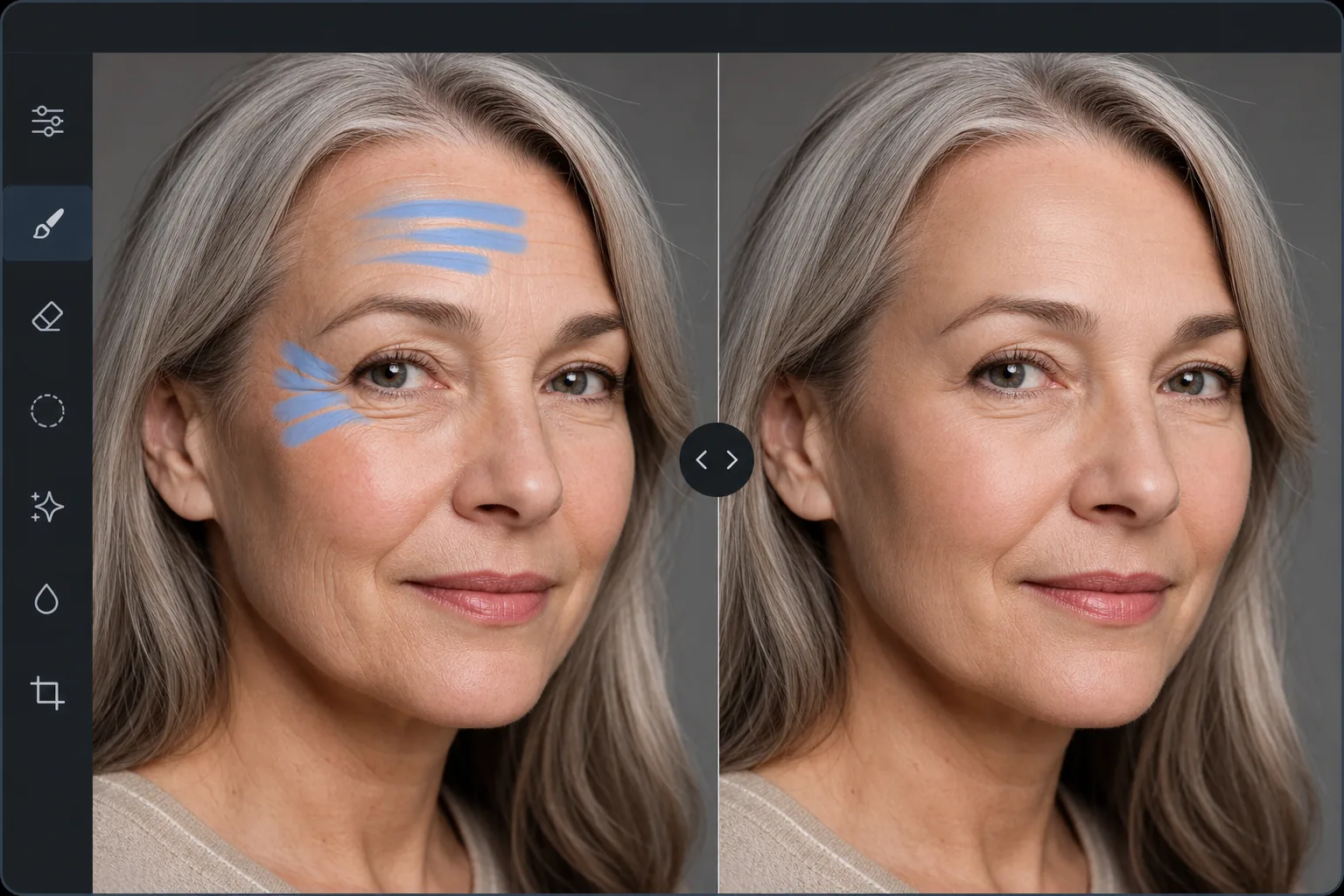
How to remove wrinkles from a photo
To remove wrinkles from a photo, open Magic Eraser on the web, iOS, or Android, upload the portrait, brush over the specific lines you want to soften, and tap Erase — the AI reduces the depth of each wrinkle while keeping the skin's pores, texture, and color variation, so the face looks naturally smoother rather than airbrushed. It includes limited free edits after sign-in. Keep it light: treating the 3–4 deepest creases and leaving expression lines like smile lines makes the result polished but still recognizably you. (To flatten physical creases or folds in an old scanned print, that's the same brush — it rebuilds the damaged area from the surrounding image.) The challenge with wrinkle removal is that aggressive smoothing creates the uncanny 'plastic skin' effect — a perfectly smooth face looks unnatural because real skin has pores, fine texture, and subtle color variation even in youth. Professional retouchers spend 15-30 minutes per portrait in Photoshop using frequency separation — a technique that separates skin texture from skin tone, allowing wrinkle reduction on the tone layer while preserving texture on a separate layer. This produces natural results but requires significant skill and time. Magic Eraser's AI handles this automatically — reducing wrinkle depth and prominence while maintaining the skin's natural texture, pore structure, and the subject's recognizable character.
Before you start
Smooth wrinkles in three steps
Start with upload the portrait. The result preview above and tips below use this guide's existing content; no separate before-and-after proof is assumed.
- 1
Upload the portrait
Open Magic Eraser on web, iOS, or Android. Upload the portrait or headshot with wrinkles you want to reduce. JPEG, PNG, HEIC, and WebP supported. Higher resolution produces more natural results because the AI has more skin texture data to work with.
- 2
Brush over the wrinkle areas
Paint over the specific wrinkles you want to reduce — forehead lines, crow's feet around the eyes, nasolabial folds, frown lines between the eyebrows. Brush each wrinkle area individually rather than painting the entire face. This approach preserves the subject's natural expression lines while targeting the deepest creases.
- 3
Tap Erase and review
The AI reduces the wrinkle depth while preserving surrounding skin texture. The result looks like natural skin with fewer prominent lines — not airbrushed or plastic. Check at full zoom to confirm the skin texture remains natural, and refine individual areas with additional passes if needed. Export at full resolution.
Best for
- Professional headshot retouching where subjects want a polished but authentic appearance
- Corporate portrait photography for company websites and LinkedIn profiles
- Wedding photography where family members want gentle wrinkle reduction in formal portraits
- Actor and model headshots requiring industry-standard skin retouching
- Personal photos where the subject wants to smooth specific wrinkles without changing their overall appearance
Tips for best results
Less is more with wrinkle reduction. Brush specific deep wrinkles rather than the entire face — reducing the 3-4 most prominent creases creates a significant improvement while keeping the face natural and recognizable. Leave some expression lines intact, particularly smile lines and subtle forehead lines that convey personality. For under-eye wrinkles, brush gently and check the result — the skin under the eyes is thin and delicate, and over-smoothing creates an unnatural flat appearance. For best results on professional headshots, combine wrinkle reduction with the AI enhancement tool for overall skin improvement and lighting correction.
Frequently asked questions
- Will it look artificial?
- No. The AI reduces wrinkle depth while preserving natural skin texture, pores, and color variation. The result looks like naturally smoother skin, not airbrushed or plastic. The key is brushing specific wrinkles rather than the entire face.
- Can I control how much smoothing is applied?
- Yes. Brush only the wrinkles you want to reduce. For lighter smoothing, use a smaller brush on just the deepest part of each wrinkle. For more aggressive reduction, brush the wrinkle and its surrounding area. Multiple passes increase the effect.
- Does it work on both men and women?
- Yes. The AI adapts to different skin types, textures, and wrinkle patterns. Male skin typically has larger pores and different texture than female skin — the AI preserves the appropriate texture for each.
- Is wrinkle removal free?
- Yes. Magic Eraser's free tier includes the brush tool for wrinkle reduction with daily usage limits. Premium removes limits for professional retouching workflows.
- How do I remove wrinkles from a photo on Android or iPhone?
- Open Magic Eraser in any mobile browser or the iOS or Android app, load the portrait from your camera roll, and pinch to zoom in on the face. Use a small brush to trace the specific lines you want to soften, then tap Erase. The AI reduces them right on your phone and saves the result back to your camera roll. It works the same as the desktop version, with no app install required if you use the browser — and as on desktop, treating a few deep wrinkles looks more natural than smoothing the whole face.