
How to remove wrinkles from clothes in a photo
Wrinkled clothing can ruin an otherwise perfect product shot or portrait. Magic Eraser's AI smooths fabric wrinkles and creases while preserving texture, stitching, and natural drape — like a digital iron for your photos.
Last updated
Smooth wrinkles now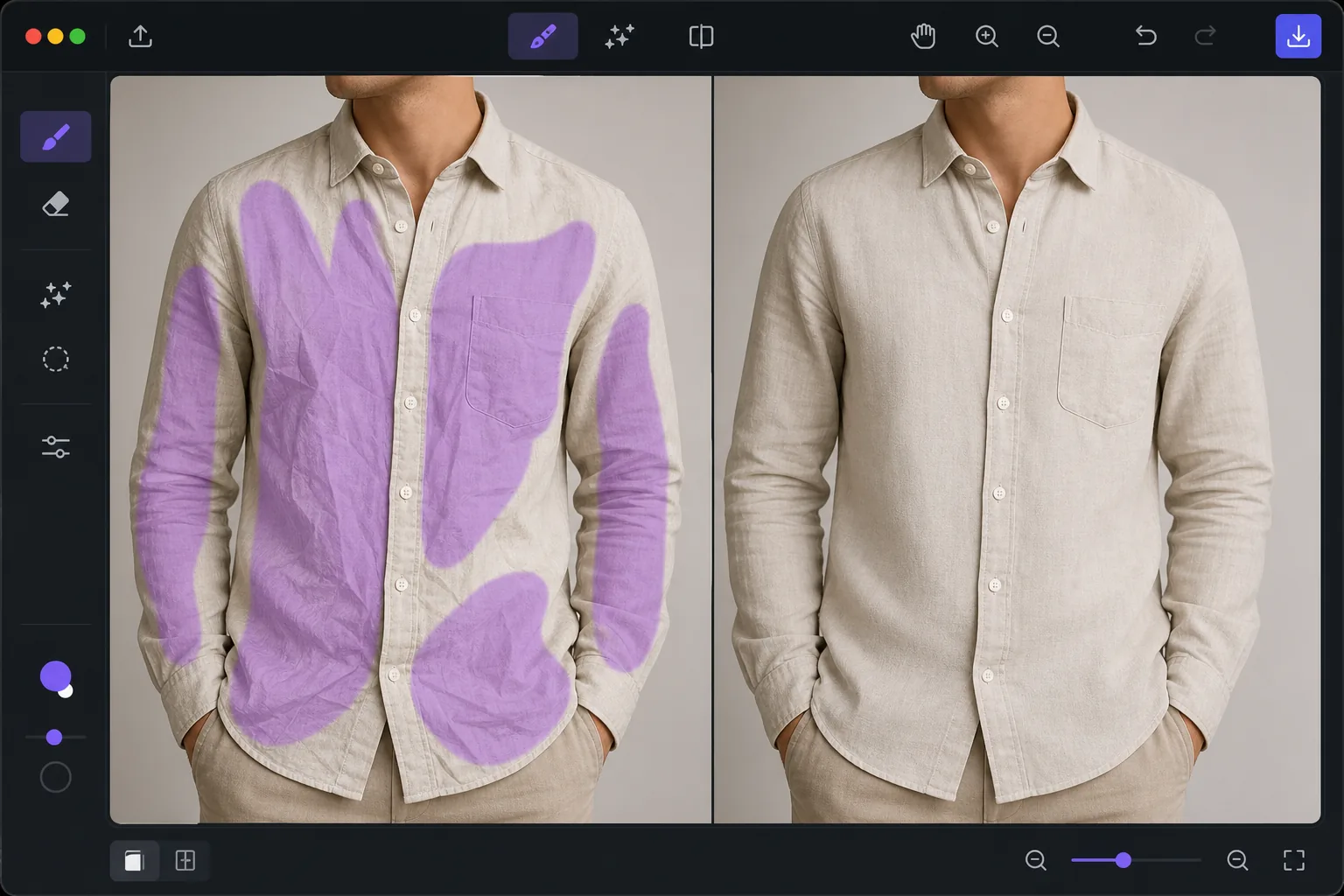
How to remove wrinkles from clothes in a photo
To remove wrinkles from clothes in a photo, open Magic Eraser on the web, iOS, or Android, upload the shot, brush over the creased areas of the garment, and tap Erase — the AI smooths the fabric while keeping its texture, stitching, and natural drape, like a digital iron for the photo. It includes limited free edits after sign-in. It only changes the areas you brush, so intentional pleats, seams, and folds that follow the body stay put. Use it on product flat-lays, on-model shots, and portraits where a creased shirt distracts from the subject. In e-commerce, wrinkled clothing photographs reduce perceived product quality and conversion rates. Studies show that professionally presented product images increase purchase intent by up to 30%. In portrait photography, a wrinkled shirt or blouse distracts from the subject's face and conveys a lack of preparation. Physical ironing and steaming before shoots is ideal but not always possible — shipping wrinkles, last-minute outfit changes, and outdoor shoots all introduce creases. Manual retouching requires frequency separation techniques that take 15-30 minutes per image. AI wrinkle removal achieves comparable results in seconds by understanding fabric texture, light reflection on wrinkles, and the difference between intentional folds and unwanted creases.
Before you start
Remove clothing wrinkles in three steps
Start with upload the photo. The result preview above and tips below use this guide's existing content; no separate before-and-after proof is assumed.
- 1
Upload the photo
Open Magic Eraser on web, iOS, or Android. Upload a product photo, portrait, or lifestyle shot where clothing wrinkles are visible. The tool works with flat-lay shots, on-model photography, and ghost mannequin images alike.
- 2
Brush over the wrinkled areas
Use the brush tool to paint over wrinkles and creases. The AI distinguishes between unwanted wrinkles and intentional fabric features like pleats, seams, and decorative gathers. For large areas, use a wide brush. For targeted wrinkle removal near buttons or logos, zoom in and use a smaller brush.
- 3
Review and export
The AI smooths the fabric while maintaining natural texture and shading. The result looks like the garment was freshly pressed, not airbrushed flat. Export at full resolution for e-commerce listings, print catalogs, or social media.
Best for
- E-commerce sellers who need wrinkle-free product images for listings and catalogs
- Fashion photographers polishing on-model shots without physical steaming
- Portrait photographers smoothing dress shirts and blouses for corporate headshots
- Clothing resellers on Poshmark, eBay, or Depop improving photo quality for used items
- Flat-lay photographers who cannot physically iron garments before shooting
Tips for best results
Focus on the most visible wrinkles first — deep creases across the chest, shoulders, or front panel of a garment. Leave subtle natural folds that follow the body's contour, as removing these makes clothing look artificially flat. For product flat-lays, work in sections: smooth the torso, then sleeves, then collar. On dark fabrics where wrinkles create visible highlight lines, the AI is especially effective because the smooth version is a consistent dark tone. For patterned fabrics (stripes, plaids), the AI reconstructs the pattern across the smoothed area, maintaining alignment.
Frequently asked questions
- Will it remove intentional pleats and seams?
- Only brush over the areas you want smoothed. The tool only affects the regions you mark. Intentional design elements like pleats, darts, and seams are safe as long as you do not brush over them.
- Does it work on patterned fabrics?
- Yes. The AI reconstructs patterns (stripes, checks, prints) across smoothed areas. Results are best when the pattern is regular and repeating. Highly irregular prints may need smaller brush strokes and multiple passes.
- Is clothing wrinkle removal free?
- Yes. Object removal features work for clothing wrinkle removal in the free tier with daily usage limits. Premium removes limits for batch processing entire product catalogs.
- How do I remove wrinkles from clothes in a photo on my phone?
- Open Magic Eraser in any mobile browser or the iOS or Android app, load the photo from your camera roll, and pinch to zoom in on the garment. Brush over the visible creases with your finger and tap Erase. The AI smooths the fabric right on your phone and saves the result back to your camera roll, ready for a listing or post. It works the same as the desktop version, with no app install required if you use the browser.
- Is this like ironing clothes in a photo?
- Yes — that's the simplest way to think about it. Instead of steaming or ironing the garment before the shoot, you brush over the creases afterward and the AI rebuilds that part of the fabric as if it were freshly pressed, keeping the weave, color, and any pattern. It edits the look of the clothing in the picture; it doesn't change the real garment, and it isn't for altering what someone is or isn't wearing. Smooth the worst creases and leave the folds that follow the body so the clothing still looks natural rather than flat.