
Remove Water Reflections From a Photo
Glare on a puddle, a stray reflection across a lake, a wobbling silhouette in still water — Magic Eraser's AI inpainting paints those distractions out and rebuilds a clean, natural water surface in their place.
Last updated
Open Magic Eraser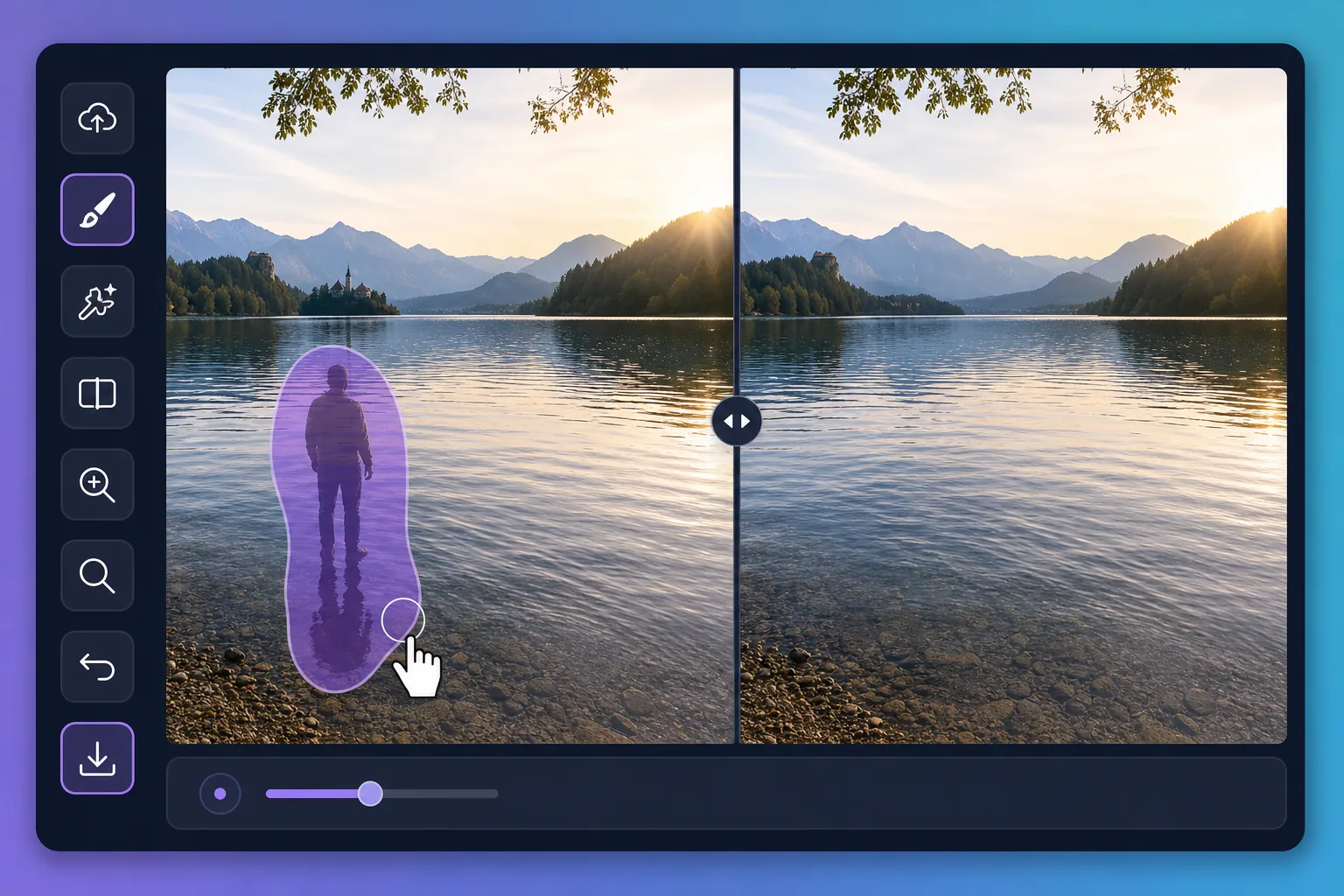
Why water reflections are tricky to edit
Water is a mirror that never holds still. A perfect dawn over a lake can be spoiled by the reflection of a power line, a parked car, or a stranger standing at the shore. Puddles after rain pick up neon signs, scaffolding, and harsh sky glare that pull attention away from your subject. Painting these out by hand is slow because the editor has to match ripples, color gradients, and the soft way reflections fade with distance. Magic Eraser handles that for you: brush over the unwanted reflection and its AI inpainting reconstructs a plausible stretch of water in its place — matching the surrounding tone and texture rather than leaving a flat smudge. It does not recover the literal scene that was hidden behind the reflection; it synthesizes a believable replacement that blends with the rest of the surface, which is exactly what you want for a clean travel or landscape shot.
Before you start
Remove a water reflection in three steps
Start with upload your shot. The result preview above and tips below use this guide's existing content; no separate before-and-after proof is assumed.
- 1
Upload your shot
Open Magic Eraser on the web, iOS, or Android and load the landscape or travel photo with the reflection you want gone — a puddle, pond, lake, or any wet surface.
- 2
Brush the reflection
Paint directly over the unwanted reflection on the water — the mirrored power line, the glare patch, the person at the far bank. Stay close to its edges so the surrounding ripples and color stay untouched.
- 3
Erase and refine
Tap erase and the AI fills the area with reconstructed water that matches the nearby texture. Check the seams, brush over any leftover spots, then download the result watermark-free.
Best for
- Wiping a reflected power line, crane, or building off a calm lake at sunrise
- Cleaning neon, signage, and headlight glare out of rain puddles in street shots
- Removing a stray person or parked car mirrored along a pond's far shore
- Softening harsh sun glare patches that blow out a glassy water surface
- Tidying reflections in fountains and reflecting pools for cleaner travel photos
Tips for natural-looking water
Work in small sections rather than one giant brush stroke — water has subtle gradients and ripples that the AI rebuilds more convincingly across a smaller area. Keep your brush just inside the reflection so you preserve the genuine ripples around it. For mirror-still water, erasing a large reflection can leave the surface looking too uniform; brushing in a few short passes helps the reconstruction vary naturally. Remember the result is a synthesized surface, not the real scene beneath the reflection, so zoom in to confirm the edges blend before you export.
Frequently asked questions
- Can it remove a reflection without ruining the rest of the water?
- Yes. Brush only the unwanted reflection and Magic Eraser reconstructs that patch to match the surrounding ripples and color, leaving the genuine reflections and water texture around it intact. Keeping strokes tight to the edges gives the cleanest blend.
- Does the AI show what was really behind the reflection?
- No. The tool synthesizes a plausible stretch of water that fits the scene — it does not recover literal pixels that the reflection was covering. For landscape and travel shots that look great, since the goal is a clean, believable surface.
- Is Magic Eraser free to start?
- Yes, there's a free tier you can start with right away, and exports come without a watermark. It works in the browser and on iOS and Android, so you can clean up water shots on your phone or desktop.