
Remove the Orange Date Stamp From Old Film Photos
That glowing orange-yellow date in the corner of a scanned 1980s or 90s snapshot doesn't have to stay. Magic Eraser brushes it away and rebuilds the vintage scene underneath, so the moment looks the way you remember it.
Last updated
Erase the date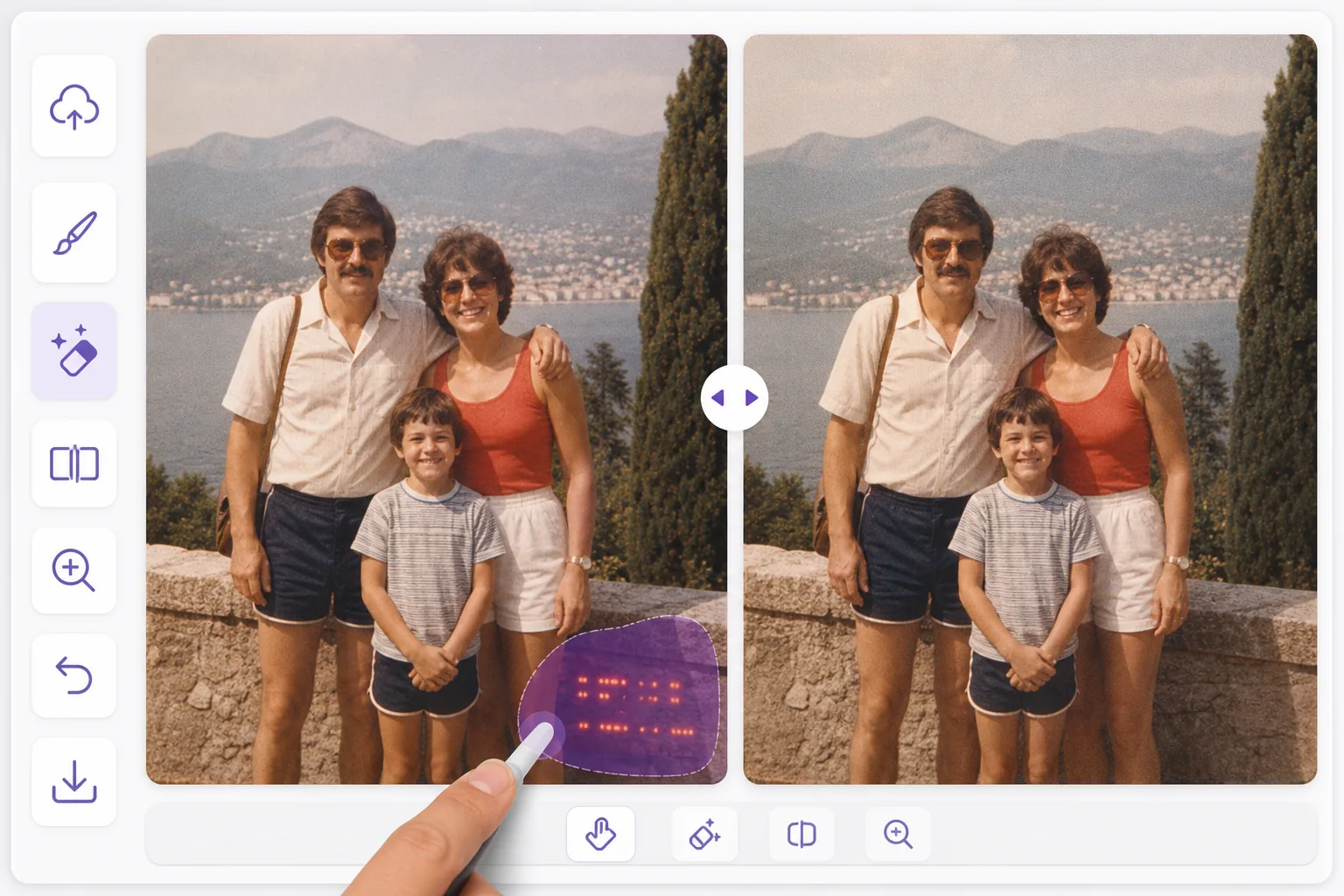
Why scanned film photos have that orange glow
Many point-and-shoot film cameras of the 1980s and 90s burned the capture date directly onto the negative using a tiny LED. The result is that unmistakable orange or amber numbering printed into the lower corner of the frame. Once you scan those prints, the stamp is baked into the pixels, sitting on top of grass, a tablecloth, a sweater, or the sky. You can't toggle it off the way you would EXIF metadata, because it's part of the image itself. Magic Eraser handles this by letting you paint over the digits and letting AI inpainting fill the gap. It studies the colors, grain, and texture around the stamp and synthesizes a plausible reconstruction of what was behind it. To be clear, it isn't recovering hidden original pixels (the stamp covered them on the film) — it generates a believable patch that blends with the surrounding vintage photo. For corners that fall on simple backgrounds like sky, lawn, or a wall, the result is usually seamless. The faded color cast and film grain of old scans actually help the fill disappear.
Before you start
Remove an orange date stamp in three steps
Start with upload your scanned photo. The result preview above and tips below use this guide's existing content; no separate before-and-after proof is assumed.
- 1
Upload your scanned photo
Open Magic Eraser on the web, iOS, or Android and add the scanned film photo. Use the highest-resolution scan you have — more detail around the stamp gives the AI more to work with.
- 2
Brush over the orange digits
Zoom into the corner and paint directly over the date numbers, including any faint glow or halo around them. Stay tight to the characters so the inpainting only touches the stamp, not the scene you want to keep.
- 3
Erase, review, and save
Tap erase and let the AI rebuild the background. Check the patch at full zoom; if a digit's edge lingers, brush it again. When the corner looks natural, download the cleaned image with no watermark.
Best for
- Scanned 1980s and 90s film prints with a burned-in orange or amber date in the corner
- Family albums being digitized where the LED date stamp clutters every frame
- Snapshots where the stamp sits over simple areas like sky, grass, or a plain wall
- Preserving the original faded color and film grain while only removing the digits
- Cleaning photos for reprints, slideshows, or sharing without retyping a whole edit in Photoshop
Tips for a clean vintage result
Work from the best scan you can make — a 600 DPI or higher scan keeps grain consistent so the fill matches. Brush a little past the digits to catch the soft orange halo that LED stamps leave; a leftover glow is more noticeable than the numbers themselves. If the stamp overlaps a busy subject like a face or patterned fabric, expect the reconstruction to be an educated guess rather than a perfect match — make several small passes instead of one big one, and compare results. Avoid over-sharpening afterward, which can expose the patched area against the soft texture of old film.
Frequently asked questions
- Will removing the orange stamp damage the vintage look of the photo?
- No. Magic Eraser only touches the area you brush. The faded tones, color cast, and film grain of the original scan stay intact — you're just lifting the burned-in date out of the corner, not retouching the whole image.
- What's actually behind the date stamp after I erase it?
- The orange digits covered the film, so the original pixels underneath were never captured. The AI synthesizes a plausible reconstruction based on the surrounding colors and texture. On simple backgrounds it looks seamless; over detailed subjects it's a convincing guess rather than the literal hidden scene.
- Is Magic Eraser free to start?
- Yes. There's a free tier you can use on the web, iOS, and Android, and exported photos come with no watermark. You can clean up your scanned film photos without paying upfront.