
How to remove a mole from a photo
Moles, birthmarks, and dark spots can be distracting in close-up portraits. Magic Eraser removes them with AI-powered skin retouching that preserves the natural texture, pores, and tone of surrounding skin.
Last updated
Remove mole now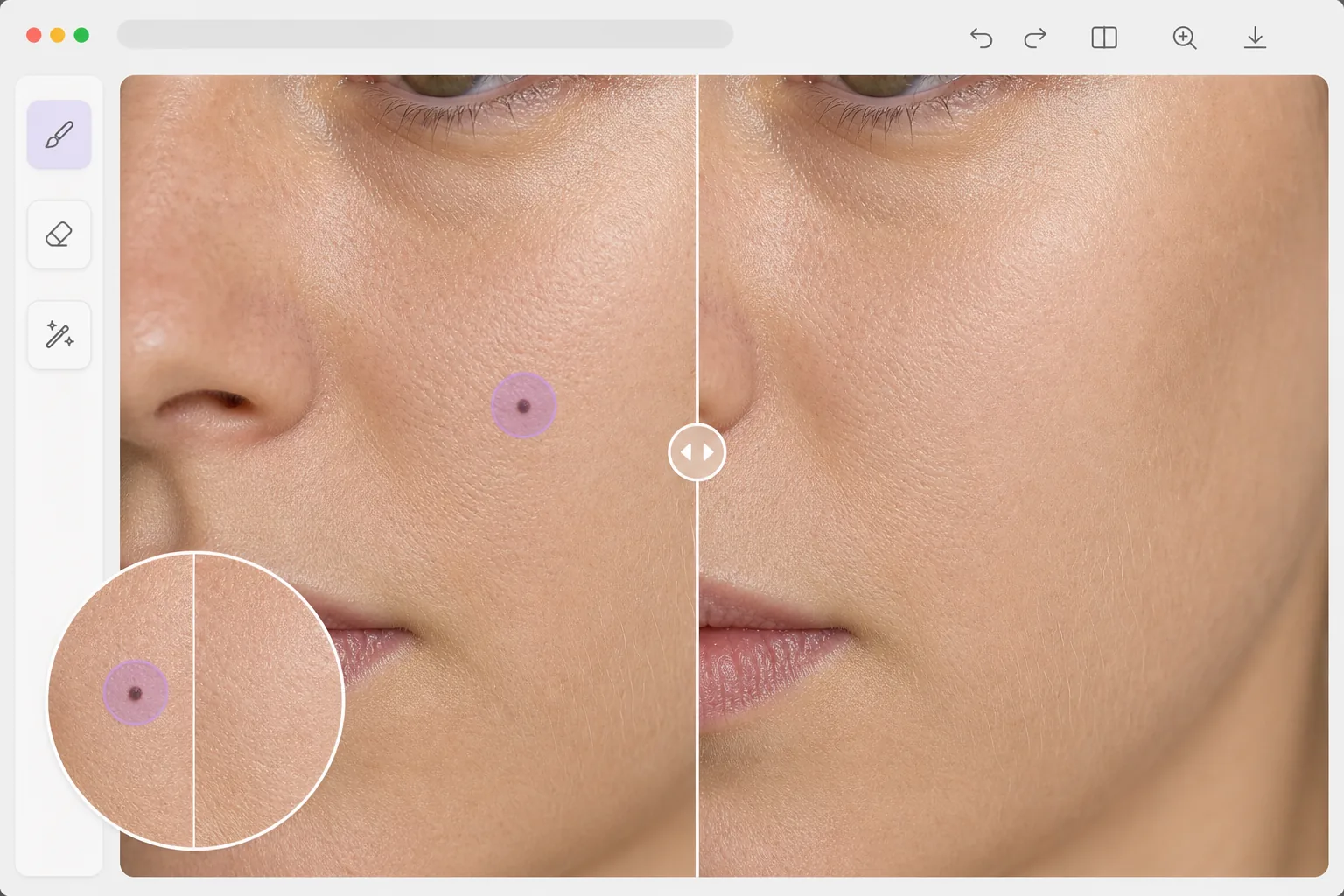
How to remove a mole from a photo
To remove a mole from a photo, open Magic Eraser on the web, iOS, or Android, upload your portrait, brush over the mole, and let the AI replace it with skin that matches the surrounding texture and tone. It includes limited free edits after sign-in. This edits the photo only — it changes how your skin looks in the image and does nothing to your actual skin. It's purely cosmetic retouching, not a medical tool, so never use a removed-mole photo to judge whether a real mole is changing; for that, see a doctor. For the most natural result, work mole by mole and consider leaving distinctive beauty marks that are part of how you look. Traditional spot removal in photo editors uses clone-stamp or healing-brush tools that copy nearby skin texture to cover the blemish. This works for small spots but can create visible repetitive patterns on larger moles, especially on cheeks and foreheads where skin texture varies across the area. AI-powered removal understands skin as a continuous surface with varying texture, pore density, and color gradients. It generates new skin that blends seamlessly with the surrounding area — matching not just color but the subtle variations in pore size, fine lines, and peach fuzz that make skin look real. The result is indistinguishable from skin that never had a mole there.
Before you start
Remove a mole in three steps
Start with upload the portrait. The result preview above and tips below use this guide's existing content; no separate before-and-after proof is assumed.
- 1
Upload the portrait
Open Magic Eraser on web, iOS, or Android. Upload a portrait or close-up where the mole is visible. Higher resolution photos produce more natural results because the AI has more skin texture detail to work with.
- 2
Brush over the mole
Use a small brush sized just larger than the mole. A single tap is often enough for small spots. For larger raised moles that cast a shadow, include the shadow area in your selection for a completely clean result.
- 3
Review and export
The AI replaces the mole with natural skin that matches the surrounding area's tone, texture, and lighting. Zoom in to verify the blend is seamless. Export the retouched portrait at full resolution.
Best for
- Portrait photographers offering skin retouching to clients who request blemish removal
- Professional headshot preparation where a clean, polished look is expected
- Social media users who prefer a smoother appearance in profile and posted photos
- Dermatology before/after documentation where specific marks need to be isolated
- Wedding and event photographers performing batch portrait retouching
Tips for best results
Use the smallest brush that fully covers the mole — less area to reconstruct means more natural results. For moles near facial features (eyes, nose, lips), be precise with brush placement to avoid affecting the adjacent feature. Process one mole at a time for the most accurate skin reconstruction. If the mole is a defining characteristic of the person (like Cindy Crawford's beauty mark), consider whether the client actually wants it removed. For batch portrait retouching, establish a consistent approach: remove distracting spots while preserving character-defining features.
Frequently asked questions
- Does it look natural on close-up photos?
- Yes. The AI generates skin with matching pores, fine lines, and color variations. At normal viewing distances, the removed area is indistinguishable from surrounding skin. Even in zoomed close-ups, the texture is convincingly natural.
- Can I remove multiple moles at once?
- Yes. Brush over each mole you want to remove, then process them all together. Each mole area is reconstructed independently with context from its surrounding skin.
- Is mole removal from photos free?
- Yes. Object removal features work for skin retouching in the free tier with daily usage limits. Premium removes limits for batch portrait retouching.
- Should I remove a mole or keep it as a beauty mark?
- That's your call, and it's worth thinking about the photo's purpose. For a one-off event shot, removing a distracting spot is fine. For a profile picture, dating profile, or any photo where you'll meet people in person, consider keeping distinctive moles and beauty marks — they're part of how you actually look, and an edit that removes them can make the photo feel less like you. There's nothing wrong with either choice; just avoid editing to the point the face no longer matches the real you, especially on ID-style or identity-linked photos.
- Can this tell me if a mole is dangerous, or remove a worrying one?
- No — this is a photo editor, not a medical tool, and it can't assess skin health. Editing a mole out of a picture changes the image, not your skin, and it should never be used to monitor, diagnose, or hide a mole you're concerned about. If a mole is new, changing in size, shape, or color, itching, or bleeding, don't rely on photo edits — have it checked by a doctor or dermatologist.