
How to remove a logo from a photo
A competitor's logo on clothing in a lifestyle shoot, a brand emblem on a product you are repurposing for mockups, or a TV network logo burned into a screenshot — visible logos create branding conflicts and distract from your content. Magic Eraser's AI removes logos cleanly and reconstructs the surface underneath.
Last updated
Remove logo now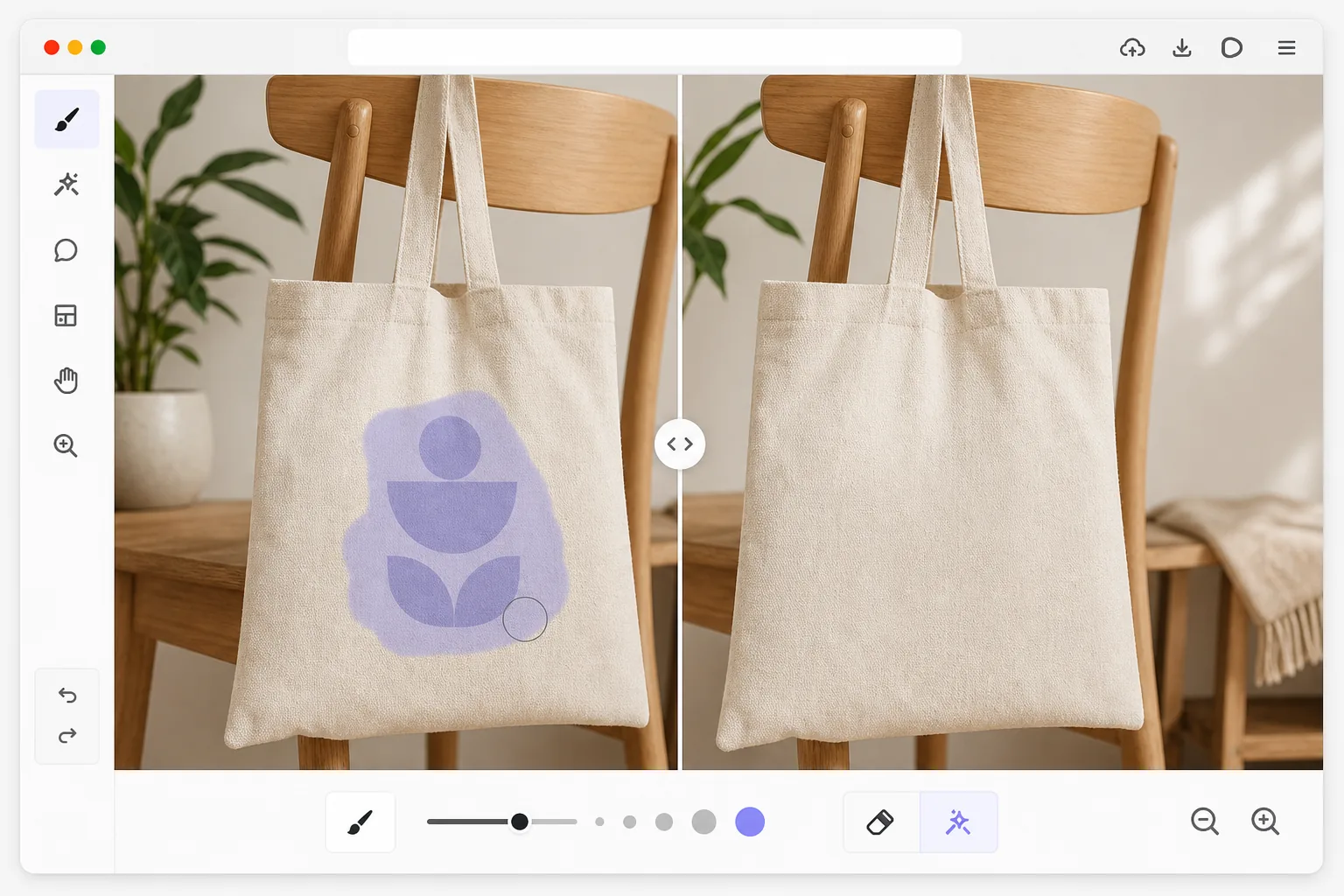
How to remove a logo from a photo
To remove a logo from a photo, open Magic Eraser on the web, iOS, or Android, upload the image, brush over the whole logo — including any tagline, border, or shadow — and tap Erase. The AI reconstructs the surface underneath, continuing the fabric weave, metal, or wall behind it, so it looks like the logo was never there. It includes limited free edits after sign-in. Brushing a small margin around the logo gives the AI enough texture to blend cleanly. Remove logos only from images you own or have permission to edit, and keep in mind that a brand's logo and trademark rights are unaffected by editing a photo of it. Logos are designed to be visible and persistent — bold colors, high contrast against their background, and often placed on textured surfaces (fabric, metal, glass, skin). Removing a logo means not just erasing the graphic but reconstructing whatever was behind it: the weave pattern of a shirt, the brushed metal texture of a laptop, or the painted surface of a vehicle. Simple clone-stamp approaches leave visible smearing because the surrounding texture has a direction and pattern that must continue seamlessly through the logo area. Color-based selection fails because logos often share colors with the background. Magic Eraser's AI understands the surface texture and pattern around the logo, removes the graphic, and generates a seamless continuation of the underlying surface that looks natural even under close inspection.
Before you start
Remove a logo in three steps
Start with upload the photo. The result preview above and tips below use this guide's existing content; no separate before-and-after proof is assumed.
- 1
Upload the photo
Open Magic Eraser on web, iOS, or Android and upload the photo containing the logo you want to remove. The tool works on logos printed on clothing, embossed on products, painted on surfaces, or overlaid as screen graphics. All common image formats are supported at any resolution.
- 2
Brush over the logo
Paint over the entire logo including any tagline text, border, or shadow. Make sure to cover the full extent of the graphic — missing a thin outline or drop shadow will leave a ghost of the logo. For logos on textured surfaces like fabric or wood, include a small margin around the logo to give the AI enough texture reference for seamless reconstruction.
- 3
Tap Erase and review
The AI removes the logo and fills the area with a continuation of the surrounding surface texture and color. Zoom in to check that the texture pattern flows naturally through the former logo area with no visible seams or repetition. If any faint trace remains, brush that spot and erase again. Export at full resolution.
Best for
- Lifestyle photography where clothing logos create unwanted brand associations
- Product mockups where existing branding must be removed before adding new designs
- Social media content where competitor logos in the background need to be neutralized
- Stock photography cleanup where logos would limit commercial licensing
- Real estate photography where branded items (appliances, fixtures) show competitor logos
Tips for best results
Logos on flat, uniform surfaces (solid-color walls, plain fabric, smooth plastic) are the easiest to remove because the AI has a simple texture to replicate. Logos on complex textures (plaid fabric, wood grain, brick) require more AI inference but still produce excellent results when you include enough surrounding texture in your brush selection. For embossed or debossed logos that create a physical surface change (raised lettering on leather, stamped metal), the AI removes the visual appearance but the lighting-dependent depth cue may need a second pass. Multi-color logos sometimes leave a faint color residual on the first pass — a quick second brush over the affected area resolves this. Always verify your use case complies with applicable intellectual property guidelines.
Frequently asked questions
- Can it remove logos from clothing?
- Yes. Logos on shirts, hats, shoes, and other apparel are a common use case. The AI removes the printed or embroidered graphic and reconstructs the fabric texture — matching the weave pattern, color, and lighting of the surrounding material for a natural finish that looks like the logo was never there.
- Does it work on embossed or 3D logos?
- It removes the visual appearance of embossed logos effectively. The color and contrast of the logo disappear, and the AI fills with the surrounding surface. Very deep physical embossing may leave subtle shadow cues depending on lighting, which a second pass typically resolves.
- Is logo removal free?
- Yes. Magic Eraser's free tier includes the brush tool for logo removal with daily usage limits. Upload, brush the logo, and export the clean image. Premium removes limits and enables high-resolution exports and batch processing for multiple images.
- How do I remove a logo from a photo on Android or iPhone?
- Open Magic Eraser in any mobile browser or the iOS or Android app, load the photo from your camera roll, and pinch to zoom so you can trace the logo precisely. Brush over the whole graphic — including any tagline or outline — with your finger and tap Erase. The AI rebuilds the surface underneath right on your phone and saves the clean image back to your camera roll. It works the same as the desktop version, with no app install required if you use the browser.
- Is it legal to remove a logo from a photo?
- Editing the pixels of a photo doesn't change who owns the brand. Removing a logo is fine for images you own or have permission to use — cleaning up your own product shots, removing a competitor's mark from a lifestyle photo you took, or clearing branding before adding your own design to a mockup. It is not a way to pass off someone else's branded product as your own, strip a watermark to reuse a photo you don't have rights to, or misrepresent a product's origin. When in doubt about a commercial use, check the applicable trademark and copyright rules or ask the rights holder.