
Remove Emoji and Bitmoji Stickers from a Snapchat Photo
Saved a great snap but it's covered in emoji, Bitmoji, or the timestamp sticker you slapped on before sending? Magic Eraser's AI inpainting wipes those stickers off your saved Snapchat photo and rebuilds the background behind them, so you can repost it clean to your Story or camera roll.
Last updated
Remove emoji now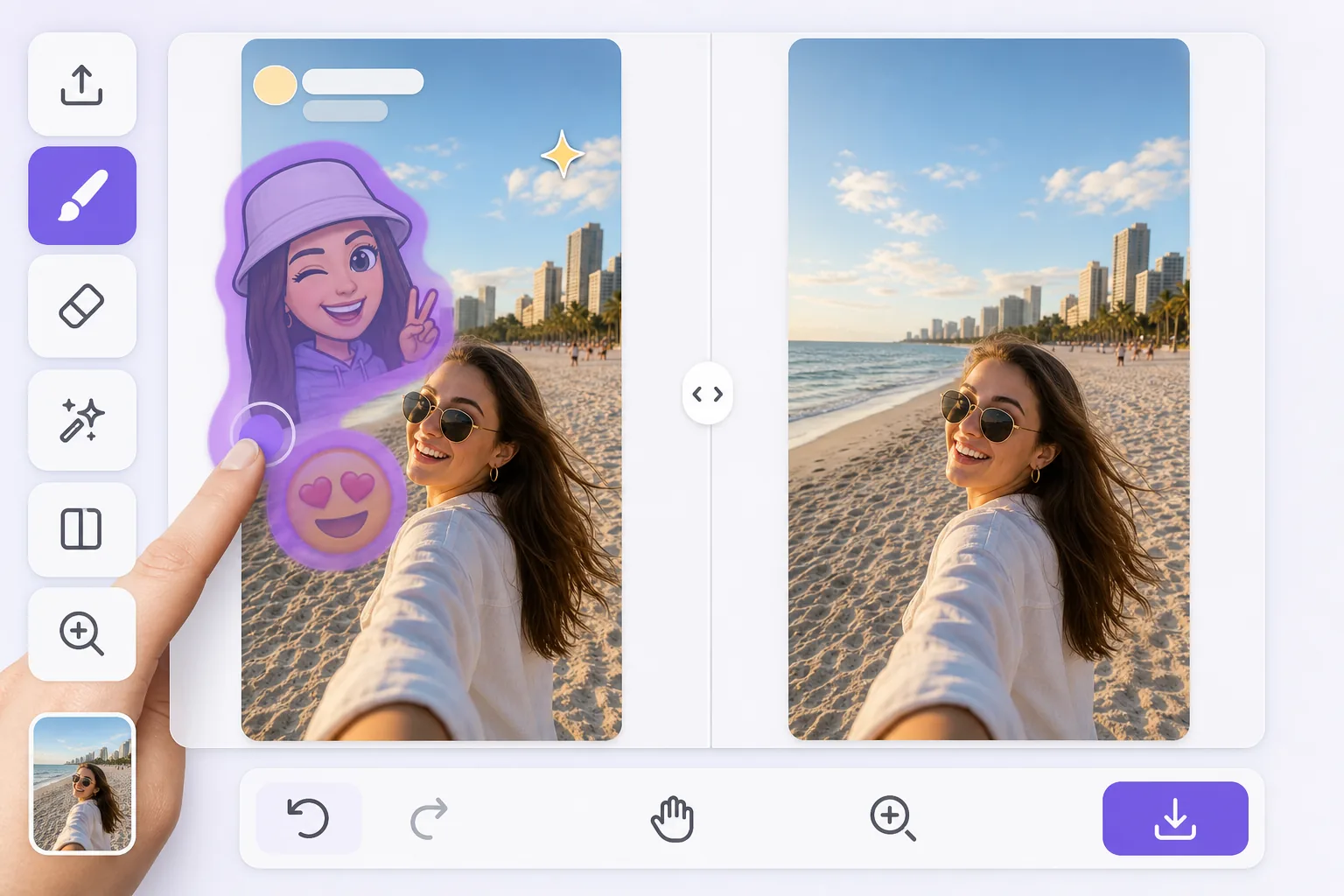
Clean up a saved snap without losing the moment
Snapchat makes it easy to pile emoji, Bitmoji stickers, and reactions onto a snap, but those decorations get baked into the image the moment you tap Save to your camera roll. Once a snap is saved, there's no layers panel to peel the stickers back off. Magic Eraser solves that: brush over the emoji or Bitmoji sitting on top of your snap and the AI removes it, then synthesizes a believable patch of whatever was behind it — sky, a wall, hair, or the rest of your friend's face. Be clear about what this does: the AI generates a plausible reconstruction of the covered area, it does not recover the literal original pixels Snapchat hid. For a beach sky, a hoodie, or a blurry background, the fill is usually seamless. For a detailed face or text partly under a large Bitmoji, expect a convincing approximation rather than a pixel-perfect original. Works free with no watermark on web, iOS, and Android, so you can fix the snap on the same phone you shot it on.
Before you start
How to remove emoji from a saved Snapchat snap
Start with save and open the snap. The result preview above and tips below use this guide's existing content; no separate before-and-after proof is assumed.
- 1
Save and open the snap
In Snapchat, save the snap to your camera roll (or export it from Memories). Then open magiceraser.live or the iOS/Android app and load that saved photo — the one with the emoji or Bitmoji stickers baked in.
- 2
Brush over the emoji or Bitmoji
Paint directly over each emoji, Bitmoji sticker, reaction, or timestamp you want gone. Trace the full edge of the sticker, including any drop shadow or glow, so nothing of the original Snapchat overlay is left behind.
- 3
Erase, review, and save clean
Tap erase and let the AI reconstruct the background behind the stickers. Check the patched area at full zoom, re-brush any leftover edges, then export the clean photo to repost to your Story or save to your gallery.
Best for these Snapchat moments
- Reposting a saved snap to your Story after stripping off the emoji and Bitmoji you added
- Cleaning a screenshot from a friend that arrived covered in their Bitmoji reaction stickers
- Removing the timestamp, location, or temperature sticker baked into a saved snap
- Salvaging a great photo where one big emoji is covering the corner of the shot
- Pulling an old decorated snap out of Memories and getting a clean version for your camera roll
Tips for cleaner Snapchat sticker removal
Bitmoji stickers are larger and more opaque than tiny emoji, so they cover more of the snap — results are best when the area behind them is simple, like sky, grass, or a plain wall, and harder when a Bitmoji sits over a face or detailed background. Zoom in before brushing so you catch the soft edges and shadows Snapchat adds around stickers. If an emoji overlaps a person, erase it in one pass rather than several small dabs so the AI reconstructs the whole region consistently. When a sticker covers someone's face, remember the tool fills in a plausible face-shaped patch — it cannot bring back the real features that were hidden, so use it on backgrounds and edges for the most natural results.
Snapchat emoji removal FAQ
- Can I remove a Bitmoji sticker from a snap after I already saved it?
- Yes. Once a snap is saved to your camera roll the Bitmoji is baked into the image, but Magic Eraser lets you brush over it and reconstructs the background behind it. The result is a synthesized fill, not the original pixels Snapchat covered, so it looks best over simple backgrounds.
- Will removing the emoji leave a blank spot on the photo?
- No — instead of leaving a hole, the AI inpainting generates plausible content to match the surrounding area, like continuing a sky, wall, or hoodie. It's a believable reconstruction rather than a recovery of what was truly hidden underneath.
- Is it free and does it add a watermark to my snap?
- Magic Eraser has a free tier with no watermark on web, iOS, and Android, so you can clean a saved snap and repost it to your Story without any branding stamped across the photo.