
Remove Emoji from a Screenshot
Someone dropped an emoji or sticker on a screenshot and now it's permanently fused to the image. Screenshots flatten every layer into flat pixels, so there's no "emoji layer" left to toggle off. Magic Eraser's AI inpainting paints over the emoji and rebuilds a plausible version of whatever it was covering.
Last updated
Remove emoji now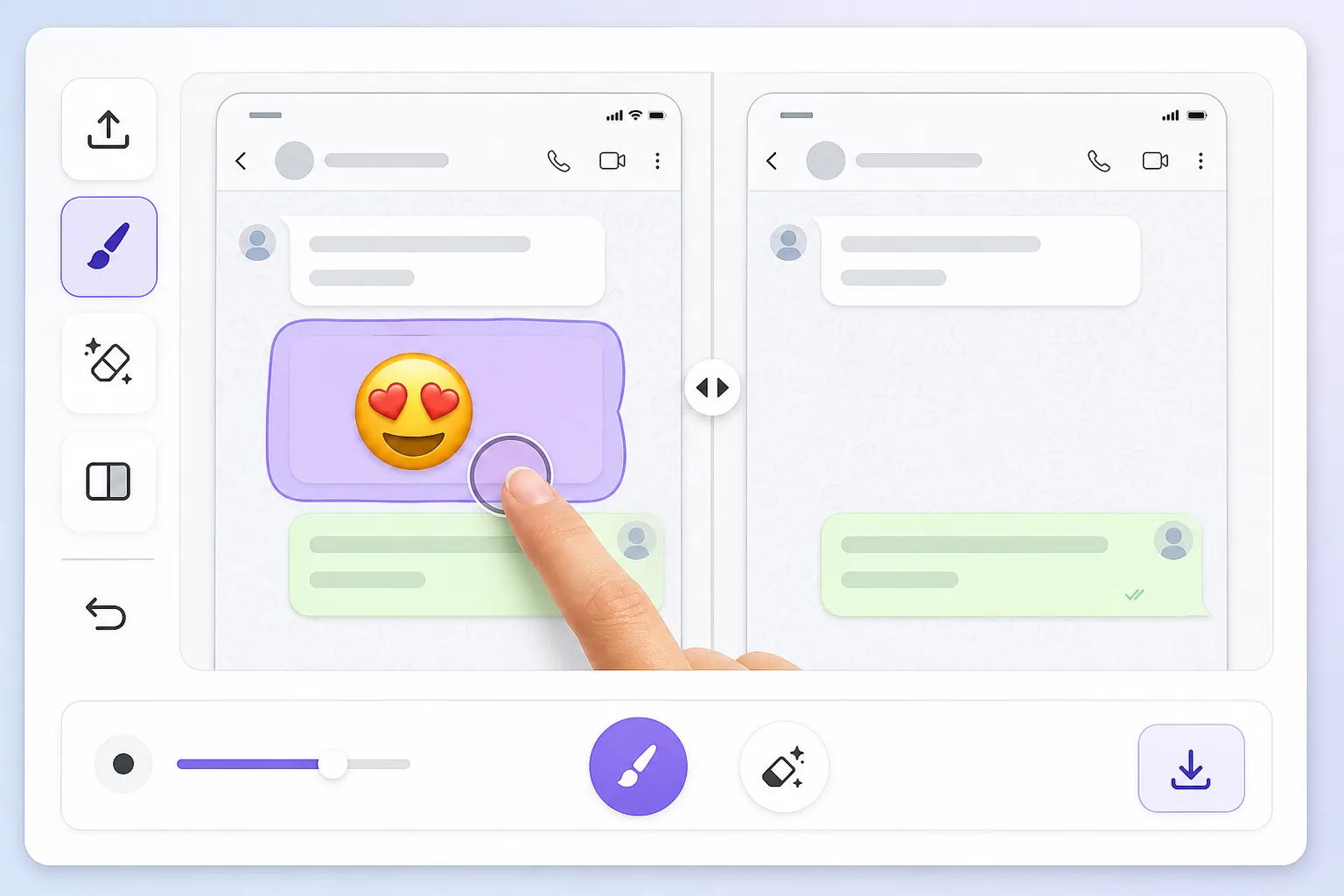
Why a screenshot makes the emoji impossible to just delete
When you screenshot a chat, a story, or an app, the device captures one flat raster image. Whatever emoji, reaction, or sticker was placed on top gets baked in alongside the text, photo, or UI behind it — there are no separate layers to undo. That's why you can't simply tap the emoji and remove it later: in the saved PNG or JPG it's the same pixels as everything else. To clear it you have to delete those pixels and fill the gap with something believable. Magic Eraser handles both steps: you brush over the baked-in emoji, the AI removes it, and it synthesizes a reconstruction of the screenshot content underneath. Be clear on one thing — the AI is making an informed guess at what was behind the emoji, not recovering the literal hidden pixels. For backgrounds, wallpaper, UI panels, and plain text it usually looks seamless; for a face or fine detail fully covered by the emoji, treat the result as a clean-up, not a true reveal.
Before you start
Remove a baked-in emoji from your screenshot
Start with upload the screenshot. The result preview above and tips below use this guide's existing content; no separate before-and-after proof is assumed.
- 1
Upload the screenshot
Open Magic Eraser on web, iOS, or Android and drop in the screenshot — straight from your camera roll, downloads, or a shared chat export. It works on any app's screenshots: messages, social stories, dating profiles, app demos, or UI mockups.
- 2
Brush over the emoji or sticker
Paint across the baked-in emoji, reaction, or sticker you want gone. Stay close to its edges so the AI keeps the surrounding screenshot — text bubbles, UI, photo background — intact. You can mark several emojis in one pass.
- 3
Erase and check the reconstruction
Tap erase. The AI removes the emoji and inpaints a plausible fill for the flattened content behind it. Review the patch, re-brush any rough spot, then export the clean screenshot at full resolution with no watermark on the free tier.
Best for these screenshot situations
- Chat screenshots where a reaction emoji or sticker covers part of the message you need to read
- Social media story screenshots with emojis slapped over a photo or background
- App or product screenshots where placeholder emojis need to come off before sharing
- Dating or profile screenshots with an emoji baked over the image you want cleaned up
- Saved memes or forwarded images where someone's emoji landed on the wrong spot
Tips for cleaner screenshot results
Screenshots have lots of flat, predictable areas — solid chat backgrounds, white UI panels, gradient wallpapers — and the AI reconstructs those almost perfectly, so emojis sitting on plain backgrounds disappear cleanly. Trouble starts when the emoji overlaps busy detail: small text, a face, or a logo. There the AI invents a plausible fill rather than restoring the real characters, so don't rely on it to recover exact words or someone's hidden face. Brush tightly around the emoji instead of swiping broadly, and erase one emoji at a time on cluttered screenshots so each fill has clean reference pixels nearby. If a result looks off, undo and re-brush a slightly smaller area — leaving a sliver of original background gives the AI better context to match colors and texture.
Frequently asked questions
- Can Magic Eraser show what was actually behind the emoji in my screenshot?
- No. Because a screenshot flattens every layer into one image, the pixels behind the emoji aren't stored anywhere. The AI generates a realistic reconstruction of what plausibly belonged there — it does not recover the true original content, so never treat it as revealing a hidden face or exact text.
- Does it work on screenshots from any app or device?
- Yes. It treats every screenshot the same way — as a flat image — so it works on captures from messaging apps, social stories, browsers, or any iOS, Android, or desktop app. Just upload the saved screenshot and brush the emoji.
- Will there be a watermark on my edited screenshot?
- No. The free tier exports your cleaned screenshot at full resolution with no watermark, on web, iOS, and Android.