
Remove an Emoji From an iPhone Photo
Got an emoji stuck on a picture in your camera roll? Magic Eraser brushes it away and rebuilds the background underneath — straight from the iOS Photos app and share sheet, no desktop needed.
Last updated
Remove emoji now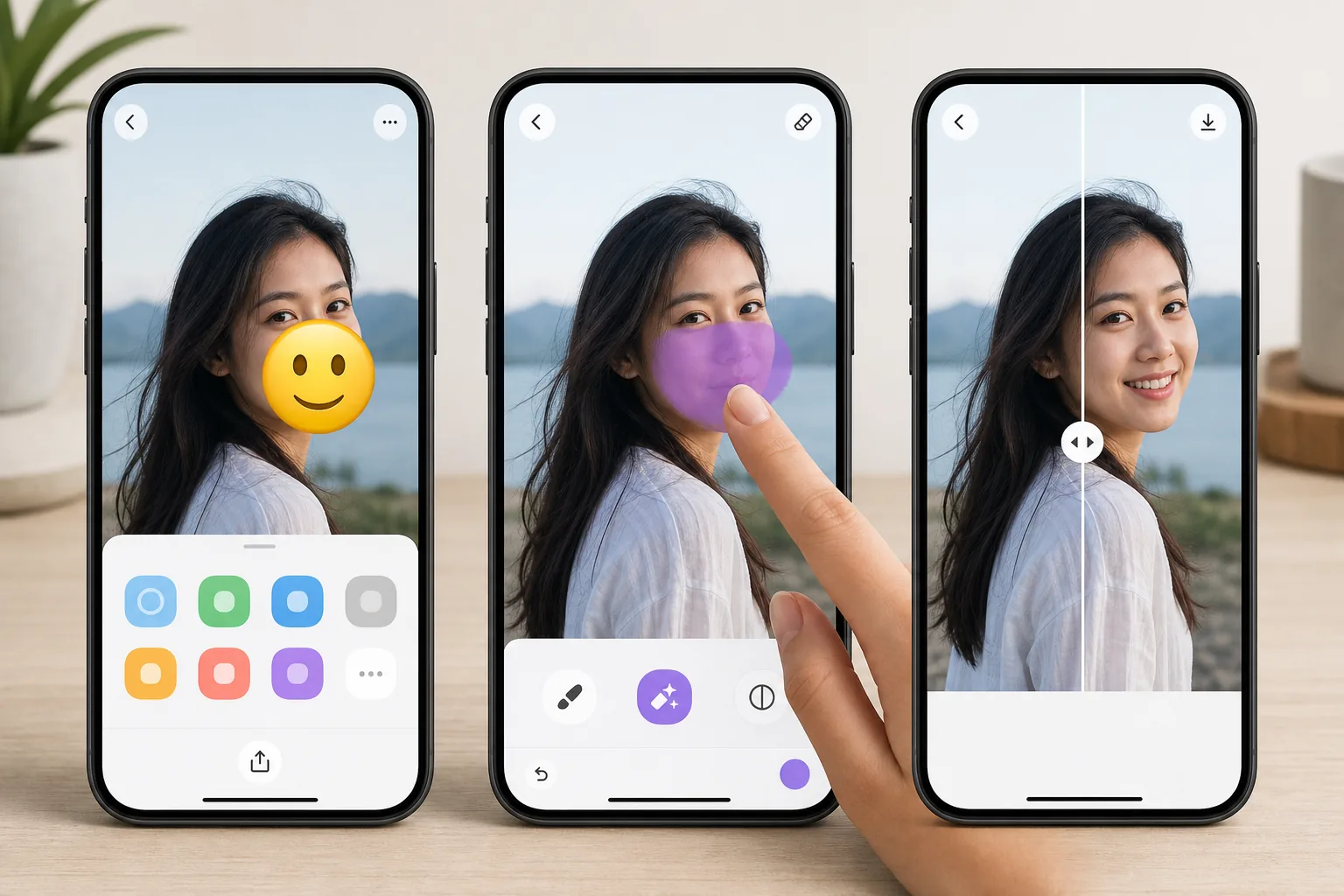
Erase emojis without leaving your iPhone
Emojis pile up on iPhone photos fast — a sticker you slapped on in Messages, a 😂 added in Markup, or a face cover someone dropped over a shot before AirDropping it to you. Once it is saved to your camera roll, that emoji is baked into the pixels, and iOS gives you no built-in way to peel it back off. Magic Eraser fixes that on-device. You open the photo in the iOS Photos app, send it to Magic Eraser through the standard share sheet (or the Magic Eraser app), brush over the emoji, and the AI inpainting reconstructs a plausible version of whatever was behind it. To be clear: the AI synthesizes a believable fill based on the surrounding texture — sky, wall, skin, grass — it does not recover the literal original pixels or reveal a hidden face. The result lands back in your Photos library at full resolution, free, and with no watermark on the free tier.
Before you start
How to remove an emoji from an iPhone photo
Start with open the photo and share it to magic eraser. The result preview above and tips below use this guide's existing content; no separate before-and-after proof is assumed.
- 1
Open the photo and share it to Magic Eraser
In the iOS Photos app, find the picture with the emoji on it and tap the Share icon. Choose Magic Eraser from the share sheet (or open the Magic Eraser app and import from your camera roll). The full-resolution image loads ready to edit on your iPhone screen.
- 2
Brush over the emoji
Pinch to zoom in on the emoji or sticker, then drag your finger to paint over it. Cover the whole shape — including any drop shadow or white outline a sticker leaves behind. You can lift and tap to mark several emojis in one pass if the photo has more than one.
- 3
Erase and save back to Photos
Tap Erase. The AI removes the emoji and inpaints the background in seconds. Pinch to inspect the patch, redo the brush if an edge looks off, then export the cleaned image back to your iPhone camera roll at full quality with no watermark.
Best for
- Wiping a 😂 or 🔥 sticker you added in iMessage or Markup off a saved photo
- Clearing an emoji face-cover someone placed before AirDropping a picture to you
- Cleaning up a screenshot where an emoji landed over the part you actually wanted
- Prepping a camera-roll shot for posting after removing a playful sticker
- Removing an emoji from a downloaded or received iPhone photo without a Mac or laptop
Tips for a clean result on iOS
Brush slightly past the emoji's edges — sticker outlines and soft shadows extend a few pixels beyond the visible art, and missing them leaves a faint halo. Emojis sitting on flat backgrounds (a clear sky, a solid-color wall, blurred bokeh) reconstruct almost invisibly; ones plastered over a face, fine text, or busy patterns are harder, since the AI is inventing a plausible fill rather than restoring true detail. If the first pass looks slightly soft, zoom in on your iPhone and re-brush just the rough area instead of redoing the whole thing. Always keep the original in Photos until you are happy — iOS makes duplicating a shot easy, so edit the copy.
Frequently asked questions
- Can I remove an emoji from a photo entirely on my iPhone?
- Yes. Everything runs through the iOS Photos share sheet or the Magic Eraser app — open the photo, brush over the emoji, erase, and save back to your camera roll. No Mac, desktop, or extra transfer needed.
- Will it show what was actually behind the emoji?
- No. The AI inpaints a plausible reconstruction from the surrounding pixels — it cannot recover the literal original detail or reveal a hidden face or identity that the emoji was covering.
- Does the saved iPhone photo have a watermark?
- No. The free tier exports your cleaned photo back to the iOS camera roll with no watermark, at the same resolution it went in.