
Remove an Emoji Covering a Face
Someone dropped an emoji over a face for privacy, and now you want to see the photo without it. Magic Eraser lifts the emoji and reconstructs a believable face underneath. Be clear-eyed about what's happening: the AI paints a plausible face, not the real person hidden behind the sticker.
Last updated
Remove emoji now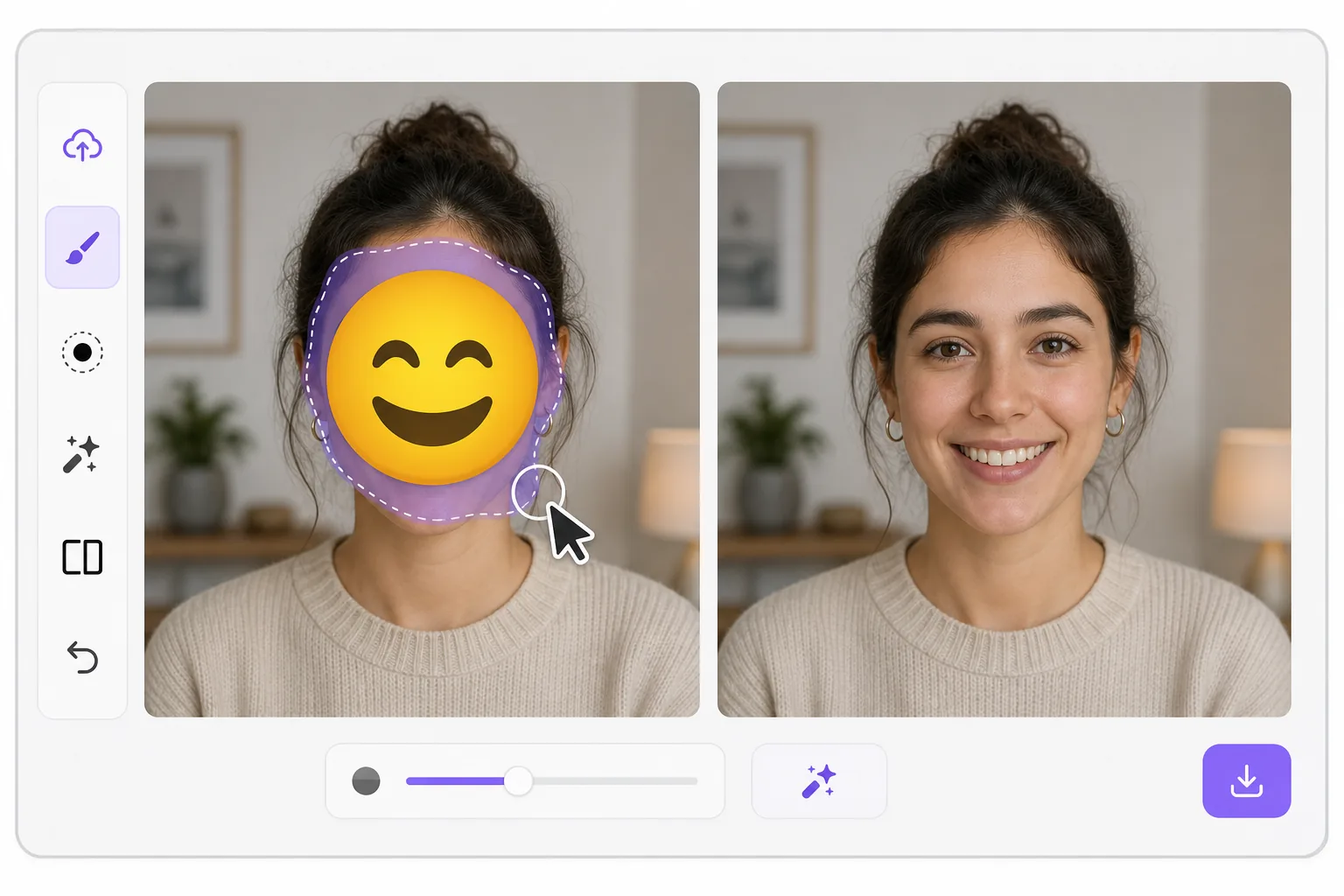
What "uncensoring" an emoji actually does
When a smiley, sunglasses, or blur-emoji is slapped over someone's face, those original pixels are gone — the emoji replaced them in the saved image. Magic Eraser's AI inpainting can remove that emoji and fill the gap with a natural-looking face that matches the lighting, skin tone, hairline, and angle around it. Here's the honest part most tools won't tell you: this is a reconstruction, not a recovery. The AI synthesizes a face that fits the scene; it does not and cannot reveal the true identity of whoever was censored. Treat the result as a plausible repair for a photo, not as forensic proof of who someone is. Use it to fix your own images or photos you have permission to edit — never to unmask someone who deliberately hid their face.
Before you start
How to remove a face emoji in three steps
Start with upload the censored photo. The result preview above and tips below use this guide's existing content; no separate before-and-after proof is assumed.
- 1
Upload the censored photo
Open Magic Eraser on web, iOS, or Android and load the image with the emoji over the face. Zoom in so the covered area fills the screen and you can see exactly where the emoji edges meet skin and hair.
- 2
Brush over the emoji
Paint across the entire emoji or sticker, including its border and any drop shadow. Cover a little past the edges so the AI knows the whole sticker is the target and blends cleanly into the surrounding face and background.
- 3
Generate and refine
Tap erase. The AI removes the emoji and inpaints a plausible face that matches the photo's light and angle. If the result looks off, brush the rough spot again or re-run — remember it's a synthesized face, so pick the version that looks most natural, not a "correct" one.
Best for
- Restoring an old group photo where you yourself added a privacy emoji and lost the original
- Cleaning up a meme or reaction image so the face area reads as a face again instead of a sticker
- Removing a smiley or sunglasses emoji a friend placed on your own picture before resharing
- Designers prototyping how a portrait looks without a placeholder emoji overlay
- Recovering the composition of a photo you edited, where you have the right to undo your own censorship
Tips for a believable result
Smaller emojis over a clear, well-lit face reconstruct far better than a big sticker covering eyes, nose, and mouth at once — the more original face the AI can see around the edges, the more convincing its fill. If the emoji sits on a turned or partially shadowed face, expect a softer, more generic result. Run it two or three times and compare; each pass produces a different plausible face. Above all, stay honest with anyone you share it with: say the face was AI-reconstructed. Don't present the output as the real hidden person, and don't use it to identify or expose someone who covered their face on purpose.
Frequently asked questions
- Can Magic Eraser show the real face hidden under the emoji?
- No. The original face pixels were replaced when the emoji was saved into the image. Magic Eraser paints a new, plausible face that fits the photo — it cannot recover the true person's identity, and you shouldn't treat the result as proof of who was there.
- Does this work the same on iOS, Android, and the web?
- Yes. The same AI inpainting runs on the web app and on iOS and Android, with a free tier and no watermark. Use whichever you have handy — brush over the face emoji and erase the same way on all three.
- Is it okay to remove an emoji someone else used to hide their face?
- Only edit photos you own or have permission to change. If a person deliberately covered their face for privacy, removing it to unmask them isn't an appropriate use — Magic Eraser reconstructs a plausible face, it doesn't reveal a real identity anyway.