
Remove an Emoji From a Photo on Your Android Phone
Slapped an emoji over a face or sign in your gallery and now wish you hadn't? Magic Eraser's AI inpainting lifts the emoji off and rebuilds a plausible background underneath — straight from your Android phone, no PC needed and no watermark on the result.
Last updated
Remove emoji now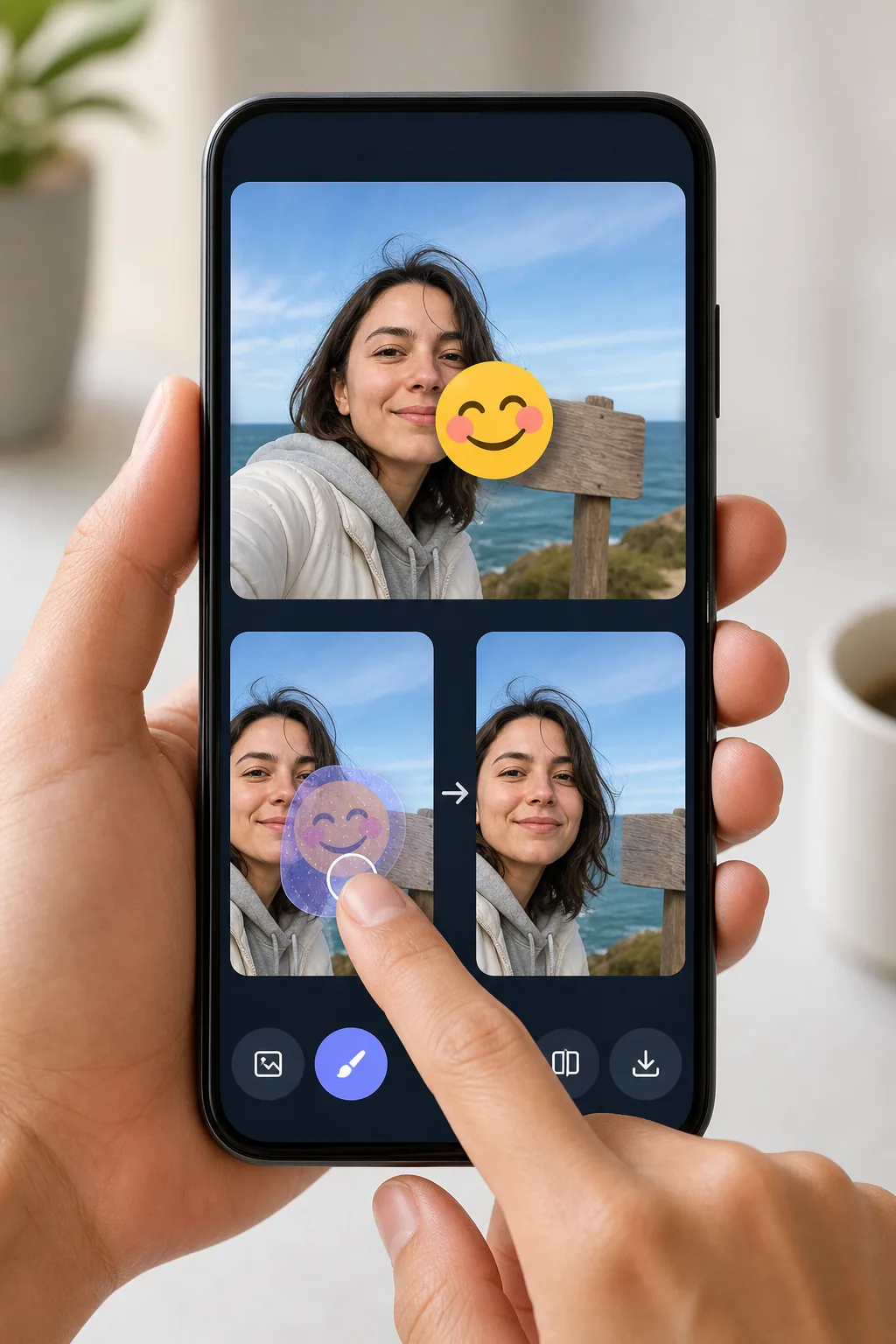
Erase emojis from Android photos without exporting to a desktop
Android makes it easy to drop an emoji or sticker onto a shot — Google Photos Markup, the built-in Gallery editor, Snapchat, WhatsApp Status — but undoing it later is the hard part. Once the edited image is saved to your camera roll, the emoji is baked into the pixels, so the Gallery's own undo button can't help. Magic Eraser handles exactly this: open the photo from your Android device, brush over the emoji, and the AI redraws the area behind it. Be clear about what's happening — the tool synthesizes a believable reconstruction of the background or surface, it does not recover the literal pixels that the emoji covered. For a patch of sky, wall, grass, or clothing the result usually looks seamless. It runs in your mobile browser or the Android app, works on the free tier, and never stamps a watermark on what you download back to your phone.
Before you start
How to remove an emoji from a photo on Android
Start with open the photo from google photos or gallery. The result preview above and tips below use this guide's existing content; no separate before-and-after proof is assumed.
- 1
Open the photo from Google Photos or Gallery
Launch Magic Eraser in Chrome on your Android phone or in the Android app. Tap upload and pick the image straight from Google Photos, your Gallery, or Downloads — whichever app the emoji-stamped picture is saved in.
- 2
Brush over the emoji
Use your finger to paint across the emoji or sticker. Pinch to zoom in for small or partly transparent emojis near a face or edge, and cover the whole shape plus a little of its border so no colored fringe is left behind.
- 3
Erase, review, and save back to your phone
Tap erase and let the AI inpaint the area. Check the rebuilt background, re-brush any leftover bits, then download the clean image — it saves straight to your Android camera roll with no watermark.
Best for
- Removing a face-covering emoji you added in Google Photos Markup before sharing the photo properly
- Cleaning a sticker off a WhatsApp Status or Snapchat shot that auto-saved to your Gallery
- Taking the smiley or heart emoji off a screenshot so the background reads clearly
- Stripping a privacy emoji from a phone number, plate, or sign once you no longer need it hidden
- Fixing a photo where the Gallery editor's emoji got baked in and undo no longer works
Tips for cleaner results on Android
Start from the highest-resolution copy in Google Photos — if you've already shared the picture and got a compressed version back, the AI has less detail to work with. Brush slightly past the emoji's edges to catch the soft anti-aliased halo Android renders around stickers. Emojis sitting on a simple, repeating background (sky, a painted wall, water) reconstruct almost invisibly; one placed directly over an eye, mouth, or detailed pattern will be a convincing guess, not the true hidden detail. If the first pass leaves a smudge, undo and erase in two smaller strokes rather than one large swipe.
Frequently asked questions
- Can I remove an emoji from a photo directly in Google Photos on Android?
- Google Photos has no built-in tool to erase an emoji you've already saved into an image — its Markup undo only works before you save. Open the saved photo in Magic Eraser instead, brush over the emoji, and download the cleaned version back to your camera roll.
- Will it bring back the face or text the emoji was covering?
- No. The AI generates a plausible reconstruction of the background or surface where the emoji was — it cannot recover the real face, number, or text underneath. On simple areas it looks seamless; over fine detail it's a believable best guess, not the original.
- Is it free and does the saved image have a watermark?
- Yes, you can remove emojis on the free tier, and the image you download to your Android phone carries no watermark. It runs in your mobile browser or the Android app, so there's no need to move the file to a computer.