
How to remove a car from a photo
A parked car blocking the perfect shot of a house, street, or landscape? Magic Eraser removes vehicles from photos while seamlessly reconstructing the road, driveway, or background behind them.
Last updated
Remove car now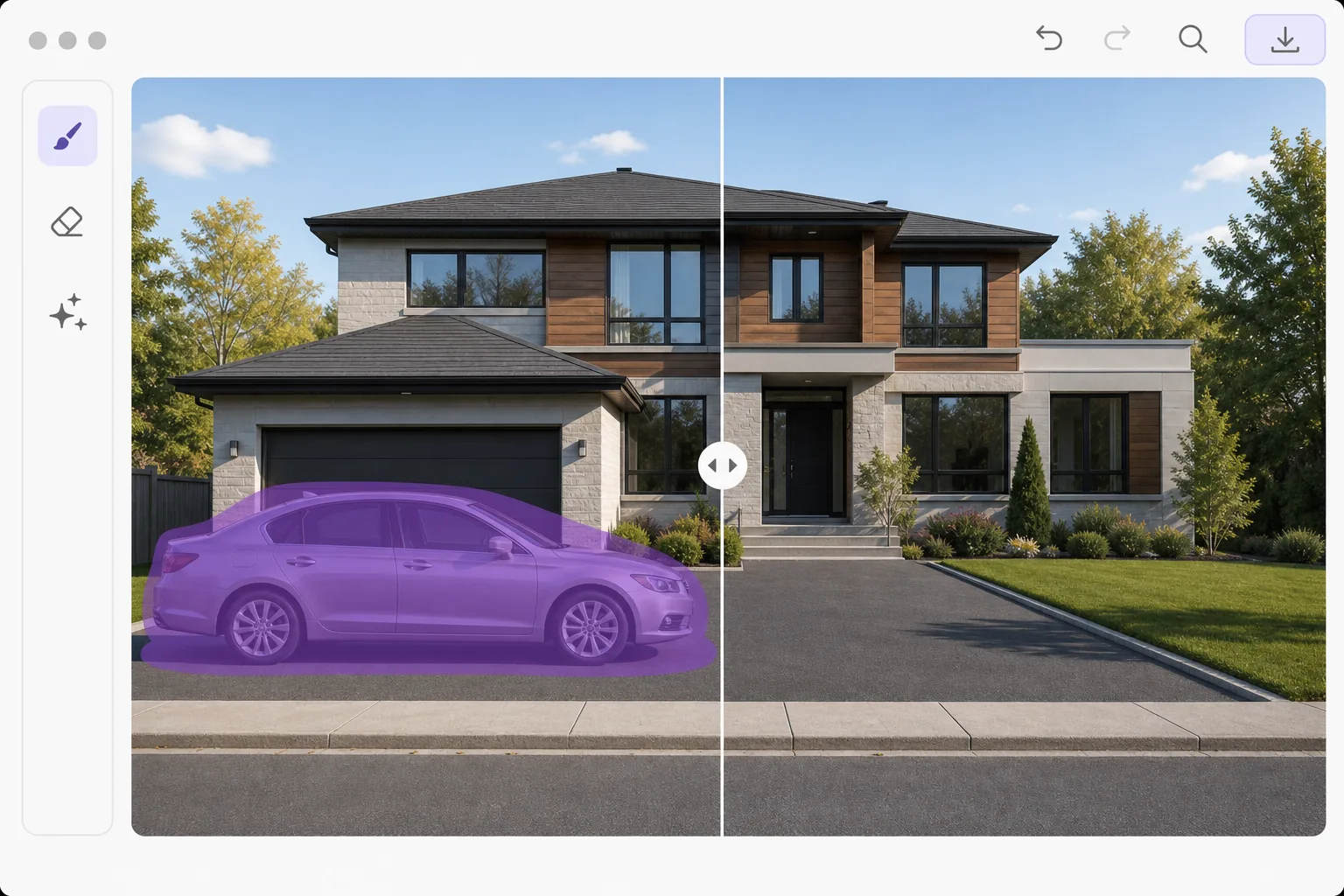
How to remove a car from a photo
To remove a car from a photo, open Magic Eraser on the web, iOS, or Android, upload the image, brush over the vehicle, and let the AI rebuild the road, driveway, or scenery behind it. It includes limited free edits after sign-in. It works best when there's plain, repeating surface around the car — asphalt, grass, a sidewalk — that the AI can extend convincingly. A small or distant car against open ground comes out almost invisibly; a large car filling the foreground, or one parked against a detailed building, leaves more area to reconstruct, so brush in sections and re-run, and zoom in to check the fill. Cars in photos are one of the most common complaints from real estate agents, landscape photographers, and travel content creators. A random vehicle parked in front of a listing property lowers perceived curb appeal. A car in a scenic vista pulls attention from the landscape. Street photographers often wait minutes for cars to clear an intersection. AI-powered car removal handles this in post-processing: brush over the vehicle and the AI reconstructs what is behind it — driveways, roads, grass, sidewalks, and building facades. The AI understands perspective and surface textures, so reconstructed asphalt matches the road's grain and angle, and building details continue naturally.
Before you start
Remove a car in three steps
Start with upload the photo. The result preview above and tips below use this guide's existing content; no separate before-and-after proof is assumed.
- 1
Upload the photo
Open Magic Eraser on web, iOS, or Android. Upload the photo containing the car you want to remove. Works with any angle — street-level, aerial drone shots, or security camera perspectives.
- 2
Brush over the car
Use the brush tool to paint over the entire car including its shadow and reflection. For SUVs and trucks, use a larger brush. Include any shadow cast on the ground — missing car shadows are the biggest giveaway of retouching.
- 3
Review and export
The AI fills the area with appropriate surface textures: asphalt for roads, concrete for driveways, grass for lawns, or whatever surface the car was sitting on. Check edges where the car met buildings or curbs, then export at full resolution.
Best for
- Real estate photographers removing parked cars from property exterior shots
- Landscape photographers cleaning up scenic views with roadside vehicles
- Street photographers creating clean architectural compositions
- Drone photographers removing vehicles from aerial neighborhood shots
- Travel photographers clearing tourist rental cars from destination photos
Tips for best results
Always include the car's shadow in your selection — a shadowless road surface immediately looks wrong. For cars partially behind other objects (trees, poles), brush only the visible parts. If multiple cars are parked bumper-to-bumper, remove them one at a time starting with the least occluded vehicle. For real estate photos, also remove any oil stains or tire marks on the driveway for a completely clean look. Drone shots produce the best car removal results because the ground texture is more uniform from above.
Frequently asked questions
- Can I remove multiple cars from one photo?
- Yes. Brush over each car separately or select multiple cars at once. For parking lots with many vehicles, process in batches of 3-5 for the cleanest results.
- Does it work with partially visible cars?
- Yes. Cars cropped by the photo edge, partially hidden behind trees, or overlapping other objects can all be removed. The AI reconstructs only the area you brush over.
- Is car removal free?
- Yes. Object removal features are available in the free tier with daily usage limits. Premium removes limits for batch processing entire real estate photo sets.
- Does it work on a large car filling the foreground?
- It can, but a big foreground car is harder than a small distant one. When the vehicle covers a large part of the frame, there's less surrounding context for the AI to rebuild from, so the fill is more of an educated reconstruction than an exact recovery of what was hidden. It works best when what's behind the car is simple and continuous — a road, lawn, or plain wall. For a large car against a busy or detailed background, brush it out in smaller sections, run more than one pass, and check the result at full zoom.
- Will the road or driveway behind the car look seamless?
- Usually yes on uniform surfaces. Asphalt, concrete, grass, and gravel are repeating textures the AI extends cleanly, so the patch blends in. Seams are more likely where the car was hiding a specific feature — lane markings, a curb edge, a drain, or the exact line where a driveway meets a lawn — because the AI is inferring what was there, not recovering it. If a reconstructed line looks slightly off, a second pass over just that strip usually tidies it up.