
Remove the Background in GIMP — or Do It in 1 Click
GIMP can absolutely remove a background for free with fuzzy-select and layer masks. But it takes patience. Here's the honest GIMP path, plus the faster alternative: Magic Eraser strips backgrounds in one click, free, right in your browser.
Last updated
Remove a background free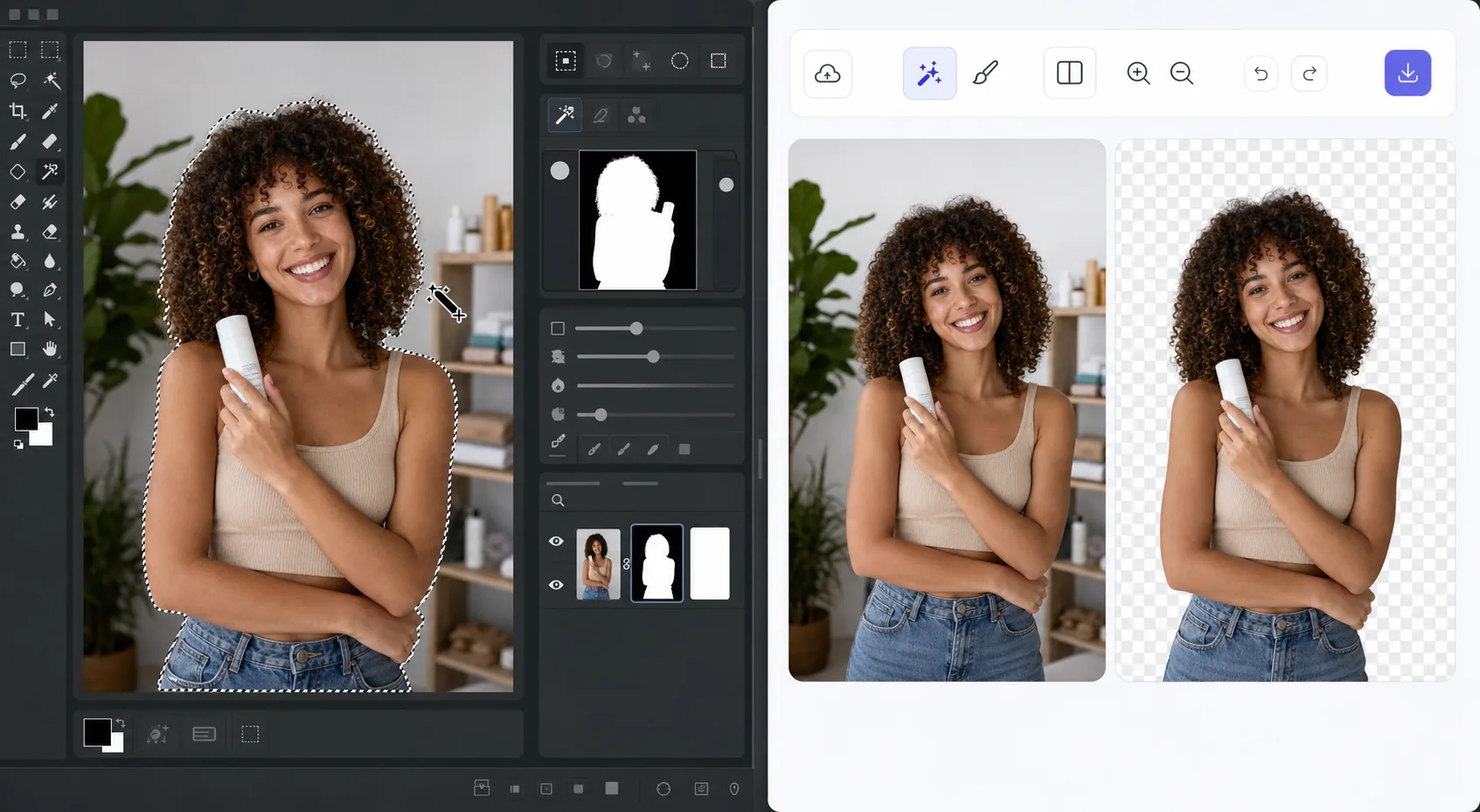
The GIMP method works — it just takes time
GIMP is a genuinely capable, free, open-source desktop editor, and removing a background in it is a well-trodden workflow. The usual route: open your image, add an alpha channel, then use the Fuzzy Select (magic wand) or Select by Color tool to grab the background. For clean, high-contrast edges you can often select and delete in a few clicks. For hair, fur, or busy backgrounds, you switch to a layer mask, paint with black to hide and white to reveal, and refine the edge by hand at high zoom. It's powerful and precise — but it's a learn-the-tools, manual process, and it lives on your desktop. If you just need a clean cutout fast, there's a shorter path that needs no install and runs on phone or browser.
Before you start
Remove the background in 1 click with Magic Eraser
Start with open magic eraser and upload your photo. The result preview above and tips below use this guide's existing content; no separate before-and-after proof is assumed.
- 1
Open Magic Eraser and upload your photo
Go to Magic Eraser in any browser — desktop, iOS, or Android. No download; sign in to use free edits. Drag in your image or tap to upload. Where the GIMP route starts with adding an alpha channel and picking the right selection tool, you start with your photo already loaded.
- 2
Let the AI lift the background automatically
Magic Eraser detects the subject and removes the background for you. No fuzzy-select tolerance tuning, no painting a layer mask by hand, no zooming in to chase stray edges around hair. The one-click result replaces what would be several minutes of manual masking in GIMP.
- 3
Tweak if needed, then download
Brush to refine any edge, choose a transparent PNG or a new solid background, and export. The full job lands in seconds rather than the multi-step desktop workflow GIMP requires for a comparable cutout.
Best for
- Product photos that need a clean white or transparent background for a store listing
- Profile pictures and headshots where you want the subject isolated fast
- Anyone without GIMP installed who needs a cutout right now in the browser
- Mobile editing on iOS or Android with no desktop software at hand
- Batch social and marketing images where per-image manual masking isn't worth the time
Tip: match the tool to the job
Use whichever path fits the task. For maximum pixel-level control — compositing, tricky semi-transparent edges, or work you want to keep fully local and offline — GIMP's layer masks reward the effort and cost nothing. For speed and convenience on a clean subject, Magic Eraser's 1-click removal gets you there without the learning curve or the install. A useful workflow: get the fast cutout in Magic Eraser, then open it in GIMP only if you need fine compositing afterward.
Frequently asked questions
- Is the GIMP method better, and when should I use it?
- GIMP is excellent and free, and it's the better choice when you need precise, manual control — complex hair and fur edges, semi-transparent areas, layered compositing, or a fully offline desktop workflow. The trade-off is time and a learning curve with selection tools and layer masks. Magic Eraser is better when you want a clean cutout in one click without installing software. Many people use both: fast removal in Magic Eraser, fine-tuning in GIMP.
- Is Magic Eraser free?
- Yes. You can remove backgrounds free in your browser with no install, and it works on iOS and Android too. Like GIMP, the core task costs nothing to try.
- How does the AI removal actually work — is it perfect?
- Magic Eraser uses AI inpainting: it detects your subject and reconstructs a plausible result around the cutout rather than recovering literal pixels that were never captured. On clean subjects it's excellent. On very intricate edges it may need a quick brush refinement — which is exactly where GIMP's hands-on layer masks still shine if you want total control.