
How to remove acne from a photo
Breakouts happen at the worst times — right before a photoshoot, event, or important meeting. Magic Eraser removes acne and blemishes while preserving the natural skin texture underneath, so the result looks like clear skin, not airbrushed plastic.
Last updated
Remove acne now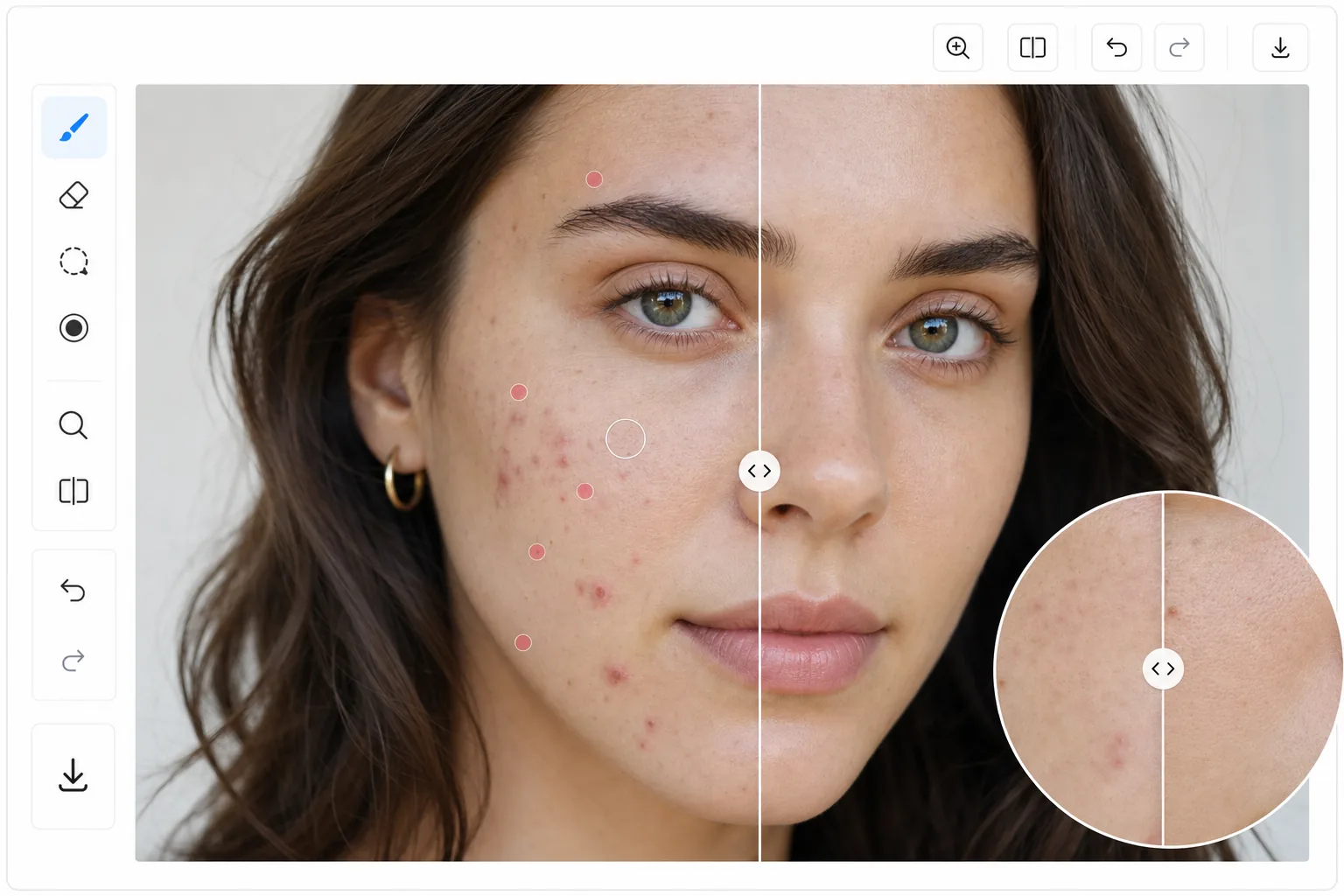
How to remove acne from a photo
To remove acne from a photo, open Magic Eraser on the web, iOS, or Android, upload your portrait, brush over each pimple or blemish, and let the AI replace it with skin that matches the surrounding texture and tone. It includes limited free edits after sign-in. This edits the photo only — it touches up how the skin looks in the image and does nothing to your actual skin. Brush blemish by blemish for the most natural result, and leave a few real features (pores, light freckles) so the face still looks like you rather than airbrushed. The biggest mistake in blemish retouching is over-smoothing. Blurring the entire skin surface removes acne but also destroys pores, fine lines, and natural texture — creating an uncanny, plastic look. AI-powered acne removal takes a targeted approach: it identifies individual blemishes (pimples, whiteheads, redness patches) and replaces each one with skin that matches the surrounding area's exact texture, color, and lighting. Pores remain visible. Fine lines stay intact. The result is convincingly natural because the AI reconstructs real skin detail rather than blurring it away.
Before you start
Remove acne in three steps
Start with upload the portrait. The result preview above and tips below use this guide's existing content; no separate before-and-after proof is assumed.
- 1
Upload the portrait
Open Magic Eraser on web, iOS, or Android. Upload a portrait or close-up showing the acne you want to remove. Higher resolution photos give the AI more texture detail to work with.
- 2
Brush over the blemishes
Use a small brush to tap on individual pimples, or a slightly larger brush to cover clusters. You do not need to be perfectly precise — the AI identifies the blemish within your selection and only removes the blemish itself, preserving surrounding clean skin.
- 3
Review and export
The AI replaces each blemish with matching skin texture. Zoom in to verify that pores and natural skin detail are preserved. Process additional areas if needed, then export the retouched portrait.
Best for
- Portrait photographers offering skin retouching as part of their editing workflow
- Teenagers and young adults who want clearer skin in social media photos
- Professional headshot preparation where a polished appearance is expected
- Wedding and event photographers batch-processing guest and bridal portraits
- Dermatology patients documenting skin improvement over time
Tips for best results
Focus on active breakouts (pimples, whiteheads, inflamed spots) and leave natural skin features like freckles and beauty marks unless specifically requested to remove them. For acne scarring (textural changes rather than active pimples), the AI can smooth indentations but works best with good lighting that minimizes harsh shadows in scar tissue. Process the most prominent blemishes first — removing the 3-5 largest spots often transforms the photo more than trying to eliminate every tiny imperfection. Leave some natural skin variation for the most believable results.
Frequently asked questions
- Does it work on cystic acne?
- Yes. Larger, deeper blemishes are removed the same way as surface-level pimples. For very large inflamed areas, the AI reconstructs more skin, which may require a slightly larger brush selection to capture the full area including surrounding redness.
- Will it remove freckles too?
- Only if you brush over them. The AI only processes the areas you select. Freckles outside your brush strokes are completely untouched.
- Is acne removal free?
- Yes. Object removal features work for blemish removal in the free tier with daily usage limits. Premium removes limits for batch portrait retouching.
- Should I remove acne scars and texture too, or just active breakouts?
- That's your call, and it's worth thinking about what the photo is for. For a one-off event photo, clearing active breakouts and leaving scars and natural texture usually looks the most believable. For a profile picture or professional headshot, lightly reducing scarring can help — but keeping some real texture reads as more authentic than perfectly smooth skin. There's nothing wrong with either choice; just avoid over-editing to the point the photo no longer looks like you, especially for ID or dating profiles where it should match how you look in person.
- Will edited photos look obviously retouched?
- Not if you work blemish by blemish rather than smoothing the whole face. Because the AI rebuilds matching skin texture instead of blurring, targeted removal is hard to spot. Retouching becomes obvious when the entire skin surface is smoothed — that flat, plastic look comes from blanket beauty filters, not from spot-removing a few blemishes.