
How to convert a photo to PNG with transparency
JPEG images can't have transparent backgrounds — the background is always filled with a solid color. Converting to PNG with AI background removal gives you a clean cutout with transparent background, ready for placing on any design, slide, or website.
Last updated
Convert to PNG now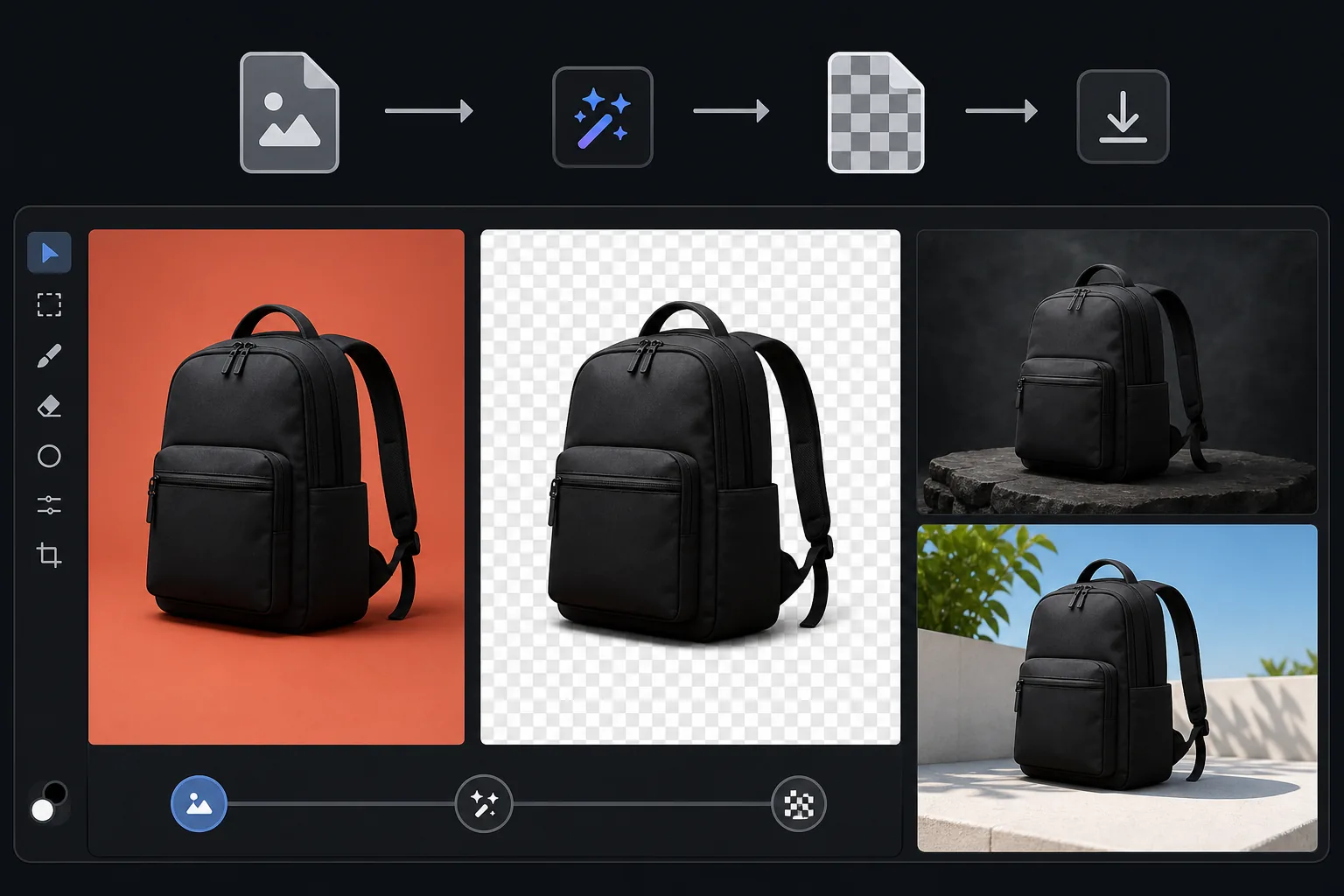
How to convert a photo to a PNG with a transparent background
To convert a JPG to a transparent PNG, open Magic Eraser on the web, iOS, or Android, upload the photo, remove the background, and export as PNG — the cutout subject keeps a transparent background instead of a white box. It includes limited free edits after sign-in. A JPEG can't hold transparency on its own, so the conversion is really two steps the tool does at once: erase the background to create the alpha channel, then save as PNG. The result drops cleanly onto a slide, web page, or marketing graphic. JPEG is the standard format for photographs, but it doesn't support transparency — every pixel has a color, including the background. When you need to place a product, person, or object on a different background (a slide deck, a web page, a marketing graphic), you need a PNG with a transparent background. The PNG format supports an alpha channel that defines each pixel's transparency level — fully opaque for the subject, fully transparent for the removed background, and semi-transparent for hair edges and soft boundaries. This transparency allows the image to sit naturally on any background without a visible rectangle. Creating a transparent PNG from a JPEG requires removing the background (creating the alpha channel) and saving in PNG format — exactly what Magic Eraser does in one step.
Before you start
Convert to transparent PNG in three steps
Start with upload the photo. The result preview above and tips below use this guide's existing content; no separate before-and-after proof is assumed.
- 1
Upload the photo
Open Magic Eraser on web, iOS, or Android. Upload the JPEG, HEIC, or WebP photo with the subject you want to cut out. Product photos, portraits, logos on colored backgrounds, and objects on any background are all supported.
- 2
Remove the background
Select background removal. The AI detects the main subject and removes everything behind it, creating a transparent alpha channel. Hair edges, semi-transparent materials, and complex outlines are handled automatically.
- 3
Export as PNG
Download the result as PNG to preserve the transparent background. The file will have a checkerboard pattern in viewers that display transparency, and will layer cleanly over any background in design tools, slide decks, or web pages. JPEG export is also available if you want a solid background color instead.
Best for
- Product images for e-commerce that need to sit on custom website backgrounds or in design templates
- Portrait cutouts for team pages, presentations, and composite images
- Logo conversion from photos of printed logos to transparent PNGs for digital use
- Design assets where subjects need to overlay on different backgrounds in Canva, Figma, or Photoshop
- Presentation slides where product or person cutouts need to sit on branded slide backgrounds
Tips for best results
Start with the highest quality source image — PNG output quality can't exceed the input quality. If the subject has fine detail at its edges (hair, fur, feathers), the AI creates semi-transparent edges that blend naturally on any background. For products on white backgrounds, the background removal is nearly perfect because the boundary is clearly defined. For subjects against complex backgrounds, the AI may need a second pass on difficult edge areas. When placing the transparent PNG on a colored background, check that the semi-transparent edge areas look natural against the specific background color — very dark backgrounds can reveal any residual background halo from the original photo.
Frequently asked questions
- Why can't I just rename a JPEG to PNG?
- Renaming changes the file extension but not the format. A renamed JPEG still has no alpha channel — the background will be white or whatever color it was. You need actual background removal to create true transparency.
- Will the PNG file be larger than the JPEG?
- Yes, usually 2-5x larger because PNG uses lossless compression. For web use where file size matters, consider WebP (supports transparency with smaller file sizes). For design workflows, PNG is the standard and the larger size is acceptable.
- Can I convert back to JPEG later?
- Yes, but you'll need to choose a background color for the transparent areas — JPEG doesn't support transparency. White is the most common choice. Keep the PNG as your master file.
- Is PNG conversion free?
- Yes. Background removal and PNG export are available on the free tier with daily usage limits. Premium removes limits for batch conversions.
- How do I get a transparent background, not just a PNG?
- A plain JPG-to-PNG conversion keeps the same pixels — including the background — so it won't be transparent on its own. To get true transparency, remove the background first: upload the photo, let the AI cut out the subject, then export as PNG. That writes the transparent (alpha) areas into the file, so the subject sits on any background with no white box behind it. In Magic Eraser both steps happen in one export.
- Can I convert a JPG to a transparent PNG on my phone?
- Yes. Open Magic Eraser in any mobile browser or the iOS or Android app, load the JPG from your camera roll, remove the background, and export as PNG. The transparent PNG saves straight back to your photos and is ready to drop into a presentation, sticker, or product listing. It works the same as the desktop version, with no app install required if you use the browser.