
How to clean up a headshot
A professional headshot for LinkedIn, your company website, or a speaker bio needs a clean background, even lighting, and a polished but natural appearance. Magic Eraser handles the full cleanup: background removal, blemish correction, lighting fix, and enhancement.
Last updated
Clean up headshot now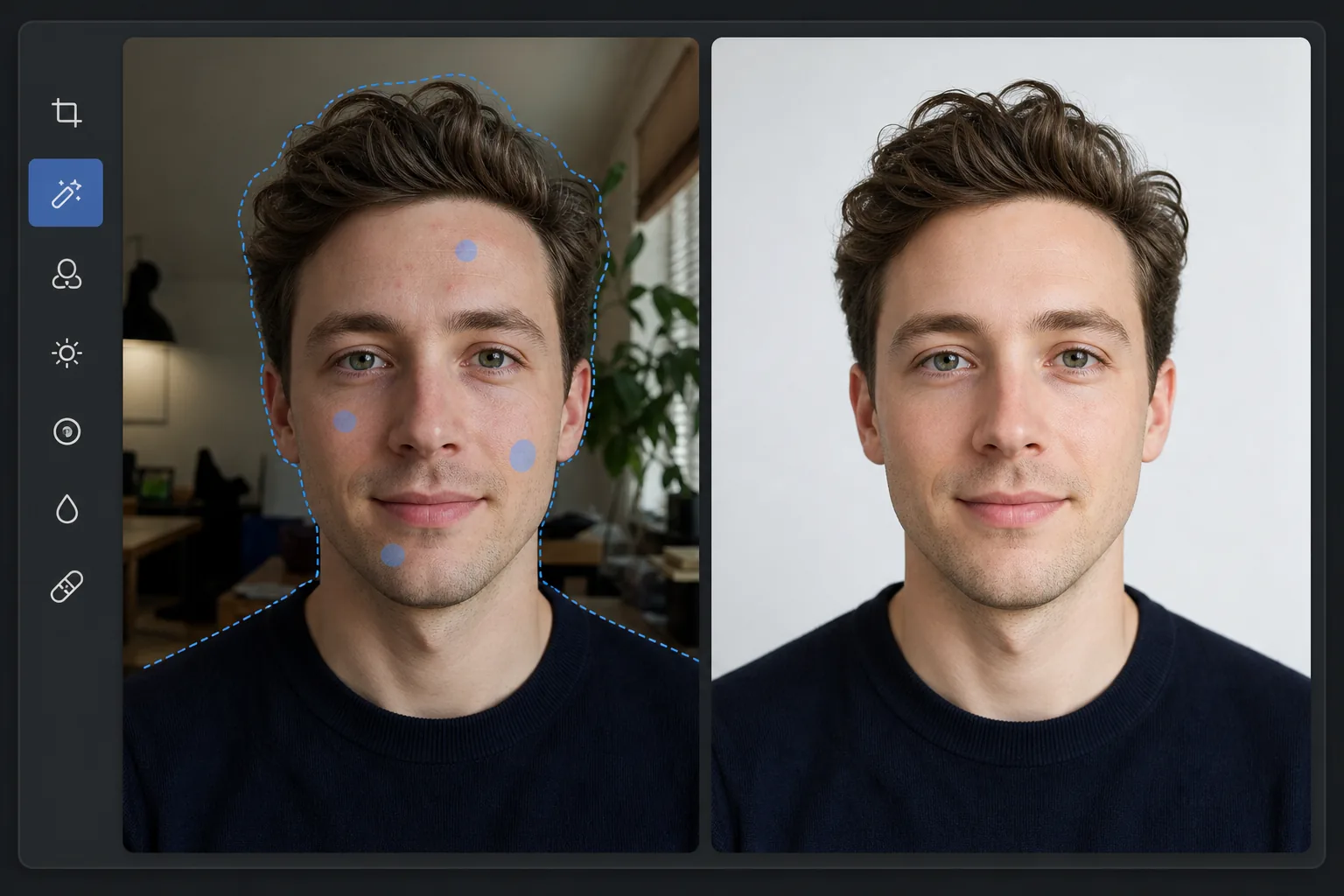
How to clean up a headshot
To clean up a headshot, open Magic Eraser on the web, iOS, or Android, upload your photo, then remove the distracting background and replace it with a clean color, even out the lighting, clear temporary blemishes, and enhance overall sharpness. It includes limited free edits after sign-in. Aim for polished but still recognizably you — clear active blemishes and tidy the background, but keep your real features and skin texture so the headshot matches how you look in person. That honesty matters most for LinkedIn, company directories, and any context where people will meet you. Use white or light-gray for the most versatile professional background. Professional headshot photographers charge $150-500 per session for a reason — getting the lighting, background, and post-processing right takes skill and equipment. But many people need a professional headshot quickly and affordably: for a new job, a speaking engagement, a company directory update, or a social media refresh. AI headshot cleanup bridges this gap — taking an existing photo (even a phone selfie) and applying the same corrections a professional retoucher would: removing the distracting background, evening out lighting, removing temporary blemishes, and enhancing overall quality. The result is a polished headshot that looks professional without the professional session.
Before you start
Clean up a headshot in three steps
Start with upload the headshot. The result preview above and tips below use this guide's existing content; no separate before-and-after proof is assumed.
- 1
Upload the headshot
Open Magic Eraser on web, iOS, or Android. Upload the headshot or portrait photo. It can be a phone selfie, a friend-taken photo, or an existing headshot that needs refreshing. JPEG, PNG, HEIC, and WebP supported. Ensure the face is well-lit and in focus.
- 2
Apply cleanup edits
Use background removal to replace a cluttered background with clean white or professional gray. Brush over any temporary blemishes (pimples, marks) to remove them. Apply AI enhancement to even out lighting, improve sharpness, and boost overall quality. Each step builds on the previous one.
- 3
Review and export
Check the final result: clean background, natural skin with blemishes removed, even lighting, and sharp focus on the eyes. The headshot should look polished but still recognizably you — not over-processed. Export at full resolution for printing or web use.
Best for
- LinkedIn profile photos that need to look professional without a professional photoshoot
- Company directory and team page headshots requiring consistent quality across the team
- Speaker bio photos for conference websites and event materials
- Social media profile pictures that need a clean, professional appearance
- Updating an older headshot with background cleanup and quality enhancement
Tips for best results
Start with the best source photo you have — good lighting and sharp focus matter more than background or blemishes, because the AI handles those. Natural window light from one side produces flattering results. Avoid direct overhead lighting that creates harsh shadows under eyes and nose. Frame the photo from the chest up, centered, with the eyes roughly in the upper third of the frame. For consistent team headshots, process everyone's photos with the same background color and similar enhancement settings. The most common mistake is over-processing — a headshot should look like a polished version of you, not a different person. Use blemish removal sparingly and keep skin texture natural.
Frequently asked questions
- Can I make a phone selfie look professional?
- Yes. With good lighting and sharp focus, a phone selfie cleaned up with background removal, blemish correction, and enhancement can produce results comparable to a basic professional headshot session.
- What background color should I use?
- White is the most versatile — it works for LinkedIn, company directories, and most professional contexts. Light gray adds depth and is less stark. Solid colors (navy, dark gray) create a more traditional studio look.
- Can the team process headshots consistently?
- Yes. Use the same background color, similar enhancement settings, and consistent cropping for all team members. Batch processing speeds this up for large teams.
- Is headshot cleanup free?
- Yes. Each tool (background removal, blemish removal, enhancement) is available on the free tier with daily usage limits. Premium removes limits for team and batch processing.
- How much editing is too much for a professional headshot?
- A headshot should still look like you on the day someone meets you. Cleaning up the background, evening out lighting, and clearing a temporary blemish are all fair game and expected. Reshaping your face, erasing permanent features, slimming, or smoothing skin into a plastic finish crosses into a photo that no longer represents you — which undercuts the trust a headshot is meant to build, and looks worse in professional contexts than a real one. Keep the edits corrective, not transformative, especially for LinkedIn, directories, and anything tied to your identity.