
إزالة الفلاش من الصور
قم بإصلاح النقاط الساخنة المعرضة للضوء بشكل مفرط، والظلال القاسية، والمناطق الباهتة الناتجة عن فلاش الكاميرا. Magic Eraser يزيل عناصر الفلاش ويعيد بناء الإضاءة ذات المظهر الطبيعي وألوان البشرة وتفاصيل الخلفية - مع حفظ الصور الداخلية وصور الأحداث من المظهر الذي دمره الفلاش.
آخر تحديث
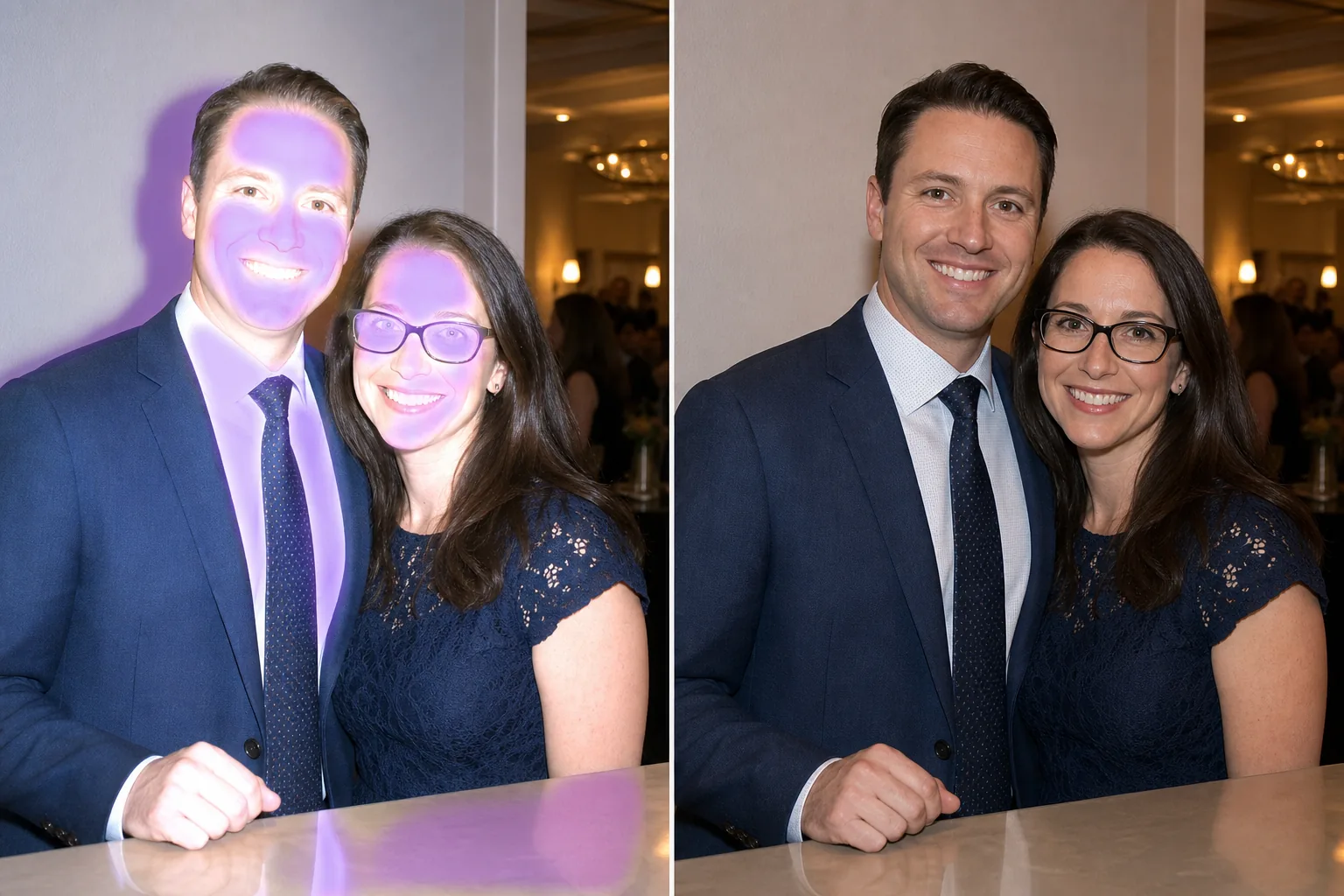
كيفية إزالة الفلاش من الصورة
لإزالة الفلاش من صورة، افتح Magic Eraser على الويب أو iOS أو Android، ومرّر الفرشاة فوق أثر الفلاش — بقعة شديدة السطوع، أو ظل قاسٍ، أو وهج لامع على وجه أو سطح — ثم اضغط على Erase، وسيصحّح الذكاء الاصطناعي درجة الإضاءة ويعيد بناء إضاءة طبيعية المظهر. الأداة مجانية وبلا تسجيل. تعمل بأفضل صورة على البقع المضيئة الموضعية والظلال والوهج؛ أما المناطق التي احترقت لتصبح بيضاء تمامًا بلا أي تفاصيل فيمكن تقريبها فقط، لا استعادتها بالكامل. ينشئ فلاش الكاميرا مصدرًا قاسيًا ومباشرًا للضوء يسبب مشاكل متعددة في الصور الفوتوغرافية: نقاط مضيئة على الجبين والأنوف، وألوان البشرة الباهتة، والظلال القاسية خلف الأهداف، والوهج العاكس من النظارات والنوافذ، والخلفيات المظلمة بشكل غير طبيعي حيث يسقط الفلاش. تحصل الأهداف الأقرب على أسوأ ما في الأمر - الوجوه المعرضة للضوء بشكل مفرط مع الأضواء الساطعة - بينما تقع أهداف الخلفية في الظلام. تعد صور الأحداث ولقطات المطاعم والصور الجماعية الداخلية هي أكثر الضحايا شيوعًا. ينطلق الفلاش بسبب عدم وجود ما يكفي من الضوء المحيط، ولكن العلاج غالبًا ما يكون أسوأ من المرض. يستهدف Magic Eraser القطع الأثرية المحددة التي ينشئها الفلاش: الفرشاة فوق النقطة الساخنة على الجبهة، أو الظل الصلب على الحائط، أو المنطقة المغسولة على الوجه، ويقوم الذكاء الاصطناعي بتصحيح التعريض الضوئي، واستعادة لون البشرة الطبيعي، ومزج الإضاءة لتبدو مثل الإضاءة المحيطة.
أصلح عيوب الفلاش في ثلاث خطوات
- 1
قم بتحميل صورة الفلاش الخاصة بك
افتح Magic Eraser على الويب أو iOS أو Android وقم بتحميل الصورة الداخلية أو صورة الحدث باستخدام عناصر الفلاش المرئية - النقاط الساخنة أو الظلال القاسية أو المناطق الباهتة.
- 2
فرشاة على التحف فلاش
قم بالطلاء فوق النقاط الساخنة المعرضة للضوء بشكل مفرط (البقع الساطعة على الجلد أو الأسطح)، والظلال الصلبة التي يلقيها الفلاش، وأي مناطق باهتة. بالنسبة لبقع الانعكاس على الزجاج أو النوافذ، استخدم الفرشاة فوق بقع الوهج الساطعة.
- 3
محو والتوازن
انقر فوق "مسح" وسيقوم الذكاء الاصطناعي بتصحيح التعريض الضوئي في المناطق المصقولة، واستعادة لون البشرة الطبيعي، وإزالة الظلال الصلبة، وموازنة الإضاءة. لتصحيح الفلاش بشكل عام، تابع باستخدام الأداة AI Enhancement لتسوية التعريض الضوئي عبر الصورة الكاملة. قم بتصدير النتيجة ذات الإضاءة الطبيعية.
الأفضل ل
- صور الأحداث والحفلات الداخلية بالفلاش المباشر
- صور المطاعم والحانات مع نقاط اتصال الفلاش
- قم بفلاش الصور بظلال قاسية على الجدران خلف الأهداف
- صور جماعية حيث يتم تعريض وجوه الصف الأمامي بشكل مفرط
- صور مع انعكاس الفلاش على المرايا أو النوافذ أو الأسطح اللامعة
- قاعة الاستقبال والولائم التصوير الفوتوغرافي فلاش
- صور زوار المتحف والمعرض (حيث تم استخدام الفلاش عن طريق الخطأ)
- صور داخلية للعقارات مع إضاءة فلاش للهواة
نصائح لإصلاح الصور التالفة بالفلاش
تعتبر نقاط الوميض الساخنة على الجلد هي التصحيح الأكثر شيوعًا - استخدم الفرشاة فوق البقع المشرقة والمغسولة على الجبين والأنف والخدين. يستعيد الذكاء الاصطناعي لون البشرة وملمسها من المنطقة المعرضة للضوء بشكل مفرط باستخدام الجلد المحيط المعرض بشكل صحيح كمرجع. بالنسبة لظلال الفلاش (الخطوط العريضة الصلبة والداكنة على الجدران خلف الأهداف)، استخدم الفرشاة فوق الظل وسيقوم الذكاء الاصطناعي بمزجه مع الدرجة الطبيعية للجدار. يتم التعامل مع انعكاس الفلاش على النظارات بشكل مشابه لأداة إزالة الوهج، حيث يتم استخدام الفرشاة فوق النقاط المضيئة ويقوم الذكاء الاصطناعي بإعادة بناء منطقة العين والعدسة. إذا تسبب الفلاش في أن تصبح الخلفية داكنة جدًا (تراجع الفلاش)، فيمكن لأداة AI Enhancement رفع تعريض الخلفية لإنشاء صورة أكثر توازناً. بالنسبة للصور الجماعية التي يتلقى فيها الأشخاص على مسافات مختلفة شدة فلاش مختلفة، قم بتصحيح المناطق الأكثر تأثرًا أولاً (الوجوه الأقرب ذات النقاط الفعالة، الوجوه الأبعد التي تكون داكنة جدًا) ثم قم بتطبيق التحسين الشامل لتحقيق الاتساق.
الأسئلة المتداولة
- هل يمكن إصلاح الوجوه المغسولة بالكامل؟
- بالنسبة للوجوه المعرضة للضوء بشكل مفرط، يستعيد الذكاء الاصطناعي تفاصيل البشرة ولون البشرة الطبيعي بشكل جيد للغاية. بالنسبة إلى المناطق الساطعة شديدة التباين (أبيض نقي بدون تفاصيل)، يعيد الذكاء الاصطناعي بناء نسيج الجلد المقدر، ولكن لا يمكن استعادة بعض التفاصيل التي فُقدت بسبب التعريض الضوئي الزائد بالكامل.
- هل يزيل الظلال القاسية خلف الناس؟
- نعم. استخدم الفرشاة فوق ظل الفلاش الداكن الموجود على الحائط أو السطح خلف الهدف. يزيل الذكاء الاصطناعي الظل ويملأ لون الجدار الطبيعي وملمسه.
- هل يمكن إصلاح انعكاس الفلاش على النظارات؟
- نعم. قم بالفرشاة فوق نقاط الوميض الساطعة على عدسات النظارات. يزيل الذكاء الاصطناعي الانعكاس ويعيد بناء منطقة العين المرئية من خلال العدسات، على غرار أداة إزالة الوهج المخصصة.
- هل تصحيح الفلاش مجاني؟
- نعم. تغطي الطبقة المجانية لـ Magic Eraser تصحيح عناصر الفلاش. قم بتحميل صورتك، ثم قم بالفرشاة فوق النقاط الساخنة والظلال، وقم بتصدير النتيجة ذات الإضاءة الطبيعية.
- كيف أتخلّص من تأثير الفلاش في العيون داخل الصورة؟
- تأثير الفلاش في العيون — ذلك التوهّج اللامع أو الانعكاس الزجاجي على العين عند إطلاق الفلاش مباشرة نحو الوجه — قابل للإصلاح. مرّر الفرشاة فوق البقعة المضيئة في العين واضغط على Erase، وسيعيد الذكاء الاصطناعي بناء القزحية والبؤبؤ اعتمادًا على تفاصيل العين المحيطة. هذا يعالج توهّج الفلاش الأبيض أو الباهت؛ أما التوهّج الأحمر المميّز للعين الحمراء، فصفحة العين الحمراء المخصّصة هي الأنسب له.
- هل يمكنني إزالة الفلاش من صورة دون إعادة التقاطها؟
- نعم — وهذا هو المقصود تمامًا. لا يمكنك التراجع عن إطلاق الفلاش، لكن يمكنك إصلاح ما أحدثه. ارفع الصورة الموجودة، ومرّر الفرشاة فوق البقع المضيئة أو الظلال القاسية أو الوهج، واضغط على Erase لتصحيح تلك المناطق. ثم استخدم أداة التحسين بالذكاء الاصطناعي لموازنة الإضاءة العامة. تعمل الأداة على الصور التي بحوزتك بالفعل، بما في ذلك الصور القديمة، دون الحاجة إلى إعادة تجهيز المشهد.
- هل تعمل إزالة الفلاش على صور الهاتف؟
- نعم. يعمل Magic Eraser على الويب وiOS وAndroid، لذا فإن صور الفلاش الملتقطة بالهاتف تُعامَل تمامًا كأي صورة أخرى. يقع فلاش الهاتف بجوار العدسة مباشرة، ما يميل إلى إنتاج بقع مضيئة ووهج مسطّح ومباشر — وهي بالضبط الآثار التي يستهدفها أسلوب الفرشاة والمسح. ارفع الصورة مباشرة من ألبوم الكاميرا، وأصلِح المناطق المتأثرة، ثم صدّر النتيجة.