
إزالة كائن في الخلفية من الصورة
أزل كائن في الخلفية من صورك في ثوانٍ باستخدام Magic Eraser. يعيد الذكاء الاصطناعي بناء الخلفية تلقائيًا. مجاني على iOS وAndroid والويب.
آخر تحديث
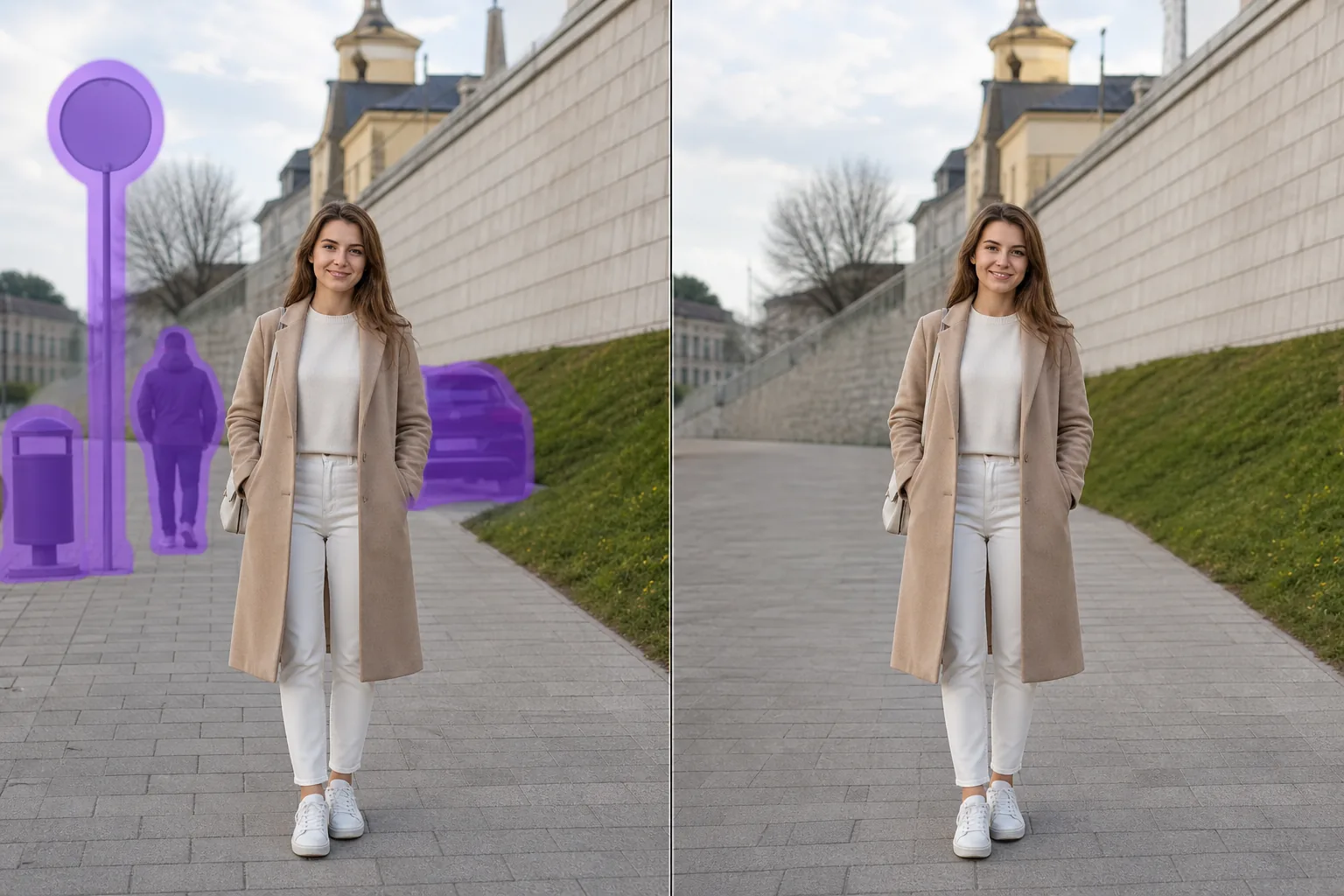
كيف تعمل إزالة كائن في الخلفية بالذكاء الاصطناعي
أزل كائن في الخلفية من صورك في ثوانٍ باستخدام Magic Eraser. يعيد الذكاء الاصطناعي بناء الخلفية تلقائيًا. مجاني على iOS وAndroid والويب. افتح Magic Eraser على الويب أو iOS أو Android وارفع الصورة التي تحتوي على كائن في الخلفية المراد إزالته. يدعم JPEG وPNG وWebP. ارسم فوق كائن في الخلفية الذي تريد إزالته. استخدم فرشاة أعرض قليلاً من العنصر للحصول على حواف أنظف. يعيد الذكاء الاصطناعي بناء الخلفية في ثوانٍ. تحقق من النتيجة، عدّل إذا لزم الأمر، ثم صدّر بالدقة الكاملة.
التعليمات خطوة بخطوة
- 1
ارفع صورتك
افتح Magic Eraser على الويب أو iOS أو Android وارفع الصورة التي تحتوي على كائن في الخلفية المراد إزالته. يدعم JPEG وPNG وWebP.
- 2
ارسم فوق المنطقة
ارسم فوق كائن في الخلفية الذي تريد إزالته. استخدم فرشاة أعرض قليلاً من العنصر للحصول على حواف أنظف.
- 3
امسح وحمّل
يعيد الذكاء الاصطناعي بناء الخلفية في ثوانٍ. تحقق من النتيجة، عدّل إذا لزم الأمر، ثم صدّر بالدقة الكاملة.
الأنسب لـ
- افتح Magic Eraser على الويب أو iOS أو Android وارفع الصورة التي تحتوي على كائن في الخلفية المراد إزالته. يدعم JPEG وPNG وWebP.
- ارسم فوق كائن في الخلفية الذي تريد إزالته. استخدم فرشاة أعرض قليلاً من العنصر للحصول على حواف أنظف.
- يعيد الذكاء الاصطناعي بناء الخلفية في ثوانٍ. تحقق من النتيجة، عدّل إذا لزم الأمر، ثم صدّر بالدقة الكاملة.
- هل إزالة كائن في الخلفية من الصورة مجانية؟
- كم يستغرق إزالة كائن في الخلفية؟
- هل يعمل على الهاتف المحمول؟
- هل يتم الحفاظ على جودة الصورة؟
ملاحظات مهمة
عادةً بضع ثوانٍ فقط. يعالج الذكاء الاصطناعي المنطقة المرسومة ويعيد بناء الخلفية فورًا تقريبًا. لا. يحافظ الذكاء الاصطناعي على الدقة والجودة الأصلية لصورتك. تتطابق المنطقة المعاد بناؤها مع الإضاءة واللون والملمس المحيط.
الأسئلة الشائعة
- هل إزالة كائن في الخلفية من الصورة مجانية؟
- نعم. تشمل الخطة المجانية لـ Magic Eraser إزالة كائن في الخلفية مع حدود استخدام يومية. الترقية إلى Premium ($29.99/سنة) تزيل الحدود وتتيح التصدير بدقة عالية.
- كم يستغرق إزالة كائن في الخلفية؟
- عادةً بضع ثوانٍ فقط. يعالج الذكاء الاصطناعي المنطقة المرسومة ويعيد بناء الخلفية فورًا تقريبًا.
- هل يعمل على الهاتف المحمول؟
- نعم. يعمل Magic Eraser على iOS وAndroid ومتصفحات الويب. يمكنك إزالة كائن في الخلفية من أي جهاز.
- هل يتم الحفاظ على جودة الصورة؟
- لا. يحافظ الذكاء الاصطناعي على الدقة والجودة الأصلية لصورتك. تتطابق المنطقة المعاد بناؤها مع الإضاءة واللون والملمس المحيط.