
Удаление нежелательных людей со свадебных фотографий
Удаляйте случайных людей в кадре, очищайте беспорядок на банкете, исправляйте фоны церемонии и доводите свадебные фото до совершенства с помощью инструментов ИИ — для фотографов и пар.

Content Lead
Содержание
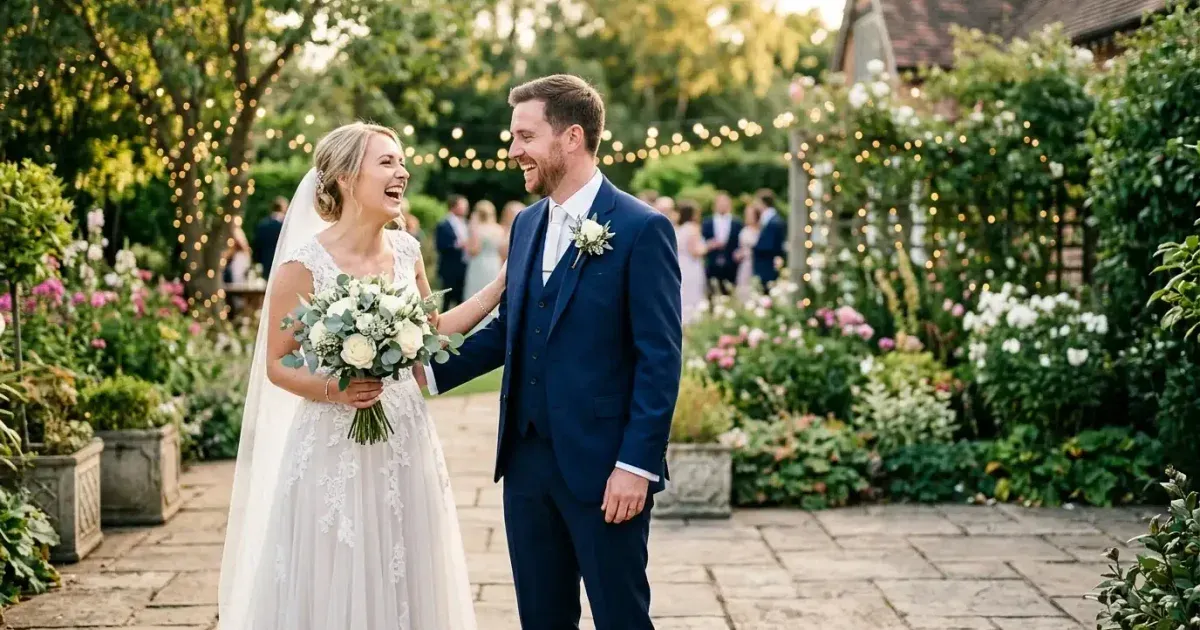
Свадебные фотографии запечатлевают неповторимые моменты, но они запечатлевают и всё остальное: незнакомца, проходящего по фону церемонии, официанта, пересекающего кадр за первым танцем, таблички выхода, светящиеся над алтарём. Стулья и кабели, загромождающие банкетное помещение.
Пары вкладывают тысячи долларов в свадебную фотографию. Один отвлекающий элемент на в остальном идеальном снимке может уменьшить эмоциональное воздействие изображения. Инструменты редактирования с ИИ теперь позволяют удалять эти отвлекающие элементы быстро и естественно, будь вы опытный фотограф, редактирующий поставку из 500 изображений, или пара, желающая исправить несколько любимых снимков.
- Удаление с ИИ убирает людей и объекты, естественно реконструируя фон.
- Обрабатывайте фото церемонии и банкета отдельно — у них разные потребности в редактировании.
- Сначала работайте над эмоционально самыми важными снимками: церемония, первый взгляд, портреты.
- Используйте меньшую кисть для людей рядом с парой и большую кисть для удалённых отвлекающих элементов.
- Сохраняйте оригиналы рядом с отредактированными версиями для полного архива пары.
Удаление случайных людей со снимков церемонии
Фотографии церемонии — приоритетные цели для редактирования, потому что они документируют ключевые эмоциональные моменты. Гость, наклоняющийся в проход, ребёнок, бегущий на фоне, или подрядчик, стоящий в дверном проёме, могут отвлечь внимание от пары у алтаря.
Загрузите фото церемонии в Magic Eraser и проведите кистью по человеку, которого хотите удалить. Для удалённых фоновых фигур одного прохода средней кистью обычно достаточно для чистого результата, потому что ИИ легко реконструирует текстуры пола, стены или листвы. Для людей ближе к паре или частично перекрывающихся с важными элементами используйте меньшую кисть и аккуратно работайте по краям.
После удаления человека проверьте окружающую область на остаточные тени или отражения, которые могут выглядеть неестественно без присутствия человека. Их легко пропустить с первого взгляда, но они становятся очевидными при печати. Быстрый проход доработки инструментом ластика справляется с ними.
- Удалённые фоновые фигуры: средняя кисть, один проход, чистые результаты.
- Люди рядом с парой: меньшая кисть, аккуратная работа по краям.
- Проверяйте остаточные тени и отражения после удаления человека.
- Сначала обрабатывайте снимок церемонии с видом на проход — это часто самое печатаемое изображение.
Очистка фонов банкета
Банкетные помещения по своей природе загромождены. Сложенные у стен стулья, сервировочные тележки рядом с танцполом, таблички выхода над дверями. Запутанные кабели, идущие к оборудованию ди-джея и осветительным конструкциям, — всё это появляется на фотографиях. Эти элементы невидимы во время мероприятия, но заметны на изображениях.
Сосредоточьтесь на фотографиях, которые будут напечатаны или заметно выставлены: первый танец, тосты, разрезание торта и непринуждённые моменты с близкими родственниками. Это изображения, которые пары обрамляют, делятся ими и включают в альбомы. Очистка фона на этих важных снимках обеспечивает наибольшую ценность за вложенное время редактирования.
Для фотографий первого танца удаляйте любые нежелательные фоновые элементы, отвлекающие взгляд от пары. Обслуживающий персонал, видимое оборудование, загромождённые столы и яркие таблички выхода — обычные цели. ИИ бесшовно реконструирует текстуры танцпола, драпировки или стены помещения.
- Приоритезируйте первый танец, тосты, разрезание торта и семейные непринуждённые снимки для очистки.
- Удаляйте таблички выхода, оборудование и обслуживающий персонал с фонов танцпола.
- Очищайте беспорядок на столах, видимый за парой в постановочных банкетных снимках.
- Текстуры стен и драпировки помещения хорошо реконструируются с помощью заливки ИИ.
Исправления композиции групповых фотографий
Групповые фотографии на свадьбах общеизвестно трудно сделать правильно. Кто-то моргает, кто-то отворачивается, случайный гость забредает в край кадра, или в расстановке группы есть неловкий пробел там, где кто-то ушёл рано. Редактирование с ИИ может исправить некоторые из этих проблем.
Для нежелательных людей по краям групповой фотографии просто сотрите их, и ИИ заполнит фон. Для пробелов внутри группы используйте заливку ИИ для реконструкции фона, который должен быть виден между людьми. Человека, частично скрытого за другим гостем, вы, возможно, не сможете удалить чисто. Вы можете удалить другие отвлекающие элементы, чтобы улучшить общую композицию.
Будьте осторожны с групповыми фотографиями, где люди плотно сгруппированы. Удалить кого-то, кто касается или перекрывается с людьми рядом, значительно труднее, чем удалить кого-то со свободным пространством вокруг. В плотных группах сосредоточьтесь на удалении нежелательных фоновых элементов, а не людей внутри самой группы.
- Чисто удаляйте нежелательных людей по краям групповых снимков.
- Заполняйте пробелы внутри групп реконструкцией фона.
- Плотно сгруппированные группы: сосредоточьтесь на очистке фона, а не на удалении людей.
- Проверяйте, что удаление одного человека не оставляет неестественный пробел в расстановке.
Сохранение эмоциональной подлинности свадебных фотографий
Редактирование свадебных фотографий должно улучшать воспоминания, а не переписывать их. При удалении нежелательных гостей или отвлекающих элементов цель — вернуть внимание зрителя к паре и её ближайшим родным и друзьям. Не создавать сцену, которой никогда не было. Сохраняйте оригинальные неотредактированные версии каждой изменяемой фотографии — и как резервную копию, и как честную запись дня.
Обсудите редактирование с парой перед внесением крупных изменений. Некоторые люди хотят, чтобы каждый случайный гость был удалён с каждого снимка. Другие заботятся только о горстке ключевых фотографий, таких как поцелуй на церемонии, первый танец и формальный семейный портрет. Понимание их приоритетов экономит ваше время и гарантирует, что итоговый альбом отражает то, что важнее всего для них. Для опытных свадебных фотографов предложение стандартного прохода очистки по топ-50 изображений и детального редактирования по топ-10 — это рабочий процесс, балансирующий тщательность с эффективностью.
Эффективная доставка отредактированных свадебных фотографий
Организуйте отредактированные свадебные фотографии в чётко помеченные папки: церемония, банкет, портреты, детали и непринуждённые снимки. Экспортируйте в полном разрешении для печати и меньший веб-оптимизированный набор для онлайн-галерей. Пары часто сразу делятся фотографиями в социальных сетях. Доставка курированного набора из 20-30 ярких изображений в течение недели поддерживает их вовлечённость, пока вы завершаете полный альбом. Включайте сравнения «до и после» для крупных правок, чтобы пара могла оценить работу, вложенную в их итоговые изображения. Это также показывает ценность вашей услуги редактирования и поощряет рекомендации от довольных клиентов их недавно помолвленным друзьям.