
Remove Screen Glare From Photos
Pelajari cara Remove Screen Glare From Photos dengan Magic Eraser. Panduan langkah demi langkah sederhana dengan alat AI gratis. Berfungsi di web, iOS, dan Android.
Last updated
Coba sekarang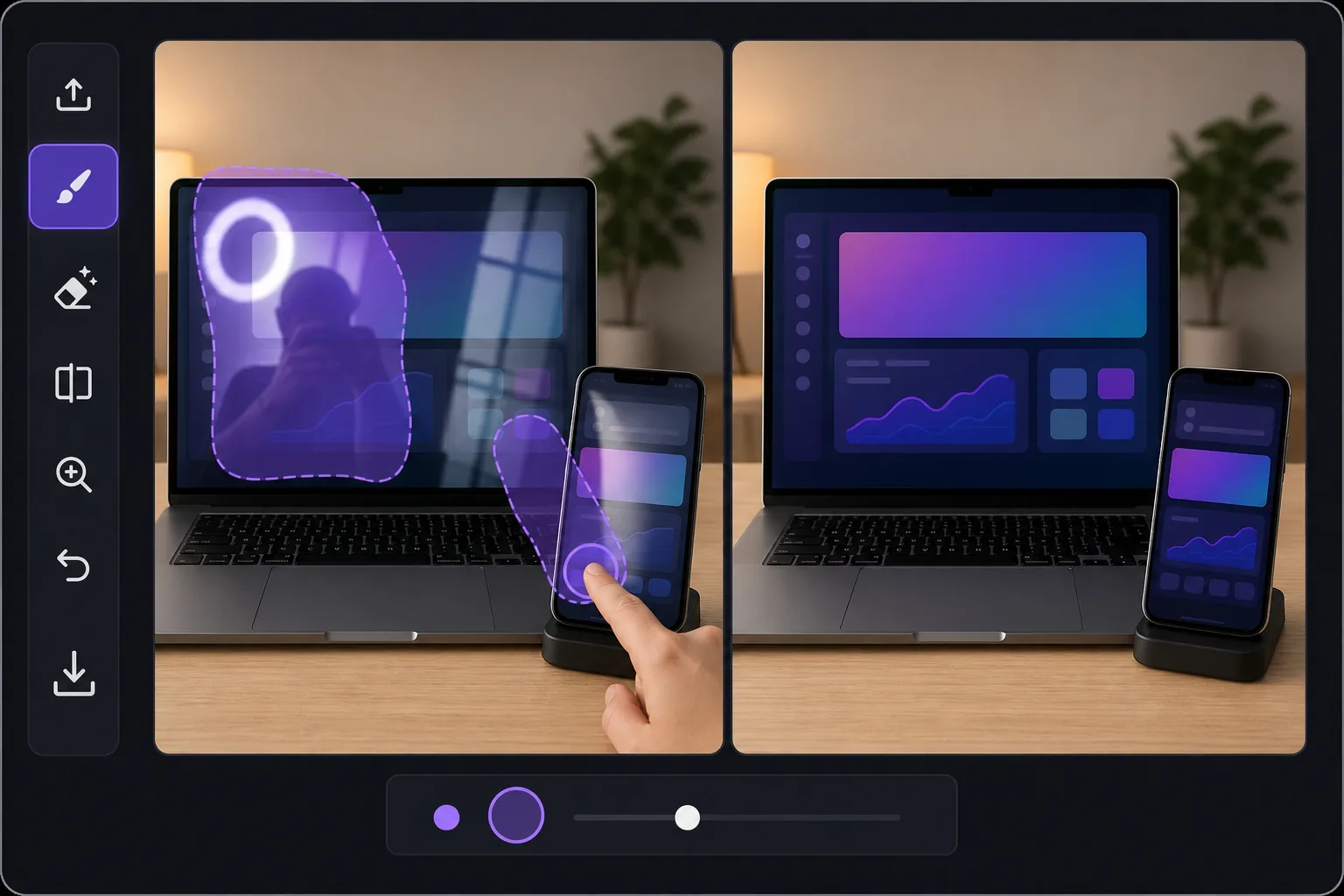
Why screen glare is harder than ordinary glare — Magic Eraser
Glare on a glossy display is a special problem. Phones, laptops, tablets, monitors and TVs are mirrors when they are dark, and they blow out to pure white when light hits them at the wrong angle. In product shots and how-to tutorials, that hotspot or reflection sits directly over the UI, the app screen, or the thing you are trying to show — so a viewer can't read the interface or see the demo. Reshooting means re-staging the device, dimming lights, and chasing the reflection around the room. Magic Eraser skips all of that. Brush over the bright streak, the reflected window, or even your own silhouette caught in the screen, and the AI removes it. Because this is inpainting, it does not recover the literal pixels that were hidden under the glare — it synthesizes a plausible, glare-free continuation of the surrounding screen, bezel and on-screen content. For a uniform wallpaper, a solid app background, or a simple gradient that looks seamless. For dense, specific UI text buried under a full white-out, treat it as a believable clean-up rather than a perfect copy of what was there.
Before you start
Instruksi langkah demi langkah
Start with upload foto. The result preview above and tips below use this guide's existing content; no separate before-and-after proof is assumed.
- 1
Upload foto
Buka Magic Eraser di web, iOS, atau Android. Seret dan lepas foto JPEG, PNG, HEIC, atau WebP Anda. Tidak perlu akun.
- 2
Pilih alat dan area
Pilih alat yang tepat dan tandai area yang akan diproses. AI akan menganalisis dan menerapkan perubahan secara otomatis dalam hitungan detik.
- 3
Download hasil
Pratinjau hasil dan download foto yang telah diedit. Ekspor dalam format PNG atau JPEG berkualitas tinggi.
Paling cocok untuk
- Product photos of phones and tablets where a window or ring light hotspot covers the app on screen
- Laptop and monitor shots for how-to tutorials, with overhead-light glare washing out the interface
- TV and smart-display listings where reflections of the room hide what's playing
- Removing your own silhouette or camera caught reflected in a dark, glossy screen
- E-commerce and marketplace device listings that need a clean, glare-free display to look trustworthy
Tips untuk hasil terbaik
Work in zoomed-in passes rather than one big stroke — small, accurate brushing over the glare protects the surrounding UI and bezel. If a reflection has soft edges, include the faint halo around the hotspot so no gray smear is left behind. For partially blown-out screens, erase the glare first, then judge what's left: if real content survives at the edges, the AI blends it convincingly; if the whole screen is white, expect a believable synthesized fill, not the exact original interface. When the screen shows simple, repeating content (a solid color, wallpaper or plain background), results look near-flawless. For critical UI text or a chart you must show accurately, the cleanest route is to erase glare on a re-shot, dimmer image — and let Magic Eraser handle the residual shine.
Pertanyaan yang sering diajukan
- Apakah fitur Remove Screen Glare From Photos gratis?
- Ya, Magic Eraser memungkinkan Anda Remove Screen Glare From Photos secara gratis dengan batas harian. Upgrade ke Pro untuk pemrosesan tanpa batas dan ekspor resolusi tinggi.
- Berapa lama waktu yang dibutuhkan untuk Remove Screen Glare From Photos?
- Hanya beberapa detik. AI Magic Eraser memproses foto dengan cepat — sebagian besar hasil tersedia segera setelah upload.
- Bisa digunakan di HP?
- Ya, Magic Eraser berfungsi di iOS, Android, dan semua browser web. Anda bisa beralih antar perangkat dengan bebas.
- Apakah kualitas gambar berkurang?
- Tidak, Magic Eraser menjaga kualitas foto asli. AI memproses secara cerdas untuk mempertahankan detail dan ketajaman.