
Cara menghapus orang dari foto perjalanan
Bidikan sempurna Menara Eiffel, Taj Mahal, atau matahari terbenam di Santorini — kecuali 50 turis dalam bingkai. Magic Eraser menghapus orang yang tidak diinginkan dari foto perjalanan sambil merekonstruksi latar belakang di belakangnya dengan mulus.
Last updated
Hapus orang sekarang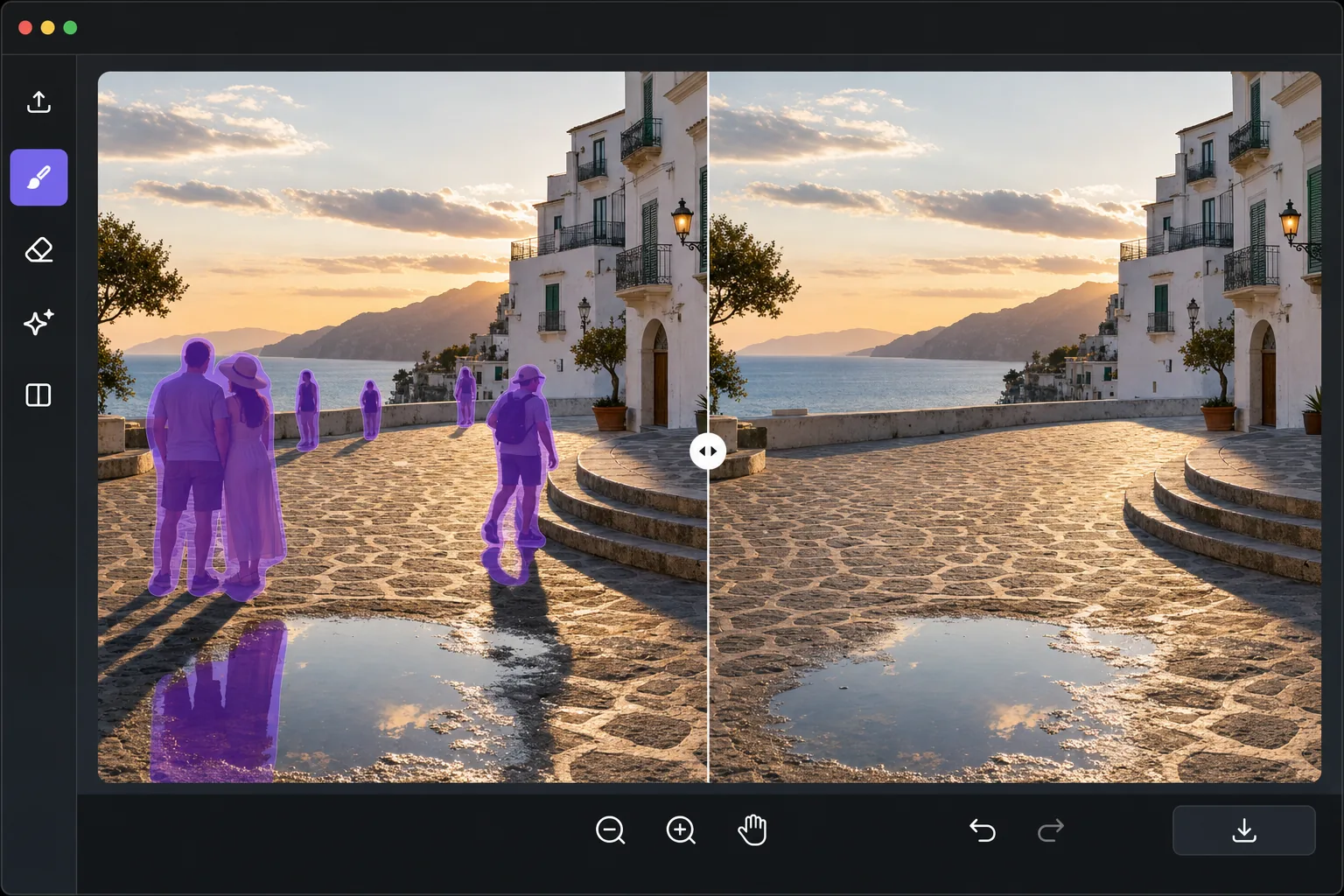
Masalah fotografi perjalanan yang abadi
Destinasi wisata populer sedang ramai. Untuk mendapatkan bidikan yang jelas dari sebuah bangunan terkenal, pemandangan jalanan, atau pemandangan indah tanpa ada orang asing dalam bingkai, Anda harus tiba saat fajar, menunggu celah yang mustahil dalam lalu lintas pejalan kaki, atau mengambil lusinan foto untuk ditumpuk dan digabungkan nanti. Tak satu pun dari hal ini praktis bagi sebagian besar wisatawan. Penghapusan orang yang didukung AI menyelesaikan masalah ini dalam pasca-pemrosesan: Anda menyapu setiap orang yang tidak diinginkan dan AI mengisi latar belakang di belakang mereka menggunakan konteks dari pemandangan sekitar. Ini merekonstruksi pola batu bulat, fasad bangunan, tekstur lanskap, dan gradien langit yang akan terlihat jika tidak ada orang di sana. Hasilnya sepertinya Anda punya tempat untuk diri sendiri.
Before you start
Hapus orang dari foto perjalanan dalam tiga langkah
Start with unggah foto perjalanan anda. The result preview above and tips below use this guide's existing content; no separate before-and-after proof is assumed.
- 1
Unggah foto perjalanan Anda
Buka Magic Eraser di web, iOS, atau Android. Unggah foto perjalanan dengan orang yang tidak diinginkan. Alat ini berfungsi dengan resolusi apa pun mulai dari snapshot ponsel hingga ekspor DSLR RAW. Bidikan lanskap lebar dan detail arsitektur close-up keduanya berfungsi dengan baik.
- 2
Sikat orang yang akan disingkirkan
Gunakan alat kuas untuk mengecat setiap orang yang ingin Anda hapus. Anda dapat memilih beberapa orang sekaligus sebelum memproses. Sesuaikan ukuran kuas untuk efisiensi — kuas yang lebih besar untuk gambar yang jauh, kuas yang lebih kecil untuk orang yang dekat dengan detail penting. Sertakan pantulan atau bayangan orang tersebut dalam pilihan Anda untuk hasil yang paling bersih.
- 3
Tinjau rekonstruksi dan ekspor
AI merekonstruksi latar belakang tempat setiap orang berdiri. Ini cocok dengan tekstur, pencahayaan, dan perspektif di sekitarnya. Untuk latar belakang yang kompleks (lantai keramik, dinding berpola), perbesar untuk memverifikasi kesinambungan pola. Ekspor foto bersih untuk media sosial, cetakan, atau koleksi foto perjalanan Anda.
Terbaik untuk
- Fotografer perjalanan yang menginginkan foto landmark yang bersih tanpa kerumunan turis
- Wisatawan memposting foto pemandangan ke media sosial tanpa ada orang asing dalam bingkainya
- Blogger perjalanan yang membutuhkan fotografi destinasi yang terlihat profesional
- Perjalanan real estate memotret saat properti harus terlihat kosong dan menarik
- Fotografer membuat stok fotografi landmark dan destinasi
Kiat untuk hasil terbaik
Hapus orang dari belakang ke depan — mulai dengan figur terjauh dan terkecil dan lanjutkan ke subjek latar depan yang lebih besar. Hal ini memberi AI konteks latar belakang yang lebih bersih untuk setiap penghapusan berikutnya. Sertakan bayangan dan pantulan dalam pilihan kuas Anda — bayangan yang hilang adalah tanda paling umum dari retouching. Untuk adegan yang sangat ramai di mana orang-orang saling tumpang tindih, proses dalam beberapa kelompok: hapus beberapa orang, ekspor, lalu impor ulang dan hapus kelompok berikutnya. Jika seseorang berdiri di depan fitur unik yang kompleks (seperti detail arsitektur tertentu), AI dapat menyederhanakan rekonstruksi — pertimbangkan apakah detail tersebut penting sebelum menghapusnya.
Pertanyaan yang sering diajukan
- Bisakah saya menghapus lusinan orang dari satu foto?
- Ya. Anda dapat menyikat orang sebanyak yang diperlukan. Untuk adegan yang sangat ramai, pemrosesan dalam kelompok yang terdiri dari 5-10 orang akan memberikan hasil terbaik karena AI memiliki konteks yang lebih bersih untuk digunakan pada setiap rekonstruksi.
- Apakah ini berfungsi dengan latar belakang yang rumit seperti ubin bermotif?
- Ya. AI sangat baik dalam melanjutkan pola berulang seperti batu bulat, batu bata, dan ubin. Ini menganalisis skala dan orientasi pola dari area sekitarnya dan memperluasnya ke seluruh wilayah yang dihapus.
- Apakah menghapus orang dari foto perjalanan gratis?
- Ya. Fitur penghapusan objek tersedia di tingkat gratis dengan batas penggunaan harian. Premium menghilangkan batasan bagi wisatawan yang memproses foto liburan dalam jumlah besar.