
Remove an Object From a Photo, Free and Online
Pelajari cara Remove an Object From a Photo, Free and Online dengan Magic Eraser. Panduan langkah demi langkah sederhana dengan alat AI gratis. Berfungsi di web, iOS, dan Android.
Last updated
Coba sekarang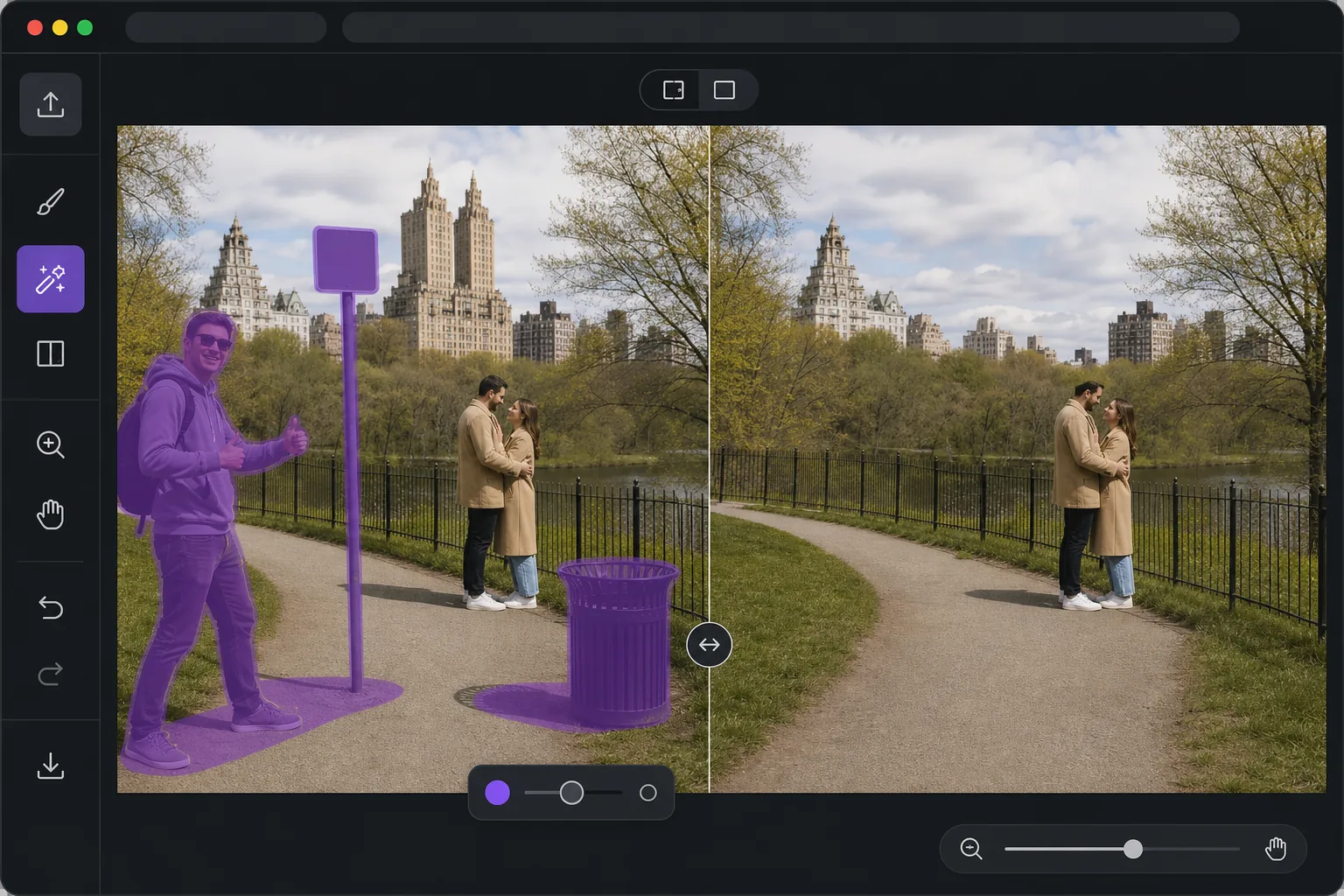
Open the editor, then remove it. — Magic Eraser
When you want one object gone from a photo, the last thing you need is desktop software, a complex editor, or a forced paid trial before you can see a result. Magic Eraser runs entirely in your browser, so there is nothing to install. Use your limited free edits, brush over the thing you want gone, and AI inpainting reconstructs a plausible background where it used to be — fences, sky, grass, walls — so the gap blends in instead of leaving a hole. Free exports are saved without a watermark, which means the photo you download is the photo you keep. The whole loop is built for speed: open the page, paint over the object, preview the fill, and save. No menus to learn and no layers to manage; limited free edits are available before you choose any paid plan. If you just need a clean shot fast, this is the shortest path from messy photo to finished image.
Before you start
Instruksi langkah demi langkah
Start with upload foto. The result preview above and tips below use this guide's existing content; no separate before-and-after proof is assumed.
- 1
Upload foto
Buka Magic Eraser di web, iOS, atau Android. Seret dan lepas foto JPEG, PNG, HEIC, atau WebP Anda. Tidak perlu akun.
- 2
Pilih alat dan area
Pilih alat yang tepat dan tandai area yang akan diproses. AI akan menganalisis dan menerapkan perubahan secara otomatis dalam hitungan detik.
- 3
Download hasil
Pratinjau hasil dan download foto yang telah diedit. Ekspor dalam format PNG atau JPEG berkualitas tinggi.
Paling cocok untuk
- Removing a photobomber or stranger before you post in the next minute
- Cleaning up a listing or product shot without opening desktop software
- Editing on a phone or borrowed computer where you can't install apps
- One-off fixes where installing software is not worth it
- Quick social posts that need a clean image with no watermark
Tips untuk hasil terbaik
Brush slightly past the edges of the object so the AI has room to blend, rather than tracing it tightly. Objects sitting against simple, repeating backgrounds — sky, water, grass, plain walls — reconstruct most convincingly. For larger or more complex removals, work in passes: erase the main object first, then brush over any leftover shadow or reflection it left behind. If a fill looks off, undo and reselect with a slightly different brush area; small changes to your selection often produce a noticeably better blend.
Pertanyaan yang sering diajukan
- Apakah fitur Remove an Object From a Photo, Free and Online gratis?
- Ya, Magic Eraser memungkinkan Anda Remove an Object From a Photo, Free and Online secara gratis dengan batas harian. Upgrade ke Pro untuk pemrosesan tanpa batas dan ekspor resolusi tinggi.
- Berapa lama waktu yang dibutuhkan untuk Remove an Object From a Photo, Free and Online?
- Hanya beberapa detik. AI Magic Eraser memproses foto dengan cepat — sebagian besar hasil tersedia segera setelah upload.
- Bisa digunakan di HP?
- Ya, Magic Eraser berfungsi di iOS, Android, dan semua browser web. Anda bisa beralih antar perangkat dengan bebas.
- Apakah kualitas gambar berkurang?
- Tidak, Magic Eraser menjaga kualitas foto asli. AI memproses secara cerdas untuk mempertahankan detail dan ketajaman.