
Cara mengedit foto secara batch dengan AI
Memproses 20, 50, atau 100 foto satu per satu menghabiskan waktu berjam-jam. Pemrosesan batch Magic Eraser menerapkan pengeditan AI — penghapusan objek, penggantian latar belakang, penyempurnaan — ke seluruh kumpulan foto dalam hitungan menit, bukan jam.
Last updated
Edit batch sekarang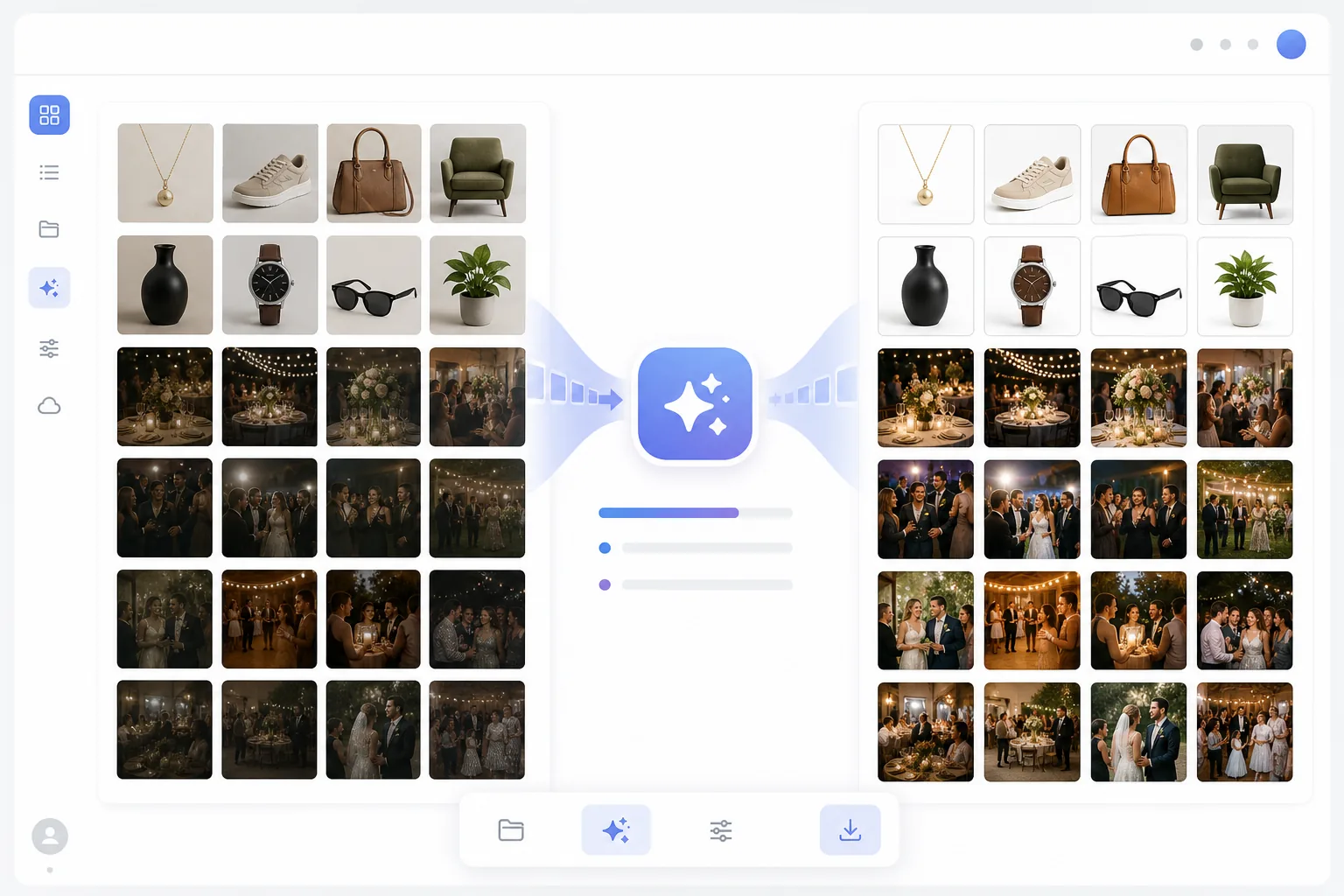
Mengapa pengeditan batch penting untuk alur kerja profesional
Untuk mengedit foto secara massal, buka Magic Eraser di web, pilih mode batch, seret seluruh kumpulan fotomu (hingga 50 gambar sekaligus), tentukan edit yang ingin diterapkan ke semuanya — penghapusan latar belakang, peningkatan kualitas, atau pengubahan ukuran — lalu biarkan AI memproses setiap gambar satu per satu. Gratis, tanpa perlu daftar. Tidak seperti aksi batch biasa yang menempelkan penyesuaian tetap yang sama pada setiap file, AI membaca tiap gambar secara mandiri, jadi proses latar belakang putih atau peningkatan kualitas tetap konsisten di seluruh kumpulan tanpa perlu mengulang manual. Penghapusan objek, di mana setiap foto perlu titik berbeda yang dihapus dengan brush, tetap paling baik dikerjakan per gambar agar penempatannya presisi. Penjual e-commerce memotret ratusan produk dan membutuhkan latar belakang putih yang konsisten. Agen real estate mengambil 30-50 foto per listing dan membutuhkan setiap gambar yang disempurnakan. Fotografer acara mengirimkan ratusan gambar yang memerlukan pembersihan secara konsisten. Fotografer pernikahan memproses ribuan jepretan. Dalam setiap kasus, mengedit satu gambar dalam satu waktu menciptakan hambatan yang mengubah pengambilan gambar 2 jam menjadi 8 jam pasca-pemrosesan. Alat batch tradisional menerapkan filter atau penyesuaian yang sama pada setiap gambar, namun alat tersebut tidak dapat menangani tugas cerdas seperti menghapus objek berbeda dari foto berbeda. Pemrosesan batch AI Magic Eraser memahami setiap gambar satu per satu — menerapkan pengeditan yang tepat pada setiap foto sambil mempertahankan kualitas yang konsisten di seluruh rangkaian.
Before you start
Pengeditan batch dalam tiga langkah
Start with unggah kumpulan foto anda. The result preview above and tips below use this guide's existing content; no separate before-and-after proof is assumed.
- 1
Unggah kumpulan foto Anda
Buka Magic Eraser dan pilih mode batch. Seret seluruh kumpulan foto Anda — hingga 50 gambar per kumpulan. JPEG, PNG, HEIC, dan WebP diterima. Foto dapat memiliki ukuran, orientasi, dan subjek yang berbeda.
- 2
Pilih pengeditan batch Anda
Pilih operasi AI: penghapusan latar belakang untuk foto produk, penyempurnaan untuk foto acara, atau penghapusan objek untuk elemen berulang tertentu. Untuk penghapusan latar belakang, pilih warna putih, transparan, atau warna khusus. Untuk peningkatan, AI secara otomatis menyesuaikan pencahayaan, ketajaman, dan warna setiap gambar satu per satu.
- 3
Proses dan unduh
Ketuk Proses Semua. AI bekerja melalui set Anda, menerapkan pengeditan yang dipilih ke setiap gambar. Tinjau hasilnya dalam tampilan galeri, proses ulang setiap gambar yang memerlukan penyesuaian, lalu unduh seluruh kumpulan sebagai file ZIP dengan nama file asli dipertahankan.
Terbaik untuk
- Fotografi produk e-niaga memerlukan latar belakang putih atau transparan yang konsisten di seluruh katalog
- Kumpulan foto real estat yang memerlukan peningkatan konsisten pada 30-50 gambar per listingan
- Fotografi acara dan pernikahan di mana ratusan gambar memerlukan peningkatan kualitas yang seragam
- Tim pemasaran memproses aset foto kampanye secara massal dengan gaya merek yang konsisten
- Manajer media sosial menyiapkan banyak gambar untuk diposting terjadwal di seluruh platform
Kiat untuk hasil terbaik
Kelompokkan foto serupa untuk mendapatkan hasil kumpulan terbaik. Foto produk dengan latar belakang serupa diproses lebih konsisten dibandingkan gabungan foto produk dan gambar gaya hidup. Untuk kumpulan penghapusan latar belakang, pastikan produk Anda memiliki penerangan yang baik dan terpisah dengan jelas dari latar belakang — AI menangani kondisi beragam namun menghasilkan tepian yang paling bersih pada subjek yang difoto dengan baik. Untuk kumpulan penyempurnaan, AI menyesuaikan setiap foto satu per satu, sehingga memadukan pengambilan gambar di dalam dan luar ruangan dalam satu kumpulan akan berfungsi dengan baik. Tinjau 3-5 hasil pertama sebelum memproses set lengkap untuk mengonfirmasi jenis pengeditan dan pengaturan menghasilkan apa yang Anda perlukan.
Pertanyaan yang sering diajukan
- Berapa banyak foto yang dapat saya proses batch sekaligus?
- Hingga 50 gambar per batch di aplikasi web. Untuk set yang lebih besar, jalankan beberapa batch. Paket premium menawarkan batas batch yang lebih tinggi dan kecepatan pemrosesan prioritas.
- Apakah pemrosesan batch mengurangi kualitas?
- Tidak. Setiap gambar diproses satu per satu oleh AI dengan resolusi penuh. Mode batch memiliki kualitas yang sama dengan pengeditan gambar tunggal — mode ini hanya memproses banyak file secara berurutan secara otomatis.
- Bisakah saya menghapus objek berbeda dari foto berbeda secara bersamaan?
- Penghapusan dan peningkatan latar belakang berfungsi sepenuhnya secara otomatis dalam mode batch. Untuk penghapusan objek di mana setiap foto memiliki objek berbeda untuk dihapus, proses objek tersebut satu per satu untuk penempatan kuas yang tepat.
- Apakah pengeditan batch gratis?
- Tingkat gratis mencakup pemrosesan batch terbatas. Paket premium menghapus batasan ukuran batch dan menambahkan kecepatan pemrosesan prioritas untuk alur kerja bervolume tinggi.
- Edit mana yang bisa kuterapkan ke seluruh batch, dan mana yang harus dikerjakan per foto?
- Edit yang mengikuti satu aturan untuk setiap gambar cocok dilakukan secara batch: penghapusan atau penggantian latar belakang, peningkatan kualitas dan upscaling, serta pengubahan ukuran atau crop ke ukuran tetap. Edit ini berjalan otomatis karena AI menangani tiap gambar secara mandiri sambil mengikuti tujuan yang sama. Edit yang bergantung pada isi tiap frame lebih baik dikerjakan satu per satu — penghapusan objek dan noda (setiap foto punya titik berbeda yang perlu di-brush), serta perubahan komposisi apa pun yang ingin kamu tinjau dengan mata. Alur kerja yang baik adalah memproses dulu edit seragam secara batch, lalu membuka hanya beberapa gambar yang butuh sentuhan manual.