
लोगो से बैकग्राउंड कैसे हटाये
इसके पीछे एक सफेद आयत वाला लोगो रंगीन पृष्ठभूमि पर अव्यवसायिक दिखता है। Magic Eraser पृष्ठभूमि को हटा देता है और एक पारदर्शी पीएनजी निर्यात करता है जो किसी भी सतह - वेबसाइट, बिजनेस कार्ड, माल और प्रस्तुतियों पर साफ-सुथरा रहता है।
Last updated
लोगो पृष्ठभूमि हटाएँ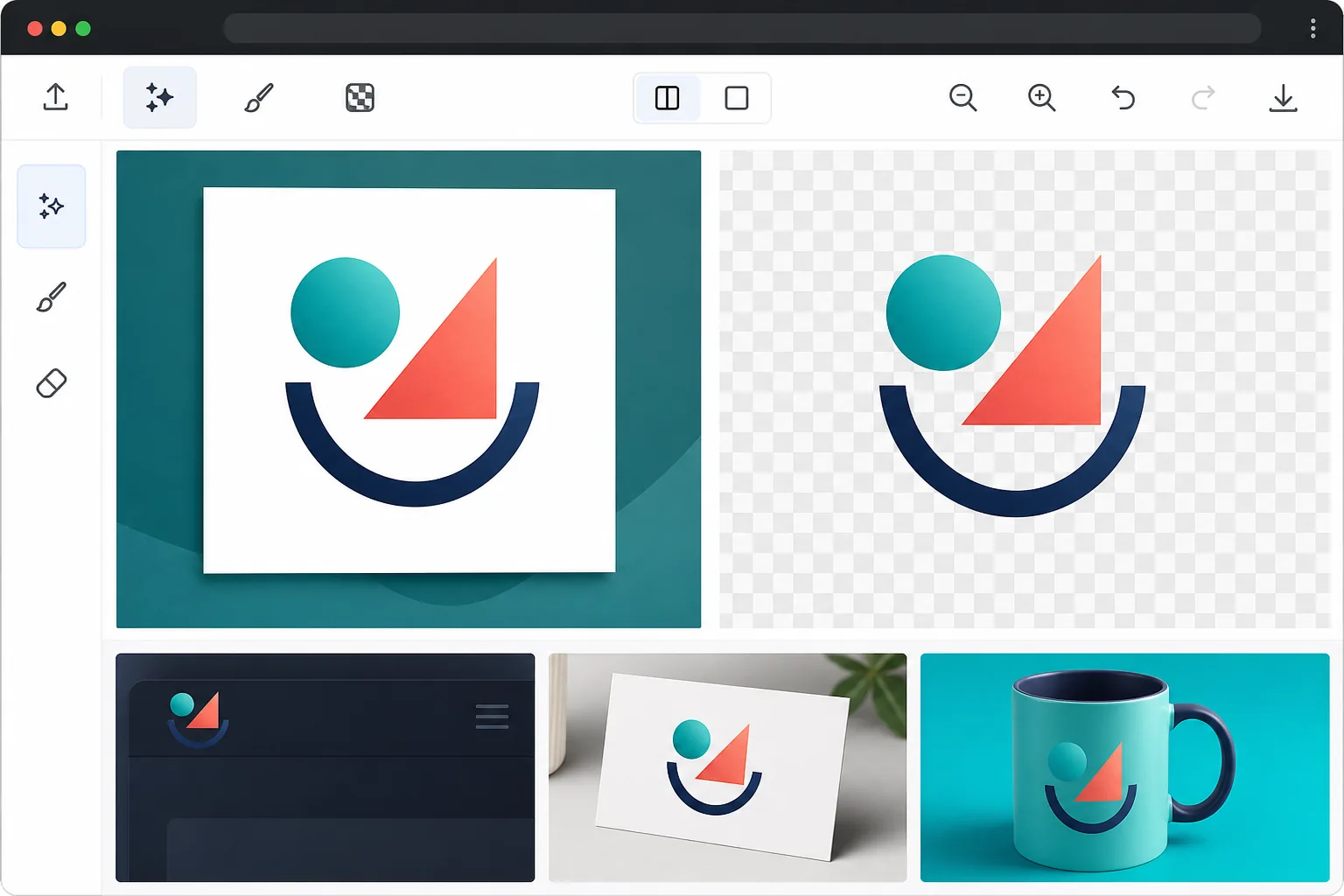
लोगो से बैकग्राउंड कैसे हटाएं
किसी लोगो का बैकग्राउंड हटाने के लिए, वेब, iOS या Android पर Magic Eraser खोलें, Background Eraser चुनें, लोगो अपलोड करें और PNG के रूप में एक्सपोर्ट करें — AI सफेद बॉक्स या रंगीन बैकड्रॉप को हटा देता है और एक ट्रांसपैरेंट वर्ज़न छोड़ देता है जो किसी भी सरफेस पर साफ-सुथरा बैठता है। यह मुफ़्त है, बिना किसी साइनअप के। यह पतले टेक्स्ट स्ट्रोक, छोटे आइकन और ग्रेडिएंट फिल जैसी बारीक डिटेल्स को बनाए रखता है, और अगर आपके पास सिर्फ JPEG फ़ाइल ही है तो उसी से सीधे काम कर देता है। एक्सपोर्ट करने से पहले रिज़ल्ट को हल्के और गहरे दोनों बैकग्राउंड पर ज़रूर जांच लें। लोगो दर्जनों अलग-अलग सतहों पर दिखाई देते हैं: डार्क हेडर, रंगीन माल, वीडियो ओवरले, दस्तावेज़ वॉटरमार्क और सोशल मीडिया प्रोफाइल। एक सफेद पृष्ठभूमि पर बंद लोगो की सीमाएं जहां इसे पेशेवर रूप से उपयोग किया जा सकता है। प्रत्येक ब्रांड के पास अपने लोगो का पारदर्शी पीएनजी संस्करण होना चाहिए, लेकिन कई छोटे व्यवसायों के पास केवल उनके डिजाइनर की जेपीईजी फाइलें होती हैं। फ़ोटोशॉप में लोगो किनारों को मैन्युअल रूप से ट्रेस करना कठिन है, विशेष रूप से बारीक विवरण, ग्रेडिएंट या टेक्स्ट वाले जटिल लोगो के लिए। एआई बैकग्राउंड रिमूवल सभी जटिलता स्तरों के लोगो को संभालता है - सरल वर्डमार्क से लेकर जटिल प्रतीक तक - किसी भी उपयोग के मामले के लिए तैयार स्वच्छ पारदर्शी फाइलें तैयार करता है।
Before you start
तीन चरणों में लोगो पृष्ठभूमि हटाएँ
Start with अपना लोगो अपलोड करें. The result preview above and tips below use this guide's existing content; no separate before-and-after proof is assumed.
- 1
अपना लोगो अपलोड करें
वेब, iOS, या Android पर Magic Eraser खोलें और Background Eraser चुनें। अपनी लोगो फ़ाइल अपलोड करें - JPEG, PNG, BMP, या कोई भी छवि प्रारूप। सर्वोत्तम परिणामों के लिए, उपलब्ध उच्चतम रिज़ॉल्यूशन संस्करण का उपयोग करें। यदि आपके पास केवल एक छोटा लोगो है, तो AI अभी भी काम करता है लेकिन किनारे स्रोत रिज़ॉल्यूशन द्वारा सीमित होंगे।
- 2
पृष्ठभूमि हटाएँ
एआई तुरंत लोगो को उसकी पृष्ठभूमि से अलग कर देता है। यह एकल-रंग पृष्ठभूमि (सफ़ेद, रंगीन), ढाल पृष्ठभूमि और यहां तक कि बनावट वाली पृष्ठभूमि को भी संभालता है। पतले टेक्स्ट स्ट्रोक, छोटे चिह्न और सजावटी तत्व जैसे बारीक विवरण संरक्षित हैं।
- 3
पारदर्शी पीएनजी के रूप में निर्यात करें
पारदर्शिता बनाए रखने के लिए पीएनजी के रूप में निर्यात करें। किनारे की गुणवत्ता सत्यापित करने के लिए हल्के और गहरे दोनों पृष्ठभूमियों पर परिणाम की जाँच करें। वेब उपयोग के लिए, छोटे फ़ाइल आकार के लिए WebP के रूप में भी निर्यात करें। पारदर्शी लोगो वेबसाइटों, प्रिंट सामग्री, माल और किसी भी डिज़ाइन प्रोजेक्ट पर उपयोग के लिए तैयार है।
के लिए सर्वोत्तम
- छोटे व्यवसाय के मालिक जिनके पास केवल JPEG लोगो हैं और उन्हें पारदर्शी संस्करण की आवश्यकता है
- वेब डेवलपर रंगीन वेबसाइट शीर्षलेखों और पादलेखों पर क्लाइंट लोगो लगाते हैं
- प्रिंट डिजाइनर बिजनेस कार्ड, ब्रोशर और माल के लिए लोगो तैयार कर रहे हैं
- मार्केटिंग टीमें लोगो ओवरले के साथ प्रस्तुतियाँ और दस्तावेज़ बना रही हैं
- ब्रांड मैनेजर कई प्रारूपों में लोगो के साथ एसेट लाइब्रेरी का निर्माण कर रहे हैं
सर्वोत्तम परिणामों के लिए युक्तियाँ
अपने लोगो का उपलब्ध उच्चतम रिज़ॉल्यूशन संस्करण अपलोड करें - पारदर्शी लोगो को स्पष्ट किनारों की आवश्यकता होती है क्योंकि अलियासिंग को छिपाने के लिए कोई पृष्ठभूमि नहीं होती है। यदि आपके लोगो में बहुत पतली रेखाएं या छोटा पाठ है, तो यह सत्यापित करने के लिए प्रसंस्करण के बाद ज़ूम इन करें कि कुछ भी काटा नहीं गया है। पृष्ठभूमि के समान रंगों वाले लोगो (हल्के पृष्ठभूमि पर एक सफेद लोगो) के लिए, एआई को मैन्युअल मार्गदर्शन की आवश्यकता हो सकती है: उन क्षेत्रों को परिष्कृत करने के लिए ब्रश टूल का उपयोग करें जहां कंट्रास्ट कम है। निर्यात करने के बाद, अपने पारदर्शी लोगो को सफेद, काले और अपने ब्रांड के प्राथमिक रंग पर परीक्षण करें ताकि यह सुनिश्चित हो सके कि यह सभी सामान्य सतहों पर अच्छी तरह से दिखता है।
अक्सर पूछे जाने वाले प्रश्नों
- क्या यह ग्रेडिएंट और छाया वाले लोगो को संभाल सकता है?
- हाँ। एआई लोगो के भीतर ग्रेडिएंट फिल को सुरक्षित रखता है और उनके आसपास की पृष्ठभूमि को हटा देता है। ड्रॉप शैडो को डिफ़ॉल्ट रूप से पृष्ठभूमि के भाग के रूप में माना जाता है। यदि आप छाया बनाए रखना चाहते हैं, तो प्रसंस्करण के दौरान इसे सुरक्षित रखने के लिए ब्रश टूल का उपयोग करें।
- क्या पारदर्शी लोगो प्रिंट के लिए काम करेगा?
- हां, जब तक स्रोत छवि उच्च रिज़ॉल्यूशन (प्रिंट के लिए 300+ डीपीआई) है। मूल रिज़ॉल्यूशन पर निर्यात करें और फ़ाइल को अपने प्रिंटर पर उपलब्ध कराएं। अधिकांश प्रिंट वर्कफ़्लो सीधे पारदर्शी पीएनजी फ़ाइलें स्वीकार करते हैं।
- क्या लोगो पृष्ठभूमि हटाना निःशुल्क है?
- हाँ। पृष्ठभूमि हटाना दैनिक उपयोग सीमा के साथ निःशुल्क स्तर पर उपलब्ध है। एकाधिक लोगो वेरिएंट संसाधित करने वाले व्यवसायों के लिए, प्रीमियम सीमाएं हटा देता है।
- मेरे पास सिर्फ एक JPEG लोगो है — क्या मैं इसे ट्रांसपैरेंट बना सकता हूँ?
- हाँ, और यही सबसे आम मामला है। JPEG ट्रांसपैरेंसी सेव नहीं कर सकता, इसलिए JPEG के रूप में सेव किया गया लोगो हमेशा एक ठोस (आमतौर पर सफेद) बैकग्राउंड के साथ आता है। इसे अपलोड करें, AI को वह बैकग्राउंड हटाने दें और PNG के रूप में एक्सपोर्ट करें — PNG उन ट्रांसपैरेंट हिस्सों को रखता है जो JPEG नहीं रख सकता, इसलिए आपका मार्क बिना सफेद बॉक्स के किसी भी रंग पर बैठ जाता है। क्वालिटी सोर्स पर निर्भर करती है: छोटी, कम-रिज़ॉल्यूशन वाली JPEG से किनारे हल्के नरम आते हैं, इसलिए साफ रिज़ल्ट के लिए अपने पास मौजूद सबसे बड़ा वर्ज़न इस्तेमाल करें।
- मैं अपने फोन पर लोगो का बैकग्राउंड कैसे हटाऊं?
- किसी भी मोबाइल ब्राउज़र में या iOS या Android ऐप में Magic Eraser खोलें, अपनी फ़ोटो या फ़ाइलों से लोगो लोड करें और Background Eraser चुनें। AI आपके फोन पर ही बैकग्राउंड हटा देता है और ट्रांसपैरेंट PNG वापस आपके डिवाइस में सेव कर देता है, जो किसी वेबसाइट, सोशल प्रोफाइल या प्रिंट फ़ाइल में डालने के लिए तैयार होती है। यह डेस्कटॉप वर्ज़न की तरह ही काम करता है, और अगर आप ब्राउज़र इस्तेमाल करते हैं तो कोई ऐप इंस्टॉल करने की ज़रूरत नहीं।