
Supprimer un objet d'une photo
Supprimez un objet de vos photos en quelques secondes avec Magic Eraser. L'IA reconstruit automatiquement l'arrière-plan. Gratuit sur iOS, Android et le web.
Dernière mise à jour
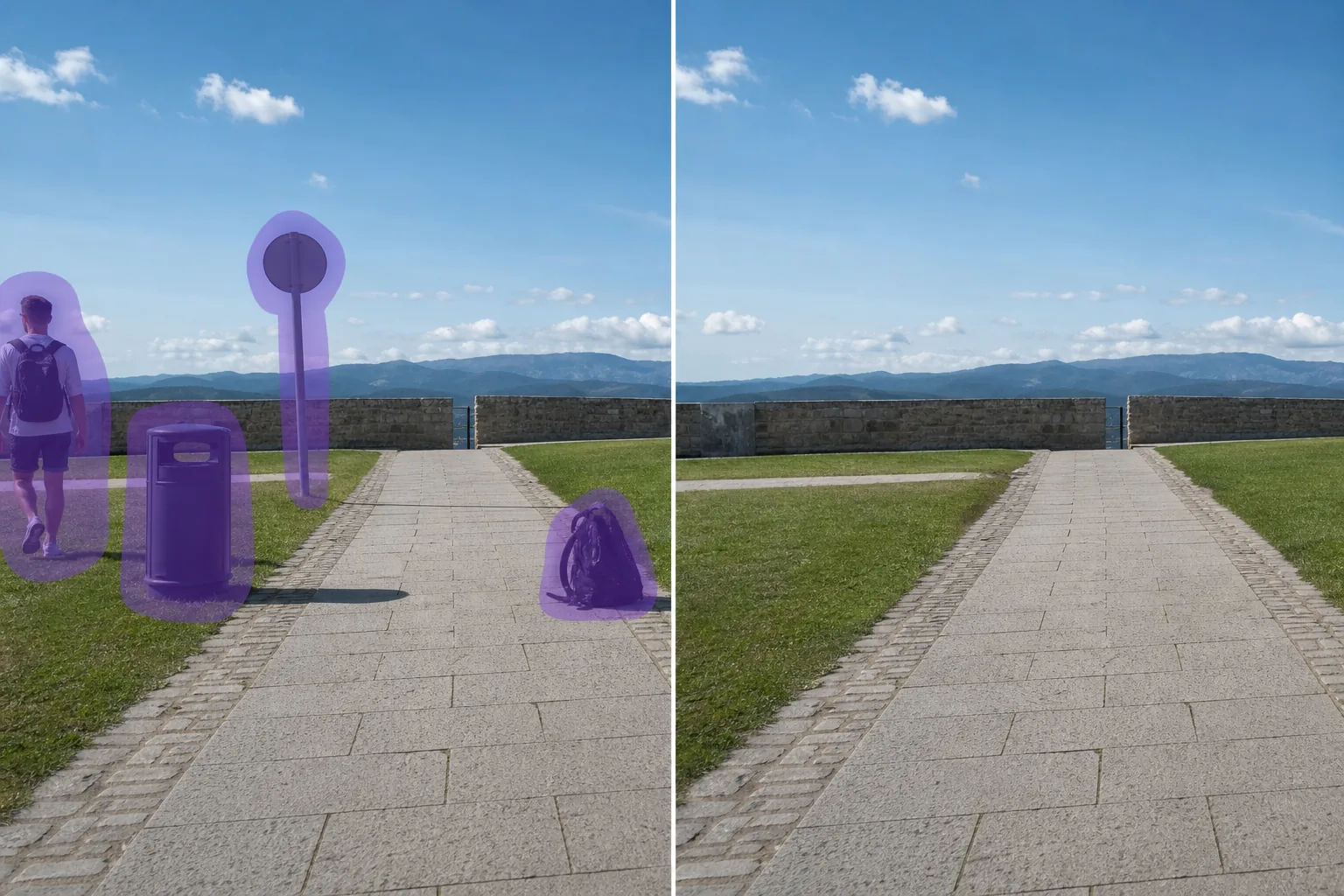
Comment fonctionne la suppression de un objet par IA
Supprimez un objet de vos photos en quelques secondes avec Magic Eraser. L'IA reconstruit automatiquement l'arrière-plan. Gratuit sur iOS, Android et le web. Ouvrez Magic Eraser sur le web, iOS ou Android et déposez la photo contenant un objet à supprimer. JPEG, PNG et WebP sont pris en charge. Peignez sur un objet que vous souhaitez supprimer. Utilisez un pinceau légèrement plus large que l'objet pour que l'IA produise des bords plus nets. L'IA reconstruit l'arrière-plan en quelques secondes. Inspectez le résultat, affinez avec le pinceau de retouche si nécessaire, puis exportez en pleine résolution.
Instructions étape par étape
- 1
Téléchargez votre photo
Ouvrez Magic Eraser sur le web, iOS ou Android et déposez la photo contenant un objet à supprimer. JPEG, PNG et WebP sont pris en charge.
- 2
Peignez sur la zone
Peignez sur un objet que vous souhaitez supprimer. Utilisez un pinceau légèrement plus large que l'objet pour que l'IA produise des bords plus nets.
- 3
Effacez et téléchargez
L'IA reconstruit l'arrière-plan en quelques secondes. Inspectez le résultat, affinez avec le pinceau de retouche si nécessaire, puis exportez en pleine résolution.
Idéal pour
- Ouvrez Magic Eraser sur le web, iOS ou Android et déposez la photo contenant un objet à supprimer. JPEG, PNG et WebP sont pris en charge.
- Peignez sur un objet que vous souhaitez supprimer. Utilisez un pinceau légèrement plus large que l'objet pour que l'IA produise des bords plus nets.
- L'IA reconstruit l'arrière-plan en quelques secondes. Inspectez le résultat, affinez avec le pinceau de retouche si nécessaire, puis exportez en pleine résolution.
- Est-ce gratuit de supprimer un objet d'une photo ?
- Combien de temps faut-il pour supprimer un objet ?
- Ça fonctionne sur mobile ?
- La qualité de l'image est-elle préservée ?
Notes importantes
Généralement quelques secondes. L'IA traite la zone peinte et reconstruit l'arrière-plan presque instantanément. Non. L'IA préserve la résolution et la qualité d'origine de votre photo. La zone reconstruite correspond à l'éclairage, la couleur et la texture environnants.
Questions fréquentes
- Est-ce gratuit de supprimer un objet d'une photo ?
- Oui. Le forfait gratuit de Magic Eraser couvre la suppression de un objet avec des limites d'utilisation quotidiennes. Le Premium (29,99 $/an) supprime les limites et débloque les exportations en haute résolution.
- Combien de temps faut-il pour supprimer un objet ?
- Généralement quelques secondes. L'IA traite la zone peinte et reconstruit l'arrière-plan presque instantanément.
- Ça fonctionne sur mobile ?
- Oui. Magic Eraser fonctionne sur iOS, Android et navigateurs web. Vous pouvez supprimer un objet depuis n'importe quel appareil.
- La qualité de l'image est-elle préservée ?
- Non. L'IA préserve la résolution et la qualité d'origine de votre photo. La zone reconstruite correspond à l'éclairage, la couleur et la texture environnants.