
Comment créer des maquettes de produits avec l'IA : Guide étape par étape
Apprenez à créer des maquettes de produits réalistes avec AI Fill et le remplacement d'arrière-plan. Placez vos produits dans des mises en scène lifestyle, générez des visuels marketing et constituez une bibliothèque complète de maquettes sans studio photo.
SEO & Growth
Vérifié par Magic Eraser Editorial ·
Sommaire
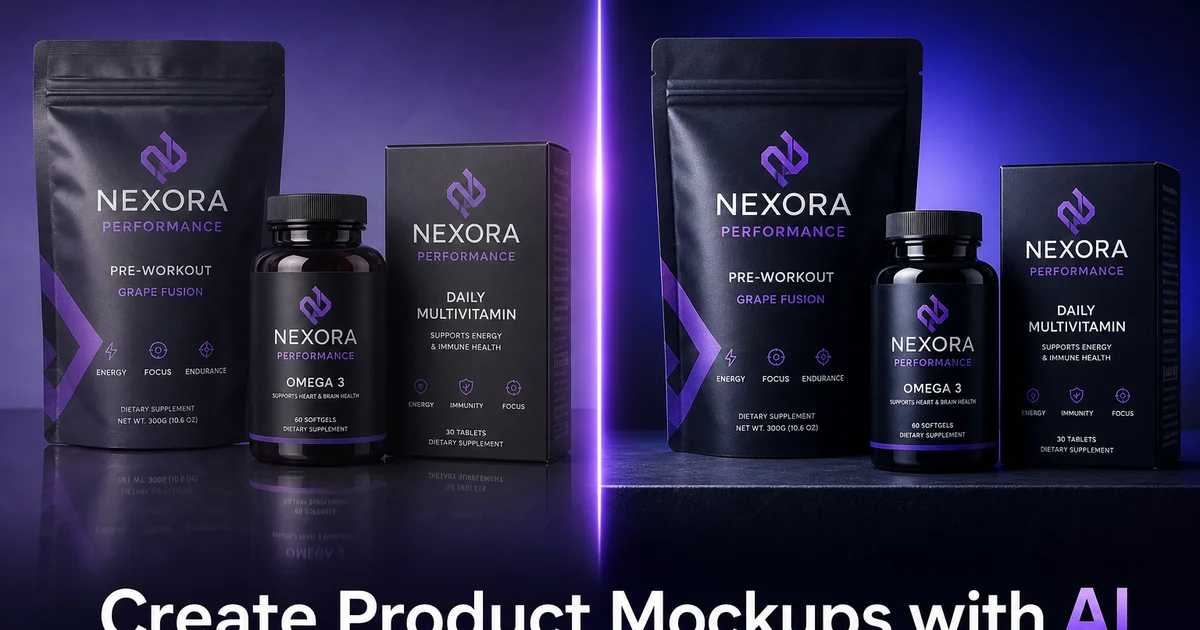
Les maquettes de produits présentent votre produit en contexte. Sur un bureau, dans une cuisine, tenu par une main, posé sur une étagère à côté d'articles assortis. Elles aident les clients à visualiser la possession et l'utilisation. C'est pourquoi les pages produits avec des maquettes lifestyle surpassent toujours les pages avec de simples photos sur fond blanc seul. Les recherches du Baymard Institute montrent que les clients s'attendent à voir les produits en contexte aux côtés des clichés standard présentés seuls. L'absence d'imagerie lifestyle constitue un frein mesurable à la conversion.
Par le passé, créer des maquettes de produits nécessitait soit une séance photo physique avec accessoires, surfaces et installations d'éclairage, soit un graphiste spécialisé en composition Photoshop capable d'intégrer manuellement des découpes de produits dans des scènes de photographie d'archives. Les deux approches sont coûteuses, lentes et difficiles à passer à l'échelle. Une seule séance photo produit un ensemble fixe de scènes, et tout nouveau contexte — une pièce différente, un thème saisonnier, une tendance sur les réseaux sociaux — signifie une nouvelle séance ou une nouvelle série d'heures de travail pour un designer.
Les outils d'IA réduisent ce flux de travail à quelques minutes. Vous prenez une bonne photo de votre produit, supprimez l'arrière-plan, puis utilisez AI Fill pour générer une variété illimitée de mises en scène lifestyle. Besoin de votre gourde sur un sentier de randonnée ? Sur un banc de gymnase ? Sur une table de conférence ? Chaque scène nécessite une seule invite textuelle et trente secondes de génération. Ce guide couvre l'ensemble du processus, de la photo initiale du produit à la bibliothèque de maquettes finalisée.
- AI Fill génère des mises en scène lifestyle réalistes à partir de descriptions textuelles, plaçant votre produit dans des environnements contextuels.
- Une seule photo de produit peut produire des dizaines de maquettes uniques pour différents canaux de vente et campagnes saisonnières.
- Background Eraser isole les formes de produits complexes — courbes, transparence, bords fins — en quelques secondes.
- AI Expand étend les cadrages serrés en compositions bannière et hero avec de l'espace pour les superpositions de texte.
- Aucun studio photo, accessoire ou compétence en composition Photoshop requis.
Pourquoi les maquettes surpassent les photos de produits sur fond blanc
Les photos de produits sur fond blanc remplissent une fonction importante. Elles montrent le produit clairement, sans distraction, dans un format standardisé que les places de marché comme Amazon exigent. Mais elles n'aident pas le client à imaginer le produit dans sa vie. Une bougie sur fond blanc est un produit. Une bougie sur une table d'appoint en bois à côté d'un livre ouvert dans un salon cosy est une expérience. La différence de réponse émotionnelle se traduit directement en intention d'achat.
Les recherches de Shopify sur la photographie de produits montrent toujours que les boutiques mélangeant imagerie sur fond blanc et lifestyle convertissent à des taux plus élevés que celles utilisant un seul type. Les clichés sur fond blanc offrent clarté et capacité de comparaison. Les maquettes lifestyle apportent aspiration et contexte. Les clients ont besoin des deux, et les outils d'IA rendent pratique, même pour les vendeurs individuels, la production des deux à grande échelle.
Les maquettes performent également mieux sur les réseaux sociaux et en publicité. Une mise en scène lifestyle arrête le défilement car elle ressemble à du contenu, pas à une fiche produit. Les plateformes publicitaires rapportent toujours des taux de clic plus élevés sur les annonces avec imagerie contextuelle comparées aux images de produits sur fond blanc. La maquette donne au spectateur une raison de s'arrêter. La scène est intéressante — et ensuite le produit dans cette scène capte son attention.
Prise de vue de la photo de produit de base
Votre photo de produit de base détermine le plafond de qualité pour chaque maquette que vous créez. L'IA peut générer de belles scènes, mais si le produit lui-même est flou, mal éclairé ou photographié sous un mauvais angle, aucune magie d'arrière-plan ne sauvera le résultat. Heureusement, vous n'avez pas besoin d'équipement coûteux. Un appareil photo de smartphone des trois à quatre dernières années, une feuille de carton blanc et une fenêtre avec lumière indirecte produisent d'excellents résultats.
Placez le produit sur le carton blanc avec la fenêtre d'un côté afin que la lumière enveloppe le produit avec des ombres douces. Évitez la lumière directe du soleil, qui crée des reflets prononcés et des ombres profondes difficiles à corriger. Photographiez à la hauteur et à l'angle qui représentent le mieux le produit. À hauteur des yeux pour les bouteilles et les emballages, légèrement au-dessus pour les articles plats, et à l'angle sous lequel un client verrait naturellement l'article. Prenez plusieurs clichés et sélectionnez le plus net.
Pour les produits aux surfaces réfléchissantes — verre, métal, emballage brillant — placez un deuxième morceau de carton blanc du côté opposé de la fenêtre pour réfléchir la lumière et réduire les reflets prononcés. Les produits avec des éléments transparents, comme les bouteilles en verre ou les emballages clairs, nécessitent un contre-jour ainsi qu'un éclairage latéral pour montrer la transparence naturellement. Passez cinq minutes supplémentaires sur l'installation de l'éclairage — cela porte ses fruits dans chaque maquette que vous générez à partir de cette image de base.
- Utilisez un carton blanc et une lumière indirecte de fenêtre pour un éclairage propre et uniforme du produit.
- Photographiez à l'angle sous lequel les clients verraient naturellement le produit — à hauteur des yeux pour les bouteilles, légèrement au-dessus pour les articles plats.
- Réfléchissez la lumière avec un deuxième carton blanc pour réduire les reflets prononcés sur les surfaces en verre et en métal.
- Prenez plusieurs clichés et sélectionnez le plus net comme base pour toute la génération de maquettes.
Génération de mises en scène lifestyle avec AI Fill
Une fois votre produit proprement isolé sur fond transparent, AI Fill devient votre générateur de scènes. L'outil accepte une description textuelle du décor souhaité et crée une scène photoréaliste qui s'intègre à votre produit. La qualité du résultat dépend fortement de la spécificité de votre invite. Les invites génériques comme `fond de cuisine` produisent des résultats génériques. Les invites spécifiques comme `plan de travail en marbre avec lumière matinale venant de la gauche, étagères ouvertes floues en arrière-plan, tons neutres chauds` produisent des scènes qui semblent issues d'une séance photo stylisée.
Commencez par identifier les trois à cinq contextes les plus importants pour votre produit. Un produit de soin de la peau pourrait nécessiter une scène de vanité de salle de bain, une scène de table de chevet et un cadre de type spa. Une tasse à café pourrait nécessiter un bureau à domicile, un plan de travail de cuisine et une table de patio extérieure. Chaque contexte raconte une histoire différente sur quand et où le client utiliserait le produit, élargissant l'attrait du produit à différents profils d'acheteurs et occasions d'utilisation.
Générez deux à trois variations pour chaque contexte afin de vous donner des options. AI Fill produit des résultats légèrement différents à chaque fois, même avec la même invite. Exécuter la même invite trois fois vous offre de la variété dans l'angle d'éclairage, les détails d'arrière-plan et l'ambiance générale. Sélectionnez la meilleure version et apportez des ajustements mineurs. Vous pouvez utiliser Magic Eraser pour supprimer un élément généré qui entre en compétition avec le produit pour l'attention, ou utiliser AI Expand pour étendre la scène vers une composition plus large.
Extension des maquettes pour bannières et images hero
De nombreux formats marketing nécessitent des compositions larges avec le produit d'un côté et un espace libre pour le texte de l'autre. Les sections hero de sites web, les bannières email, les images de couverture de réseaux sociaux et le contenu A+ des places de marché bénéficient tous de cette disposition. Mais la plupart des photos de produits sont prises en orientation carrée ou portrait, ne laissant aucun espace pour placer du texte sans masquer le produit.
AI Expand résout ce problème en étendant le canevas dans n'importe quelle direction et en générant du contenu contextuellement pertinent pour remplir le nouvel espace. Commencez avec votre scène de maquette — disons, un produit sur un plan de travail de cuisine — et étendez le canevas vers la gauche. L'IA étend la surface du plan de travail, continue le mur d'arrière-plan et l'éclairage, produisant une composition à l'aspect naturel deux fois plus large que l'originale. Le côté gauche de l'image dispose maintenant d'un espace libre où votre titre, prix ou appel à l'action peut se positionner sans entrer en compétition avec le produit.
Cette technique est particulièrement précieuse pour les campagnes saisonnières. Prenez votre maquette de produit principale, étendez le canevas. Vous disposez d'un visuel prêt pour bannière pour chaque promotion sans nouvelle séance photo. Le même produit dans la même scène peut être étendu et recadré différemment pour chaque format : large pour les en-têtes d'email, haut pour Pinterest, carré pour Instagram — le tout à partir d'une seule maquette de base.
- AI Expand étend les photos de produits serrées en compositions larges pour bannières, sections hero et en-têtes d'email.
- Les zones étendues génèrent du contenu contextuellement approprié — surfaces, murs, éclairage — qui correspond à la scène originale.
- Positionnez votre produit d'un côté avec un espace libre pour les titres, le prix ou le texte d'appel à l'action de l'autre.
- Une seule maquette peut être étendue et recadrée pour s'adapter à chaque format — large, haut, carré — sans nouvelle séance photo.
Création d'une bibliothèque de maquettes réutilisable
La véritable efficacité des maquettes IA se cumule avec le temps à mesure que vous constituez une bibliothèque. Chaque nouveau produit que vous lancez nécessite le même ensemble de scènes : le cliché lifestyle hero, les variations pour les réseaux sociaux, les fiches places de marché et les versions de campagnes saisonnières. Une fois que vous avez établi les modèles de scènes de votre marque — les invites spécifiques qui produisent des scènes correspondant à l'esthétique de votre marque — la création de maquettes pour de nouveaux produits devient une tâche de quinze minutes plutôt qu'un projet de plusieurs jours.
Organisez votre bibliothèque de maquettes par produit, type de scène et format. Une structure de dossiers comme `/Produit/TypeDeScene/Format` permet de trouver facilement le bon visuel lors de la création d'une fiche produit, de la planification de contenu sur les réseaux sociaux ou de l'assemblage d'une campagne email. Incluez vos fichiers de découpe de produits de base dans la bibliothèque afin que tout membre de l'équipe puisse générer de nouvelles maquettes si un nouveau contexte marketing se présente.
Actualisez votre bibliothèque de maquettes de façon saisonnière. Le même produit qui repose sur une table de patio ensoleillée dans votre campagne estivale devrait reposer sur une table près de la cheminée en hiver. Les mises à jour saisonnières maintiennent vos visuels marketing frais et pertinents sans nécessiter de nouvelle photographie de produit. Vous avez déjà la découpe du produit — vous avez seulement besoin de nouvelles invites de scène. Cette actualisation saisonnière prend des heures au lieu des jours ou semaines que nécessiteraient des reprises de photos physiques.
How to do it
- 1
Photograph your product on a plain background
Take a clean photo of your product against a white or neutral background with even lighting. You do not need an expert studio — a sheet of white poster board near a window works well. The goal is a sharp, well-lit product image with no unwanted elements. This base photo is what the AI tools will use as the foundation for your mockups.
- 2
Remove the background with Background Eraser
Use Background Eraser to isolate the product from its plain backdrop. The AI traces around the product edges. It handles complex shapes like bottle curves, fabric drapes, or packaging with transparent windows and produces a clean cutout. This isolated product image is your reusable asset for creating multiple mockup scenes.
- 3
Generate lifestyle scenes with AI Fill
Use AI Fill to place your product into contextual settings. Describe the scene you want — a coffee table in a sunlit living room, a desk in a modern office, a kitchen counter with morning light — and the AI generates a realistic background that integrates naturally with your product. Create three to five different scenes to show the product in varied use contexts.
- 4
Extend compositions with AI Expand
If your product photo is tightly cropped, use AI Expand to extend the canvas and generate extra scene context around the product. This is mainly useful for banner images, social media headers, and hero sections where you need the product positioned to one side with space for text overlay on the other.
- 5
Export sized versions for each sales channel
Save each mockup in the dimensions required for your sales channels: square for Instagram and marketplace listings, 16:9 for website hero sections, 2:3 vertical for Pinterest. Check the specific dimensions required by Amazon, Shopify, or your chosen e-commerce platform. Consistent sizing ensures your mockups look polished wherever they appear.
Sources
- The Impact of Product Photography on E-Commerce Conversion — Shopify
- E-Commerce Product Imagery Best Practices — Baymard Institute
- Visual Commerce and Consumer Decision Making — BigCommerce