
Remove snow from photos
Wipe out falling snowflakes and motion streaks in the air, or clear a blanket of snow off a driveway, lawn, car, or product so the scene reads season-neutral. Magic Eraser paints over the snow and reconstructs the surface and background underneath so listings, catalogs, and travel shots look clear instead of buried in winter.
Last updated
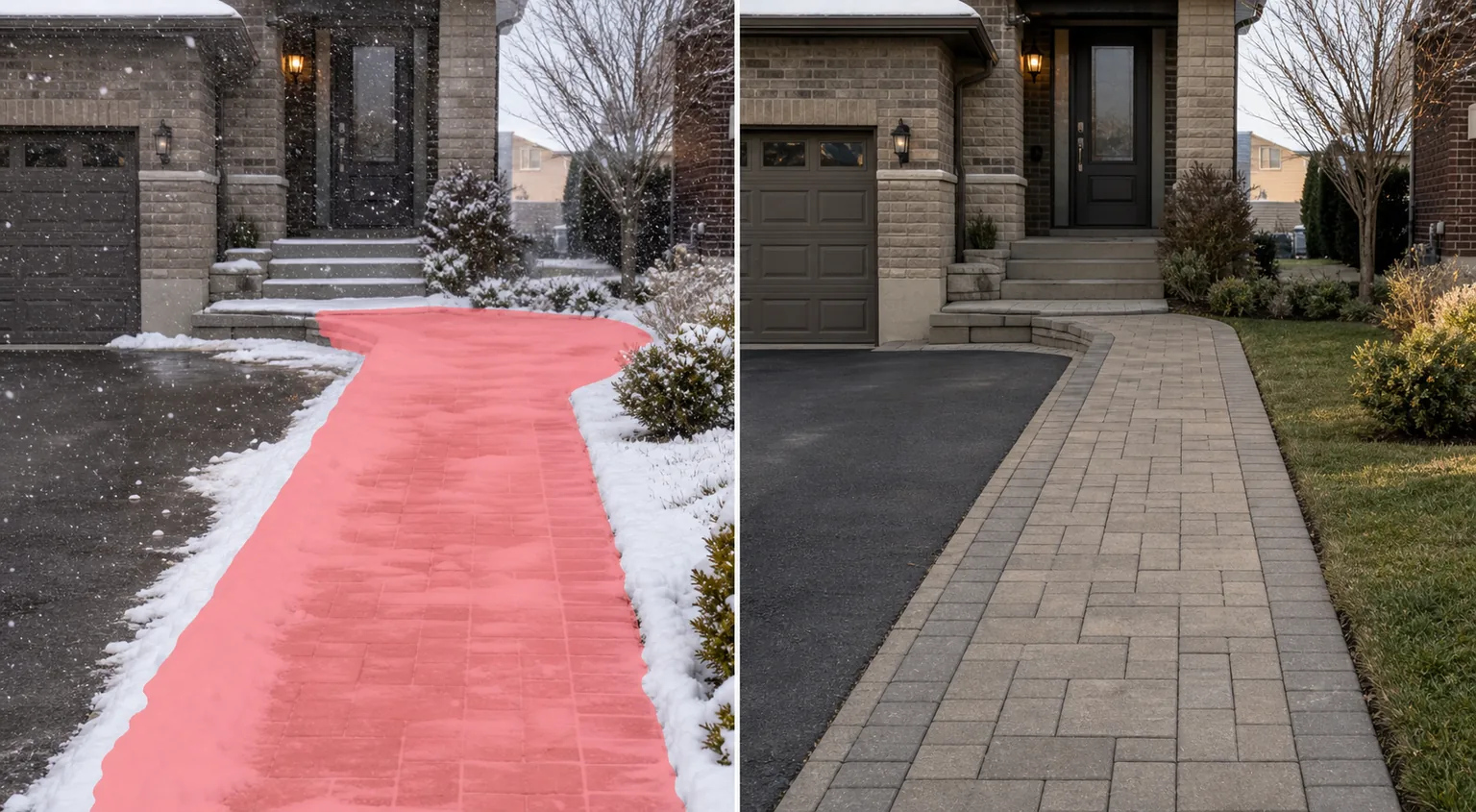
Two kinds of snow, two kinds of fix
Snow shows up in a photo in two very different ways, and they call for different expectations. Falling snow is a scatter of bright flakes and motion streaks floating between the camera and the subject — it sits on top of the scene, so erasing it is close to lifting specks of confetti off an image and letting the AI fill the small gaps with whatever was behind each flake. Ground snow is the harder case: a thick, opaque blanket that hides the driveway, lawn, steps, rooftop, parked car, or product surface entirely. When you remove ground snow, Magic Eraser is not uncovering a real surface that is still there in the pixels — that information was never captured. Instead it reconstructs a plausible, estimated surface beneath the white: it guesses at where the grass, pavement, or paint probably was based on the surrounding scene. That distinction matters for honest expectations. Wiping a few flakes off a portrait is reliable and clean; clearing a full snowdrift off a house listing produces an invented version of the ground, not a documented one. This is also what separates snow from rain and fog, the other weather effects: rain leaves thin diagonal streaks and wet sheen, fog washes the whole frame into low-contrast haze, while snow is bright, chunky, and — on the ground — fully concealing. Used with that in mind, Magic Eraser turns a snowed-in shot into a usable, season-neutral image on web, iOS, and Android, for free.
Remove snow in three steps
- 1
Upload the snowy photo
Open Magic Eraser on the web, iOS, or Android and upload the shot — a flurry over a portrait, a snow-covered listing exterior, or a product sitting in the white.
- 2
Brush the snow you want gone
Paint over the falling flakes and streaks, or sweep across the snow blanketing the ground or object. For falling snow a quick scrub catches the specks; for ground snow, cover the whole white area you want reconstructed.
- 3
Erase and review
Tap Erase and the AI removes the snow and rebuilds what sits behind or beneath it. Check edges and the ground where snow was deep — touch up any spots that look invented, then export the cleaned image.
Best for
- Clearing falling snow and flake streaks from outdoor portraits
- Removing snow from real-estate exteriors for season-neutral listings
- Cleaning snow off driveways, walkways, and front steps in property shots
- Wiping snow off parked cars and outdoor product photos
- De-wintering travel and landscape shots for a cleaner look
- Taking snow off rooftops and signage in architecture photos
- Tidying event and street photos shot during a flurry
- Prepping catalog images so an outdoor product reads year-round
What to expect from snow removal
Be realistic about which kind of snow you are erasing. Falling snow removal is the dependable case: the flakes are small and the real scene sits right behind them, so the AI only has to fill tiny gaps and the result stays faithful to the actual shot. Ground snow is generative, not restorative. When snow fully covers a lawn, driveway, or product, the surface underneath was never recorded by the camera, so Magic Eraser invents a likely version of it — the grass, gravel, or paint it paints in is an estimate, not the true surface, and fine detail like cracks, markings, or texture will be plausible rather than accurate. Results are cleanest when there is uncovered reference nearby: a patch of bare pavement, an exposed strip of lawn, or a visible edge gives the AI real material to extend, while a uniform deep snowfield with nothing showing produces the most guesswork. For property and listing photos, treat a de-snowed ground as a representative rendering rather than a factual record of the surface — and check local listing rules about edited images. As with all generative cleanup, large erased areas can show soft or repeated texture; zoom in on the reconstructed ground and touch up anything that looks off before you publish.
Frequently asked questions
- Can it remove falling snow from a photo?
- Yes, and this is where it works best. Falling flakes and streaks sit on top of the scene, so brushing them off lets the AI fill the small gaps with what was behind each flake. The result stays close to the real shot.
- What happens when I remove snow from the ground?
- The AI reconstructs an estimated surface beneath the snow. The camera never captured what was under a full snow blanket, so the grass or pavement it paints in is a plausible guess, not the true surface. It looks best when some bare ground nearby gives it a reference to extend.
- How is removing snow different from removing rain or fog?
- Snow is bright, chunky, and on the ground fully opaque, so deep snow has to be reconstructed. Rain shows as thin diagonal streaks and wet sheen, and fog is a low-contrast haze over the whole frame — both usually sit over a scene that is still partly visible underneath.
- Is snow removal free?
- Yes. Magic Eraser's free tier handles snow removal on web, iOS, and Android. Upload your photo, brush the snow, and export the cleaned image at no cost.