
Remove smoke from a photo
Wisps of cigarette smoke, a drifting vape cloud, or campfire haze can drift across the exact moment you wanted to keep. Magic Eraser erases the plume and reconstructs the faces, sky, or background it was floating over, so the scene reads clean instead of clouded.
Last updated
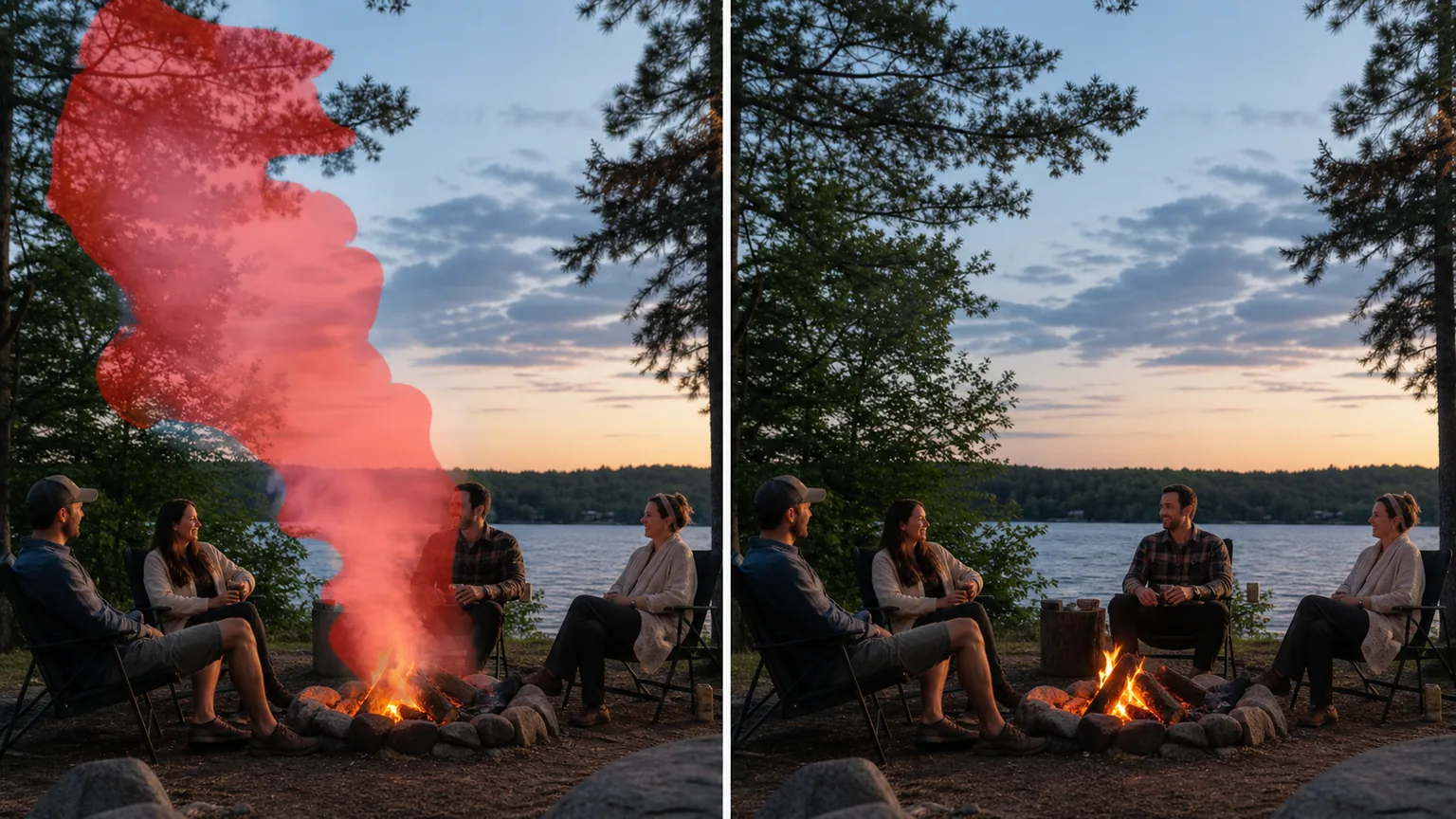
Why smoke ends up in your shot
Smoke is the awkward subject that won't hold still. A cigarette burns a thin grey ribbon across a portrait, a barbecue or campfire throws a hazy curtain between you and the people around it, and a vape cloud blooms out of nowhere a half-second before the shutter fires. Unlike a smudge on the lens or a fixed object in the frame, you can't reposition it or wait it out without losing the moment. Smoke is also physically different from the atmospheric problems people often confuse it with: fog is an even, scene-wide haze, and heat shimmer is a distortion of light, but smoke is a plume — a dense, uneven cloud that sits in one part of the frame and hides whatever is behind it. Magic Eraser is built for exactly that. You brush over the plume and the AI lifts it out, then rebuilds the texture underneath — skin, hair, sky, foliage, or wall — so the gap closes naturally. Thin, translucent smoke is the easy case: because you can still partly see through it, the tool has real detail to recover and the cleanup looks effortless. Dense smoke that completely buries a subject is the honest hard case, and we'll cover what to expect there below.
Remove smoke in three steps
- 1
Upload your photo
Open Magic Eraser on the web, iOS, or Android and upload the shot. It works on portraits with cigarette smoke, outdoor scenes with BBQ or campfire haze, and indoor smoky-room photos alike.
- 2
Brush over the plume
Paint across the smoke or vape cloud you want gone. Follow the shape of the plume, including the faint wisps at its edges — trailing tendrils are easy to miss and are usually what gives the cleanup away.
- 3
Erase and review
Tap Erase and the AI removes the smoke and reconstructs the scene behind it. Check the recovered area for a natural blend, re-brush any leftover haze, and export the cleared photo.
Best for
- Clearing cigarette smoke drifting across a portrait
- Removing BBQ and campfire haze from outdoor gatherings
- Erasing vape clouds that bloomed in front of the lens
- Cleaning up smoky-room and bar shots with hazy air
- Lifting a thin smoke ribbon off a clean sky or backdrop
- Recovering faces partly veiled by drifting smoke
- Tidying event and party photos shot near a fire pit or grill
- Clearing light smoke haze that flattened contrast across a scene
What to expect from smoke removal
How well smoke removal works depends almost entirely on how much the smoke is hiding. Thin, translucent plumes — a cigarette wisp, a fading vape cloud, light campfire haze — clear beautifully, because you can still partly see the scene through them and the AI is recovering detail that is genuinely present in the pixels. The denser the smoke, the more honest we have to be: when a plume completely obscures a face, a sign, or fine background detail, that information simply isn't in the photo anymore. The AI will fill the gap with a plausible, AI-estimated reconstruction — it produces something that looks convincing and matches the surrounding texture, but it is inventing what was hidden, not revealing it, so it won't perfectly match a specific face or unreadable text behind dense smoke. Smoke against a simple, uniform background (a plain sky, an evenly-lit wall) reconstructs cleanly because there's little detail to guess at. Smoke over busy, detailed areas — crowds, foliage, patterned backdrops — is harder and may need a few re-brushes. Don't forget the faint trailing wisps at a plume's edges; leaving them in is the most common reason a smoke edit still looks smoky. Treat this as scene cleanup: it clears the haze and rebuilds the view, but where smoke fully hid a subject, the result is the AI's best estimate rather than the original.
Frequently asked questions
- Can it remove dense smoke that completely hides someone?
- It can clear the smoke, but be realistic about what comes back. Where a dense plume fully hides a face or object, that detail isn't in the photo anymore, so the AI fills the area with a plausible, estimated reconstruction rather than the real subject. Thin, see-through smoke is where results look genuinely seamless.
- Is this different from removing fog or heat haze?
- Yes. Fog is an even, scene-wide haze and heat haze is a shimmer distortion — both spread across the whole frame. Smoke is a localized plume that sits in one area and obscures what's behind it, so you brush the cloud directly and the AI rebuilds just that region.
- Will the cleared area look natural?
- Usually yes for thin smoke over a simple background, where the AI extends the surrounding texture smoothly. Smoke over busy or detailed areas can need a few re-brushes, and remember to catch the faint wisps at the plume's edges — leftover tendrils are the main thing that makes an edit still look smoky.
- Is smoke removal free?
- Yes. Magic Eraser's free tier handles smoke, haze, and vape-cloud removal on web, iOS, and Android. Upload your photo, brush over the plume, and export the cleared result at no cost.