
How to add text to a photo
Inspirational quotes over landscapes, sale announcements on product shots, captions on memes, or watermark text on portfolio images — adding text to photos is one of the most common editing tasks. Magic Eraser's design tool provides professional typography controls, smart text placement, and an extensive font library to make any text look intentional, not pasted on.
Last updated
Add text now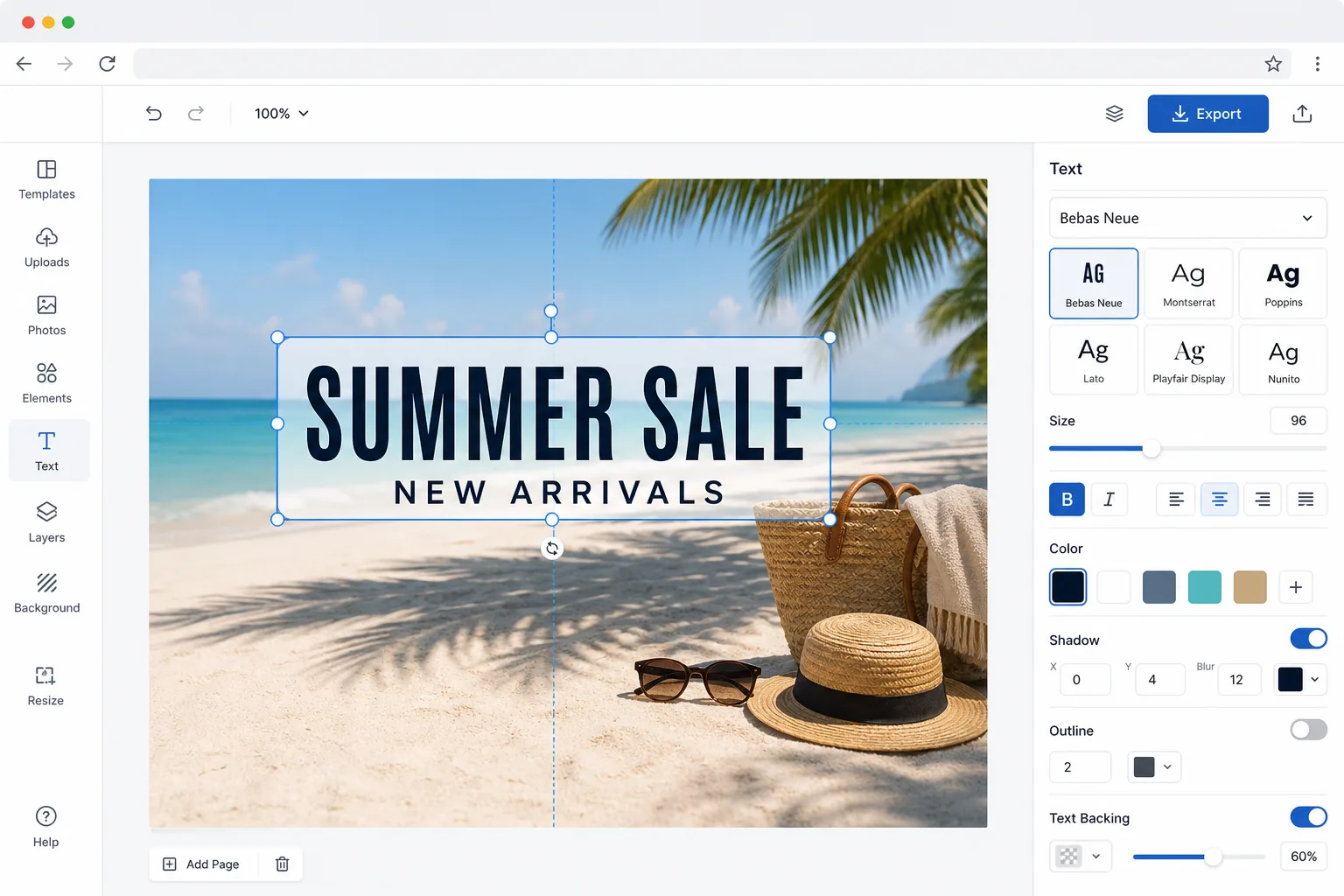
How to add text to a photo
To add text to a photo, open Magic Eraser on the web, iOS, or Android, select the design tool, upload your image, add a text layer, then type your caption and choose a font, size, color, and placement. It includes limited free edits after sign-in. Position the text in empty space rather than over the subject, and give it enough contrast — a dark photo wants light text, a busy one wants a subtle shadow or backing — so it stays readable. Add more layers for a heading-plus-subheading look, then export. The whole point is text that looks intentional, not pasted on. The difference between professional text-on-photo design and amateur overlays comes down to five factors: font choice, sizing, color contrast, placement, and effects. Beginners default to centered white text in a system font, which clashes with most photos. Professional designers select fonts that match the image's mood, size text for hierarchy, ensure readable contrast without obscuring the subject, position text in negative space, and add subtle effects (shadow, background blur, gradient overlay) that integrate the text with the scene. These decisions require design knowledge and time in complex tools. Magic Eraser's design tool provides smart defaults for each factor — suggesting text placement in natural negative space, auto-sizing for readability, and offering contrast-enhancing effects that make text look polished with minimal effort.
Before you start
Add text to a photo in three steps
Start with upload the photo. The result preview above and tips below use this guide's existing content; no separate before-and-after proof is assumed.
- 1
Upload the photo
Open Magic Eraser on web, iOS, or Android and select the Design tool. Upload the photo you want to add text to. The tool works with any image — landscapes for quotes, product shots for promotions, portraits for social posts, or blank backgrounds for graphic designs. All common formats are supported.
- 2
Add and style text
Tap the text tool and type your message. Choose from hundreds of fonts organized by style — serif for elegance, sans-serif for modern, script for personal, display for impact. Adjust size, color, alignment, line spacing, and letter spacing. Add effects like drop shadow, text outline, background highlight, or gradient fill. The tool suggests text colors that contrast well against the underlying image area.
- 3
Position and export
Drag the text to its ideal position. The AI highlights natural negative space in the photo where text will be readable without obscuring the subject. Snap guides help align text to edges and center points. Add multiple text layers for headlines and subheadings with different styles. Export as JPEG, PNG, or WebP at your chosen resolution.
Best for
- Social media content creators adding quotes, captions, and announcements to photos
- E-commerce sellers adding sale prices, product names, and promotional text to listing images
- Bloggers and writers creating featured images with article titles overlaid on photos
- Event organizers making invitations and announcements with text over event photography
- Photographers adding watermark text to portfolio images for online sharing
Tips for best results
Place text in areas of the photo with consistent tone — a clear sky, a blurred background, or a solid surface — rather than over complex, detailed areas where text competes with the image content. Limit your design to two fonts maximum: one for the headline and one for body text. Too many fonts look chaotic. For readability on busy backgrounds, add a semi-transparent dark overlay behind light text or a subtle text shadow. Size hierarchy matters: make the most important word or phrase the largest, with supporting text noticeably smaller. Left-aligned text generally looks more professional than centered text for longer messages. For social media, keep text within the center 80% of the image to avoid cropping in feed previews. Test readability by viewing the image at the size your audience will actually see it — text that looks fine at full screen may be illegible as a thumbnail.
Frequently asked questions
- What fonts are available?
- The design tool includes hundreds of fonts spanning every style category — serif, sans-serif, script, handwritten, display, monospace, and decorative. Popular fonts like Montserrat, Playfair Display, Roboto, and Lato are included alongside unique display fonts for headlines. You can filter by style, mood, or language support.
- Can I add curved or warped text?
- Yes. The text tool supports curved paths, circular text, wavy effects, and custom warp transforms. Type your text, select the warp style, and adjust the curve intensity. This works well for badge-style designs, logo-like compositions, and creative social media graphics.
- Is adding text to photos free?
- Yes. Magic Eraser's design tool includes full text and typography features in the free tier with daily usage limits. Add multiple text layers, customize fonts and effects, and export. Premium removes limits and unlocks the complete font library and additional text effects.
- How do I keep the text readable over a busy photo?
- Contrast is what makes text legible. Place it over the calmer part of the image — sky, a wall, blurred background — rather than across faces or fine detail. If the area is busy, add a subtle drop shadow, a semi-transparent color bar behind the text, or a slight background blur so the letters separate from the scene. Light text reads best on dark photos and dark text on light ones; keep the font weight medium-to-bold for small sizes, and don't let the text crowd the edges.
- Can I add text in other languages, emoji, or special characters?
- Yes. The text tool accepts any characters you can type, including accented Latin, Cyrillic, Greek, Arabic, Hebrew, and CJK (Chinese, Japanese, Korean) scripts, as well as emoji and symbols — as long as the font you pick supports them. If a character shows as a blank box, switch to a font with broader language coverage (many sans-serif fonts cover the widest range). For right-to-left languages like Arabic and Hebrew, type as usual and the text aligns in the correct direction.