
Extending Image Boundaries with AI
Expand your photos beyond their original edges using AI outpainting to generate seamless scene extensions.
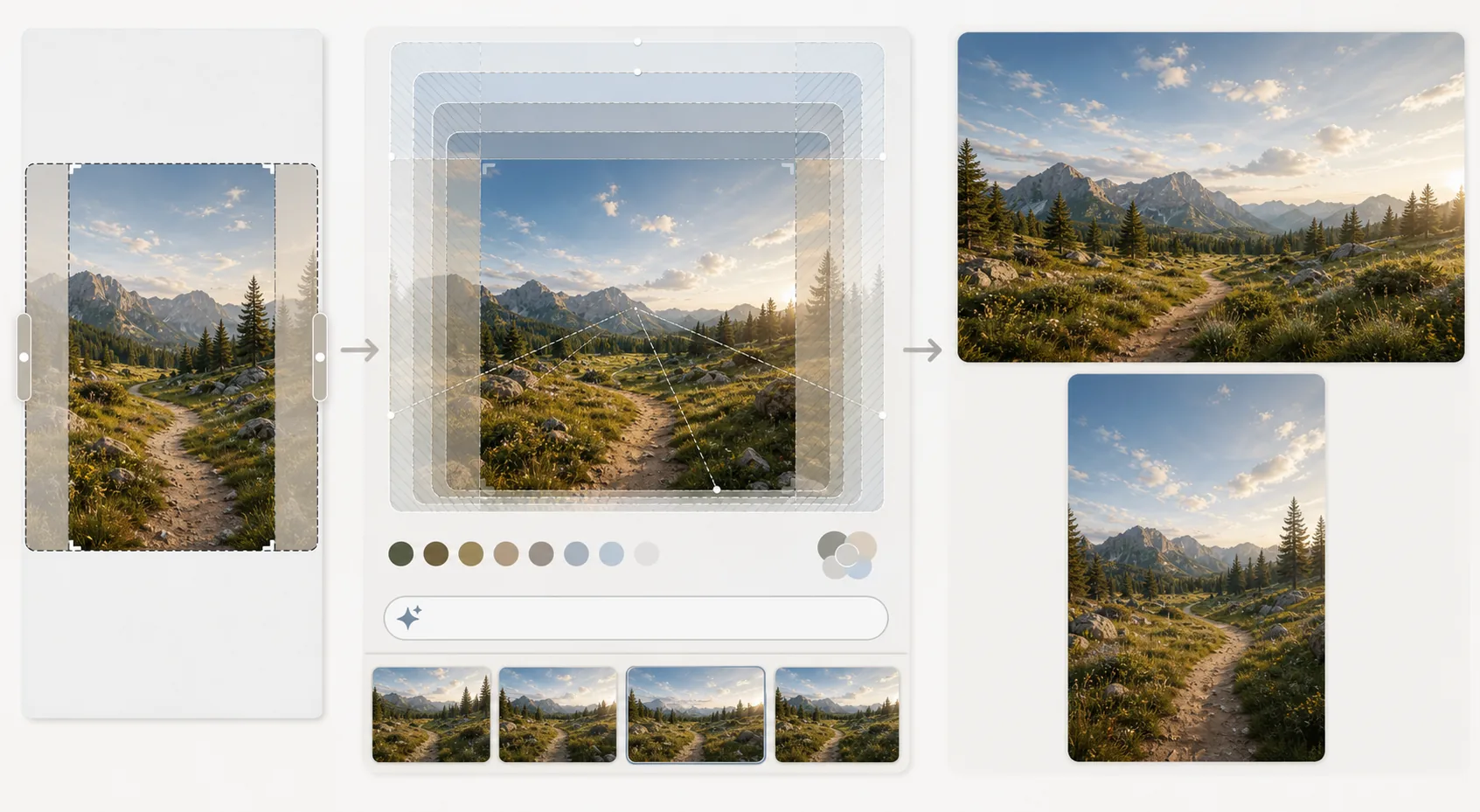
Lesson context before the long read
Review the result preview above, then scan the learning objectives below before reading the full lesson. Updated 2026-05-17.
Example visual uses an existing public asset: /content-images/generative-fill-extending-images-academy.webp.
Learning Objectives
- 1Use AI outpainting to extend an image in any direction while maintaining visual consistency
- 2Control the generated content by providing context cues and directional prompts
- 3Resolve common outpainting issues like perspective drift, repeated patterns, and tonal mismatch
When to extend rather than crop an image
Outpainting, also called image extension, generates new content beyond the original edges of your photo. This is invaluable when you need a wider crop for a banner, more headroom above a subject for a vertical social post, or additional background for a print layout that requires bleed. The AI analyzes the existing image edges and generates a seamless continuation of the scene including sky, ground, architecture, foliage, or whatever context it detects at the boundary.
Controlling the style of generated content
For best results, extend your image incrementally rather than trying to double the canvas in one step. Adding 20-30% to each side per generation pass gives the model more context to work with and produces more coherent results than a massive single extension. Use text prompts to guide the model when the edge context is ambiguous. If a landscape photo cuts off at a treeline, prompting with something like 'continuation of pine forest with mountain range in background' gives the model specific direction rather than letting it generate random terrain.
Blending extended areas seamlessly
Common issues with outpainting include perspective drift where generated architecture does not align with existing vanishing points, tonal mismatch where the generated area is slightly brighter or more saturated than the original, and pattern repetition where the model falls into a loop of duplicating the same texture. To fix perspective drift, look for architectural lines in the original image and check that they continue naturally into the generated area. For tonal mismatch, use a color adjustment layer blended across the seam. For repetitive patterns, regenerate the area with a different seed or a more specific prompt to break the cycle.
Key Takeaways
- ✓Extend images incrementally in 20-30% steps rather than massive single extensions for better coherence
- ✓Use specific text prompts to guide the model when edge context is ambiguous
- ✓Watch for perspective drift, tonal mismatch, and pattern repetition and address each with targeted fixes