
Remove Screen Glare From Photos
Erfahren Sie, wie Sie mit Magic Eraser Remove Screen Glare From Photos können. Einfache Schritt-für-Schritt-Anleitung mit kostenlosem KI-Tool. Funktioniert im Web, auf iOS und Android.
Last updated
Jetzt ausprobieren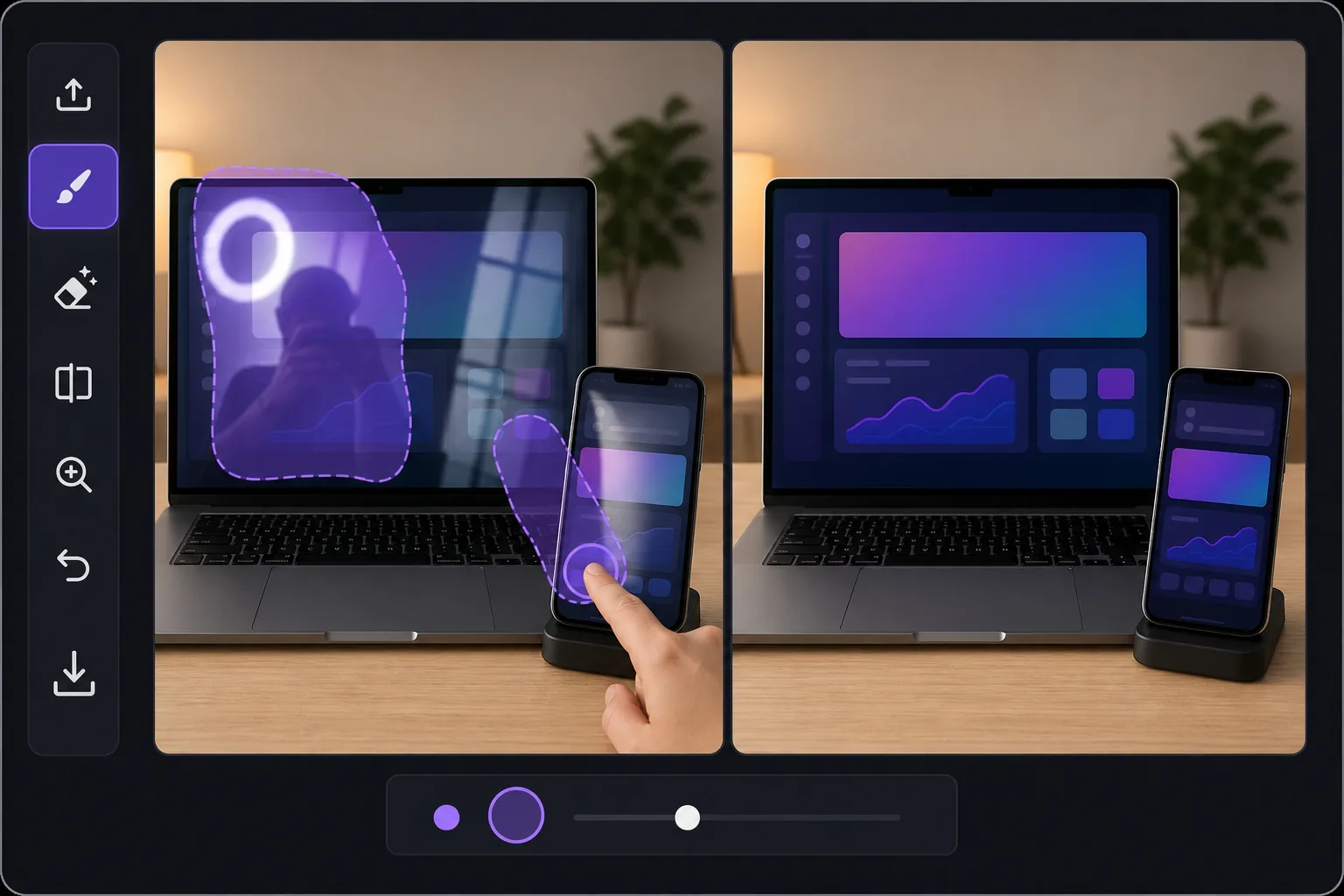
Why screen glare is harder than ordinary glare mit Magic Eraser
Glare on a glossy display is a special problem. Phones, laptops, tablets, monitors and TVs are mirrors when they are dark, and they blow out to pure white when light hits them at the wrong angle. In product shots and how-to tutorials, that hotspot or reflection sits directly over the UI, the app screen, or the thing you are trying to show — so a viewer can't read the interface or see the demo. Reshooting means re-staging the device, dimming lights, and chasing the reflection around the room. Magic Eraser skips all of that. Brush over the bright streak, the reflected window, or even your own silhouette caught in the screen, and the AI removes it. Because this is inpainting, it does not recover the literal pixels that were hidden under the glare — it synthesizes a plausible, glare-free continuation of the surrounding screen, bezel and on-screen content. For a uniform wallpaper, a solid app background, or a simple gradient that looks seamless. For dense, specific UI text buried under a full white-out, treat it as a believable clean-up rather than a perfect copy of what was there.
Before you start
Schritt-für-Schritt-Anleitung
Start with foto hochladen. The result preview above and tips below use this guide's existing content; no separate before-and-after proof is assumed.
- 1
Foto hochladen
Öffnen Sie Magic Eraser im Web, auf iOS oder Android. Ziehen Sie Ihr JPEG-, PNG-, HEIC- oder WebP-Foto per Drag & Drop hinein. Kein Konto erforderlich.
- 2
Tool und Bereich auswählen
Wählen Sie das passende Tool und markieren Sie den zu bearbeitenden Bereich. Die KI analysiert und wendet die Änderungen automatisch in Sekunden an.
- 3
Ergebnis herunterladen
Sehen Sie sich das Ergebnis in der Vorschau an und laden Sie das bearbeitete Foto herunter. Export als hochqualitatives PNG oder JPEG.
Am besten geeignet für
- Product photos of phones and tablets where a window or ring light hotspot covers the app on screen
- Laptop and monitor shots for how-to tutorials, with overhead-light glare washing out the interface
- TV and smart-display listings where reflections of the room hide what's playing
- Removing your own silhouette or camera caught reflected in a dark, glossy screen
- E-commerce and marketplace device listings that need a clean, glare-free display to look trustworthy
Tipps für beste Ergebnisse
Work in zoomed-in passes rather than one big stroke — small, accurate brushing over the glare protects the surrounding UI and bezel. If a reflection has soft edges, include the faint halo around the hotspot so no gray smear is left behind. For partially blown-out screens, erase the glare first, then judge what's left: if real content survives at the edges, the AI blends it convincingly; if the whole screen is white, expect a believable synthesized fill, not the exact original interface. When the screen shows simple, repeating content (a solid color, wallpaper or plain background), results look near-flawless. For critical UI text or a chart you must show accurately, the cleanest route is to erase glare on a re-shot, dimmer image — and let Magic Eraser handle the residual shine.
Häufig gestellte Fragen
- Ist die Funktion Remove Screen Glare From Photos kostenlos?
- Ja, Magic Eraser ermöglicht es Ihnen, kostenlos Remove Screen Glare From Photos mit täglichen Limits durchzuführen. Upgraden Sie auf Pro für unbegrenzte Bearbeitung und hochauflösende Exporte.
- Wie lange dauert es, Remove Screen Glare From Photos durchzuführen?
- Nur wenige Sekunden. Die KI von Magic Eraser verarbeitet Fotos schnell — die meisten Ergebnisse sind sofort nach dem Hochladen verfügbar.
- Kann ich es auf dem Handy verwenden?
- Ja, Magic Eraser funktioniert auf iOS, Android und allen Webbrowsern. Sie können nahtlos zwischen Geräten wechseln.
- Wird die Bildqualität beeinträchtigt?
- Nein, Magic Eraser bewahrt die ursprüngliche Fotoqualität. Die KI verarbeitet intelligent, um Details und Schärfe zu erhalten.